# Query Builder in JSON and XML Providers
ActiveReports provides query builders for some providers that assist in generating complex queries. This article demonstrates using the query builders for designing queries for JSON and XML providers.
## Content
ActiveReports provides query builders for some providers that assist in generating complex queries conveniently. This article demonstrates using the query builders for designing queries for JSON and XML providers.
## Designing queries in JSON Query Designer
Follow the below steps to build a query using the JSON Query Designer. Our report already connects to the 'customers.json' data source available on [GitHub](https://github.com/activereports/Samples19/tree/main/Data/).
1. In the **Report Explorer**, right-click an existing data source and select the **Add Data Set** option.
2. In the **DataSet** dialog box that appears, select the **General** page and enter the name of the dataset. By default, the dataset name is set to DataSet1.
3. Navigate to the **Query** page and click the **Edit with JSON Query Designer** icon  to open the **JSON Query Builder**.
4. Select a node from the data tree to generate the JSON path. The resulting JSON path is displayed at the bottom of the query builder.
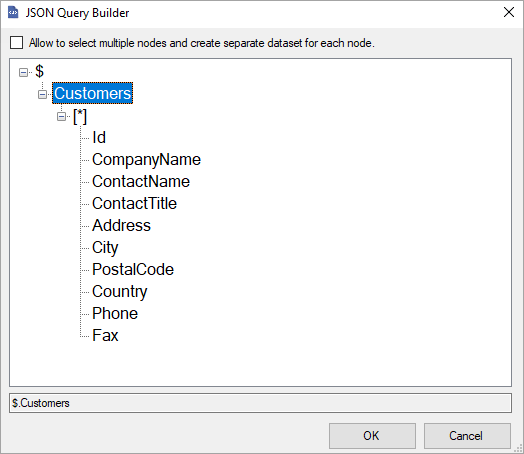
5. If you want to select multiple nodes and create separate datasets for each node, check the **Allow to select multiple nodes and create separate dataset for each node** option.
6. Click the **OK** button to save the query.
7. Verify the query by clicking the **Validate DataSet**  icon. You can go to the **Fields** page to view the dataset fields fetched from the generated query.
8. Click the **OK** button to close the **DataSet** dialog box and complete adding a dataset.
## Designing queries in XML Query Designer
Follow the below steps to build a query using the XML Query Designer. Our report already connects to the 'factbook.xml' data source available on [GitHub](https://github.com/activereports/Samples19/tree/main/Data/).
1. In the **Report Explorer**, right-click an existing data source and select the **Add Data Set** option.
2. In the **DataSet** dialog box that appears, select the **General** page and enter the name of the dataset. By default, the dataset name is set to DataSet1. This name appears as a child node to the Data Source node in the Report Explorer.
3. Navigate to the **Query** tab and click the **Edit with XML Query Designer** icon  to open the **XML DataSet Query Builder**.
4. Select a node from the data tree to generate the XML path. The resulting XML path is displayed at the bottom of the query builder.
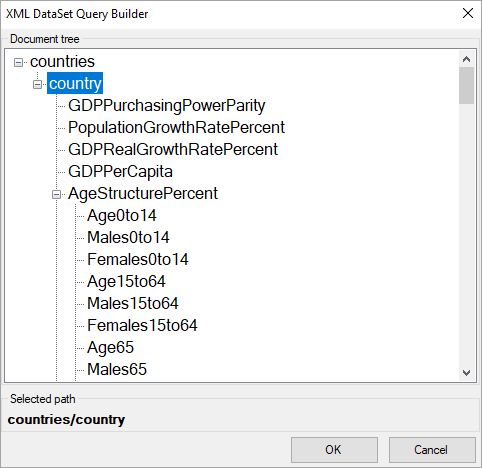
5. Click the **OK** button to save the changes.
6. Verify the query by clicking the **Validate DataSet**  icon in the **DataSet** dialog box. You can go to the **Fields** page to view the dataset fields fetched from the generated query.
7. Click the **OK** button to close the **DataSet** dialog box and complete adding a dataset.
## See Also
[XML](/activereportsnet/docs/v19.2/report-authors/data-binding/data-binding-page-rdl-reports/connect-to-a-data-source/xml)
[JSON](/activereportsnet/docs/v19.2/report-authors/data-binding/data-binding-page-rdl-reports/connect-to-a-data-source/json)