# Dynamic JSON Connection String
This topic explains how to create a tabular report where data in the table is fetched from a dynamically built JSON data source.
## Content
You can enter a connection string for the JSON data as an expression and pass values using parameters to set up the data sources dynamically.
Let us create a tabular report where data in the table is fetched from a dynamically built JSON data source.
### Create a Report
In the ActiveReports Designer, create a new RDLX report.
### Add First Data Source
> **Connect to a Data Source**
1. As you create a new report, the **Report Data Source** dialog appears for you to configure the report data connection. You can also access this dialog by right-clicking the Data Sources node in the Report Explorer and then selecting the **Add Data Source** option.
2. In the dialog, select the **General** page and enter the name of the data source, 'Categories'.
3. Under **Type**, select 'Json Provider'.
4. In the **Content** tab, set the type of Json data to 'External file or URL'.
5. In the **Select or type the file name or URL** field, enter the following URL: [https://demodata.mescius.io/northwind/api/v1/Categories](https://demodata.mescius.io/northwind/api/v1/Categories)
The **Connection String** tab displays the generated connection string as shown below:
```plaintext
jsondoc=https://demodata.mescius.io/northwind/api/v1/Categories
```
For more information, see the [JSON Provider](/activereportsnet/docs/v19.2/report-authors/data-binding/data-binding-page-rdl-reports/connect-to-a-data-source/json) topic.
6. Verify the generated connection string by clicking the **Validate DataSource**  icon.
7. Click **OK** to save the changes and close the **Report Data Source** dialog.
> **Add Dataset**
1. Right-click the added data source and select **Add Dataset**.
2. In the Dataset dialog, select the **General** page and enter the name of the dataset, 'dsCategories'.
3. Go to the **Query** tab and enter the following query to fetch the required fields:
```sql
$.[*]
```
### Add a Parameter
1. In the Report Explorer, right-click the Parameters node and select the **Add Parameters** option.
2. In the **Report - Parameters** dialog box that appears, set the following:
| General tab | |
| --- | --- |
| **Property** | **Value** |
| Name | paramCategories |
| Data Type | String |
| Text for prompting users for value | Select a Category |
| Available Values tab (>From query) | |
| **Property** | **Value** |
| Dataset | dsCategories |
| Value field | categoryId |
| Label field | categoryName |
| Order By: Condition | Label |
| Order By: Direction | Ascending |
3. Click OK.
### Add Dynamically Built Data
> **Connect to a Data Source**
1. Right-click the Data Sources node in the Report Explorer and then select the **Add Data Source** option.
2. In the dialog, select the **General** page and enter the name of the data source, 'Products'.
3. Under **Type**, select 'Json Provider'.
Let us first fetch the fields from data source using an external URL without expression, to fill the dataset fields collection. We will then replace the URL with an expression to create dynamic JSON connection string.
4. In the **Content** tab, set the type of JSON data to 'External file or URL'.
5. In the **Select or type the file name or URL** field, enter the following URL: [https://demodata.mescius.io/northwind/api/v1/Categories/1/Products](https://demodata.mescius.io/northwind/api/v1/Categories/1/Products)
6. Click OK to close the dialog.
**Add Dataset**
1. Right-click the added data source and select **Add Dataset**.
2. In the Dataset dialog, select the **General** page and enter the name of the dataset, 'dsProducts'.
3. Go to the **Query** tab and enter the following query to fetch the required fields:
```sql
$.[*]
```
4. Click OK.
**Update Data Source Connection**
1. Edit the 'Products' data source.
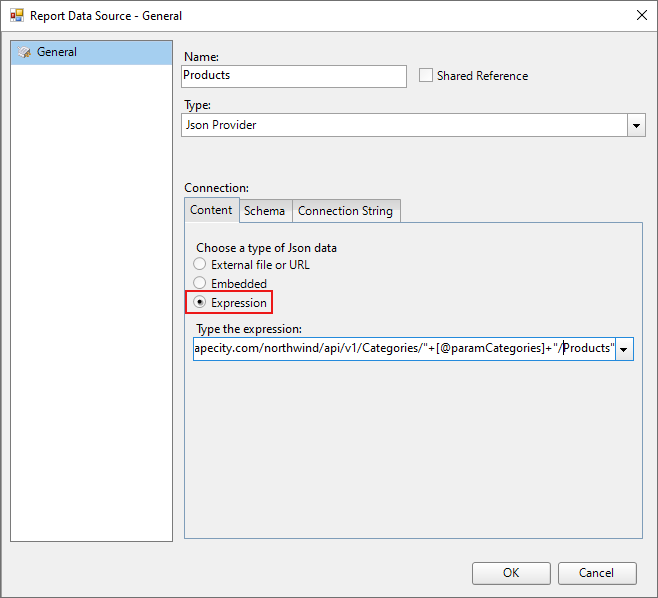
2. Go to the **Content** tab, select **Expression**, and enter the expression in the editor like the following:
```plaintext
="jsondoc=https://demodata.mescius.io/northwind/api/v1/Categories/"+[@paramCategories]+"/Products"
```
3. Click OK.
### Design Report Layout
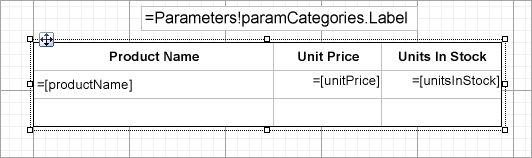
1. Drag and drop the **Table** data region onto the report's designer and set the **DataSetName** property to 'dsProducts'.
2. Fill the details row of the table with the following fields:
* =Fields!productName.Value
* =Fields!unitPrice.Value
* =Fields!UnitsInStock.Value
3. To display the selected parameter, drag and drop a **TextBox** control above the table and enter the **Value** as =Parameters!paramCategories.Label.
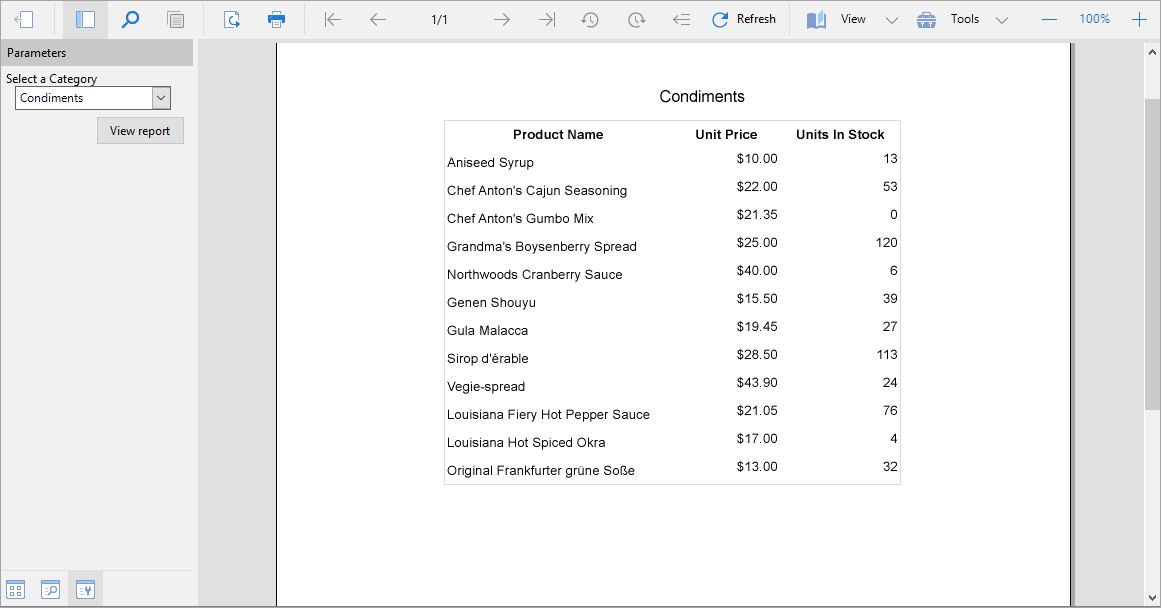
4. Press **F5** to preview the report.
5. Select a parameter from the drop-down and click **View report**.
## See Also
[JSON](/activereportsnet/docs/v19.2/report-authors/data-binding/data-binding-page-rdl-reports/connect-to-a-data-source/json)