# MS SSRS RDLX
Learn how ActiveReports simplifies the import of MS SSRS RDLX reports with its intuitive Import Wizard, ensuring seamless report conversion.
## Content
## Importing SSRS Reports in the ActiveReports Import Wizard
1. Run the ActiveReports Import Wizard. The wizard can be run from the start menu or by executing ActiveReports.Imports.Win.exe from **C:\\Program Files (x86)\\MESCIUS\\ActiveReports 19\\Tools** location.
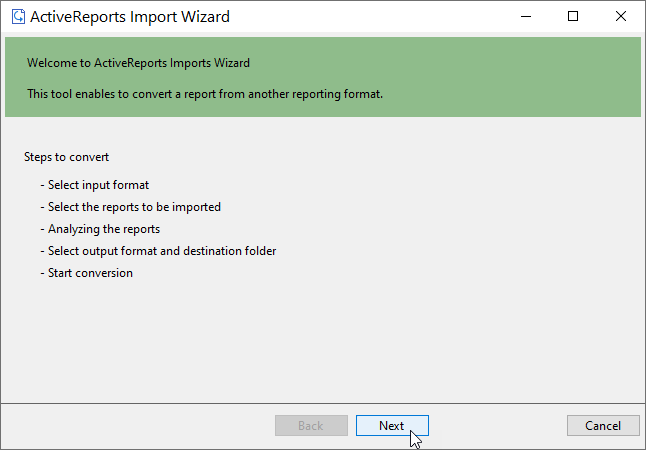
2. In the ActiveReports Import Wizard that appears, click **Next**.
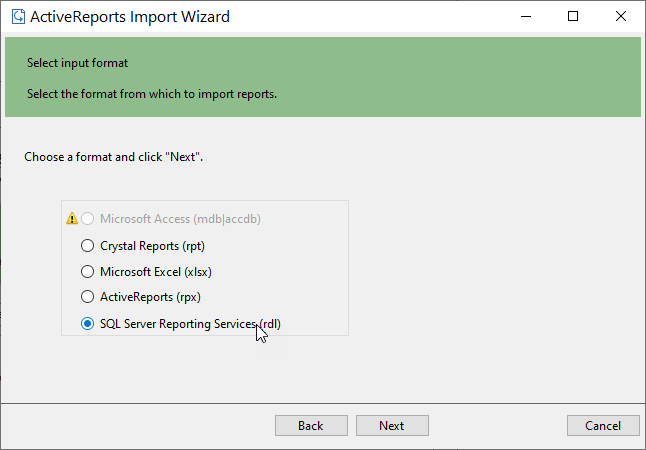
3. Choose **SQL Server Reporting Services (rdl)** as the input format and click **Next**.
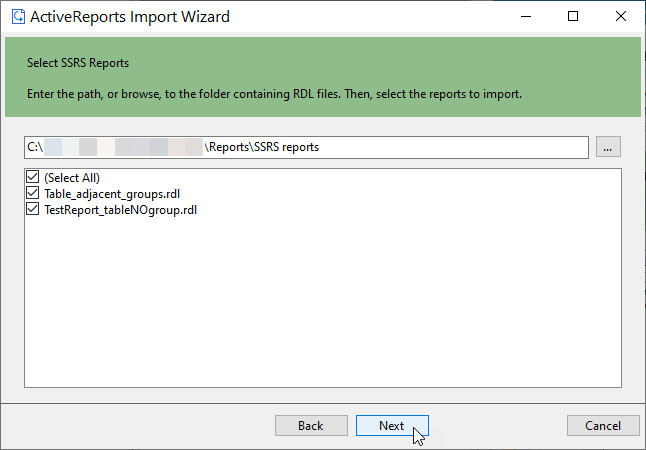
4. Click the ellipsis button to browse to the location that contains the files that you want to import. A list of files that you can import appears.
5. Select the reports to import, click **Open,** and then click **Next** to analyze them.
6. Use the ellipsis button to select a destination folder to store the converted reports.
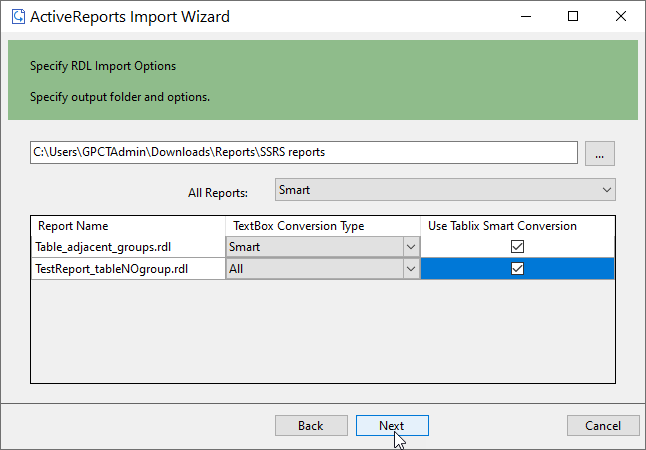
Select a **TextBox Conversion Type** for all reports in the drop-down list. The available options are as follows.
* **All** - All textbox controls are converted to FormattedText.
* **None** - All textbox controls are converted to TextBox, paragraph settings are lost.
* **Smart** (default) - Textbox controls with more than one paragraph or TextRun is converted to FormattedText.
Select the **Use Tablix Smart Conversion** option to convert an SSRS 'Tablix' to an ActiveReports 'Table' or 'List' data region, if possible. Check the Tablix Conversion limitation below.
7. Click **Next** to start the conversion.
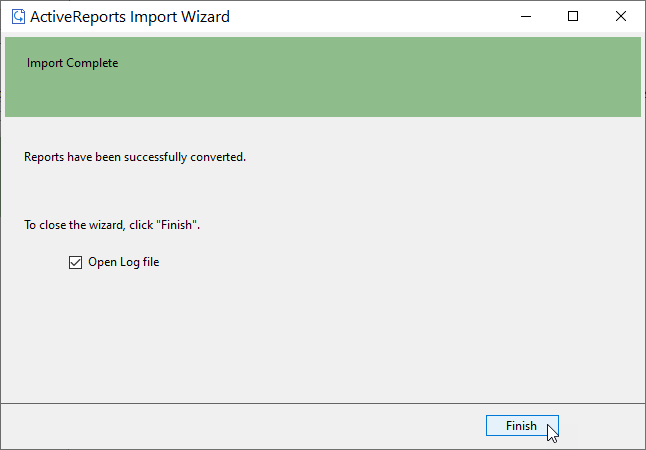
8. Once the conversion process is complete, click **Finish** to close the wizard and go the destination folder to view the converted reports. You may optionally leave the check on for the **Open Log file** checkbox to see the results log.
## Limitations
### Tablix Conversion
The ActiveReports model is different from latest SSRS model. ActiveReports does not fully support latest RDLX specification. So, even when you check the **Use Tablix Smart Conversion**, some properties may be ignored for the closest conversion.
### Chart Conversion
The ActiveReports chart model and its implementation is different from the latest RDLX specification, so you may need to manually adjust the conversion to achieve a similar behavior.
These charts are not supported and ignored at conversion to ActiveReports.
1. 1. Sunburst
2. Treemap
3. ErrorBar
4. Range Column
5. Range Smooth
6. Range Plain
7. Gauges
#### Multi-Section Reports Conversion
SSRS reports with multiple sections are converted to RDLX Report.