# Compare ActiveReports Editions
The page helps you choose the ActiveReports Edition most suitable for you.
## Content
This page assists you in selecting the edition that satisfies your needs. The Professional features are exclusively marked; otherwise, features are available for both Standard and Professional Editions.
| @cols=2:Visual Studio Controls |
| ---------------------- | ---------------------- |
| @rows=2:**Web Forms** | **WebViewer**: Use this control to display your reports on the Web. Includes viewer types HTML and PDF. |
| **ProHTTP Handlers**: Enable reports to be easily deployed in both HTML and PDF. |
| @rows=6:**Windows Forms** | **Viewer**: Use this control to offer your users report zoom and preview, multiple tabs for hyperlinks, split-page and multi-page views, a Table of Contents pane, a Thumbnails pane, text searches, and annotations. |
| **ProDesigner**: Use this control to create a royalty-free, custom designer that your end users can use to create and modify their own reports. |
| **ReportExplorer**: Use this control along with the Designer control to provide functionality to your users. |
| **ToolBox**: Use this control along with the Designer control to provide report controls for your users. |
| **LayerList**: Use this control along with the Designer control to provide Layers functionality to your users. |
| **ReportsLibrary**: Use this control to view, add, or hide report parts. |
| **WPF** | **WPF Viewer**: Use this control to display your section, page and RDLX reports. The WPF Viewer offers the Thumbnails pane, the Parameters pane, the Document map pane, and the Search results pane. |
| @rows=9:**Web/ Windows Forms** | **HtmlExport**: Export reports to HTML, DHTML, or MHT formats that open in a Web browser. |
| **PdfExport**: Export reports to PDF, a portable document format that opens in the Adobe Reader. |
| **RtfExport**: Export reports to RTF, RichText format that opens in Microsoft Word, and is native to WordPad. |
| **WordExport (.doc)**: Export reports to DOC (Word HTML), a format that opens in Microsoft Word. |
| **ProWordExport (.docx)**: Export reports to DOCX (LibreOffice), a format that opens in any word processing software. |
| **TextExport**: Export reports to TXT, plain text, a format that opens in Notepad or any text editor.
This export filter can also export reports to CSV, comma separated values, a format that you can open in Microsoft Excel. |
| **ImageExport**: Export reports to BMP, GIF, JPEG, TIFF, or PNG image format.
Note that you can only export section reports to the TIFF image type. All other image types are for page reports and RDLX reports. |
| **XlsExport**: Export reports to formats that open in Microsoft Excel, XLS or XLSX. |
| **XmlExport**: Export reports to XML, a format that opens in a Web browser or delivers data to other applications. |
| @rows=3:**Components** | **ProWebDesigner**: Create or modify reports by embedding WebDesigner into your web applications. |
| **ProJSViewer**: View reports in all modern browsers using JSViewer. |
| **ProBlazor Viewer**: View reports in all modern browsers using Blazor Viewer. |
| @rows=12:**Advanced Features in PDF Export** | **ProDigital Signature**: Electronic signature to validate authenticity. See [Digital Signature Pro](https://github.com/activereports/Samples19/tree/main/API/PageAndRDLX/DigitalSignaturePro) topic for more information. |
| **ProTime Stamp**: Encapsulates the information necessary to include timestamps from a Time Stamping Authority (TSA) in digital signatures on PDF documents.
This feature cannot be used if a report is exported into a password-protected PDF document. |
| **ProPAdES in Digital Signature**: Use the [SignatureFormat](/activereportsnet/api/v19.2/MESCIUS.ActiveReports.Export.Pdf/GrapeCity.ActiveReports.Export.Pdf.Section.Signing.PdfSignature.SignatureFormat.html) setting, allowing to use PAdES (PDF Advanced Electronic Signatures). |
| **ProEUDC**: Use end user-defined characters (EUDC). |
| **Pro** Japanese embedded fonts or non-embedded fonts.
Note that Japanese fonts can only be output as embedded fonts. |
| **Pro** Bold |
| Italic |
| Multi Language
Note that PDF Export does not handle output of multiple language fonts in a single control. |
| **Pro** PDF/A and PDF/UA Support |
| **Pro** IVS Character Support |
| **Pro** Character Support |
| **ProPrint Presets**: Preset print options when exporting a report to a PDF format. |
| @cols=2:**Integrated Report Designer** |
| **Design Format** | Section reports support banded layouts.
Page reports support fixed page layouts.
RDLX reports support continuous page layout. |
| **Script & Code** | In section reports, you can add C# or VB code to events behind your code-based reports or add script to events in the script editor in XML-based reports.
In page reports/RDLX reports, you can use regular expressions in any property, plus you can add VB.NET methods to the code tab and call them in your expressions.
See [Design Code-based Section Reports in .NET Core](/activereportsnet/docs/v19.2/developers/working-with-reports-devs/section-report-developers/code-based-section-reports/designing-code-based-section-reports-in-net-core) for more information. |
| **Report File Formats** | You can save and load page reports/RDLX reports in RDLX (extended RDLX) format.
You can save and load section reports in RPX (report XML) format, and you can compile section reports in CS or VB code formats. |
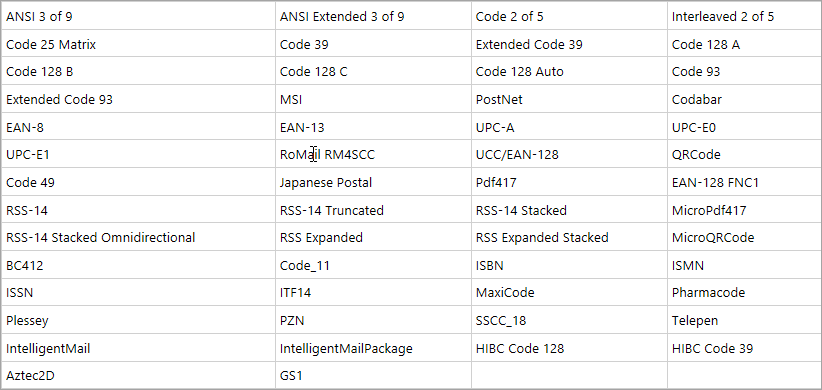
| @rows=6:**Report Controls** | The **BarCode** control supports all of the following styles:
 |
| **Pro** The **InputField** control provides support for editable fields in an exported PDF report where the InputField’s value can be modified. |
| **Pro** The **Map** control allows you to display data against a geographical background on the report. |
| **Pro** The **TableofContents** control allows you to display a document map in an organized hierarchy of the report heading levels and labels along with their page numbers, in the body of a report. |
| The **Chart** control supports all of the following styles:- **Common Charts**: Area, Bar2D, Bezier, Doughnut/Pie, Line, Scatter, StackedArea, StackedBar, StackedArea100Pct, and StackedBAR110Pct
- **3D Charts**: Area3D, Bar3D, ClusteredBar, Line3D, Doughnut3D/Pie, StackedBar3D, and StackedBar3D100Pct
- **XY Charts**: Bubble, BubbleXY, LineXY, and PlotXY
- **Financial Charts**: Candle, HiLo, and HiLoOpenClose
- **Composite Charts**: For following chart types:
- Column: Plain, Stacked, Percent Stacked
- Area: Plain, Stacked, Percent Stacked
- Line: Plain, Smooth
|
| Other report controls include:
 |
| **Styles & Report Settings** | You can control page settings, printer settings, global settings such as grid display, grid size, and whether to show a verification dialog when deleting controls. You can specify row count or column count in grids, ruler units, and how many pages to display in previews. |
| **External Style Sheets** | You can reuse report designer styles by saving and loading style information in external files. |
| **Others** | The designer also offers snaplines, report preview, designer zoom, various formatting settings, control and text alignment settings, Z order settings, unbound fields, and parameters support. |
| @cols=2:**Input and Output** |
| **Data** | Supported data includes: JSON, CSV, XML, Microsoft OLEDB, Microsoft ODBC, Microsoft SQL Client, Dataset, and Object providers, and custom data like Sqlite. |
| **Print** | You can control the page size, orientation, and margins, as well as specifying bound (double page spread), collating, duplex printing, and paper feed trays. |
| **Import** | You can import Crystal Reports, MS Access Reports, SSRS Reports, Excel files, and RPX files using the ActiveReports Import Wizard. |
If you have purchased a Standard Edition license, Professional Edition features are disabled or marked with an evaluation banner.