# Inherit a Report Template
Learn to create a base report as a template from which other reports can inherit in section layout using ActiveReports.
## Content
In a section layout, you can create a base report as a template from which other reports can inherit. This behavior is similar to creating a master report and is available in a Section Report (code-based) layout.
Inheriting reports is useful when multiple reports share common features, such as identical page headers and footers. Instead of recreating the look every time, create template headers and footers once and use inheritance to apply them to other reports.
Use the following instructions to create a base report and inherit it in other reports.
> type=warning
> **Caution**: Base reports and the reports that inherit from them cannot contain controls with duplicate names. You can compile and run your project with duplicate control names, but you cannot save the layout until you change the duplicate names.
## Create a base report
1. From the Visual Studio **File** menu, select **New**, then **Project**.
2. In the **Create New Project** dialog that appears, select Windows Forms App (.NET Framework) and click **Next**.
3. In the **Configure your new project** dialog, type a name for your project, set **Framework** to .NET Framework 4.7 and click **Create.**
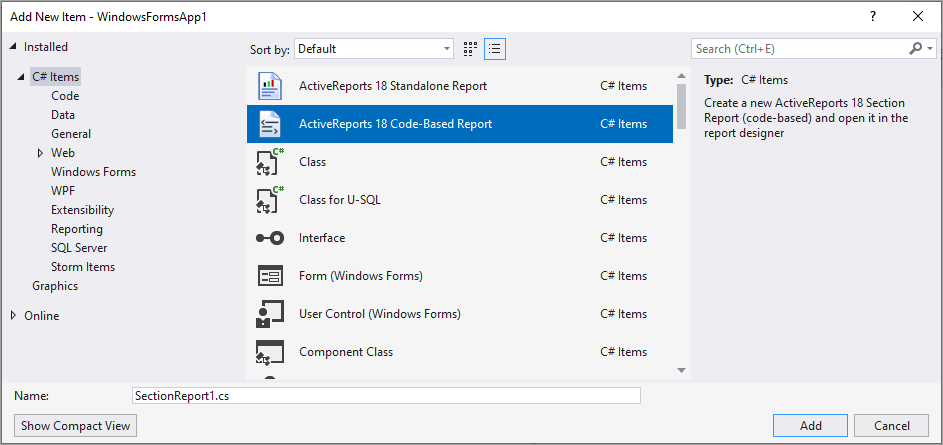
4. Add a code-based Section Report by selecting **ActiveReports 19 Code-Based Report** in **Project** > **Add New Item** and naming it **rptLetterhead.
**
5. In the report template that appears, add the following controls from the Visual Studio toolbox to the indicated section of rptLetterhead and set the properties.
| Control | Section | Location | Size | Miscellaneous |
| --- | --- | --- | --- | --- |
| Picture | PageHeader | 0, 0 in | 3, 0.65 in | Image = (click ellipsis and navigate to the location of your image file)
PictureAlignment = TopLeft |
| Label | PageHeader | 1.16, 0.65 in | 1.8, 0.25 in | Text = Inheritance
Font = Arial, 15pt, style=Bold |
| Label | PageFooter | 0, 0 in | 6.5, 0.19 in | Text = https://developer.mescius.com/activereportsnet
HyperLink = [https://developer.mescius.com/activereportsnet](https://developer.mescius.com/activereportsnet)
Font/Bold = True
Alignment = Center |
6. Right-click the gray area below the design surface and choose properties, to open the Properties window.
7. In the Properties window, set the **MasterReport** property to **True**. Setting the MasterReport property to True locks the Detail section.
> type=warning
> **Caution**: Do not set the **MasterReport** property to **True** until you have finished designing or making changes to the report. Setting this property to True triggers major changes in the designer file of the report.
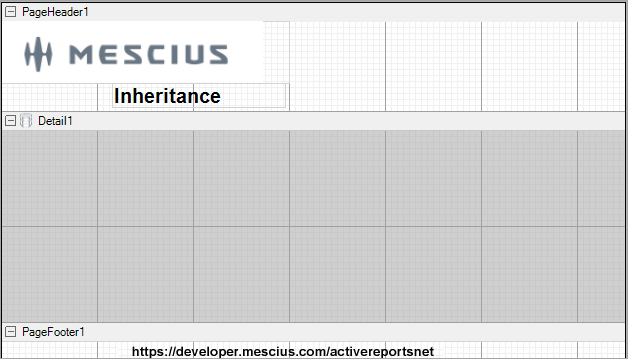
You can use the Page Header and Page Footer sections to design the base report. When you create reports that inherit the layout from this base report, only the detail section is available for editing.
## Inherit layout from a base report
These steps assume that you have already added another Section Report (code-based) template. This report functions like a content report where you can create the layout of the Detail section.
1. In a Visual Studio project, add a Section Report by selecting **ActiveReports 19 Code-Based Report** in **Project** > **Add New Item** and naming it **rptLetter**.
2. In the Solution Explorer, right-click the new report and select the **View Code** option to open the code behind of the report.
3. In the code view, modify the inheritance statement as shown below. The content report inherits from the base report instead of **GrapeCity.ActiveReports.SectionReport**.
> type=warning
> **Caution**: The existing report layout in the content report is lost once you inherit the base report. Even if you change it back to GrapeCity.ActiveReports.SectionReport, the original layout in content report will not be retrieved.
To write the code in Visual Basic.NET
```vbnet
Partial Public Class rptLetter Inherits YourProjectName.rptLetterhead
```
To write the code in C#
```csharp
public partial class rptLetter : YourProjectName.rptLetterhead
```
4. Close the reports and from the Build menu on the Visual Studio menu bar, select **Rebuild**. When you reopen the report, the inherited sections and controls are disabled.
> type=note
> **Note**: To apply further changes from the base report to the content report, you might have to rebuild the project again.