# Js Viewer ASP.NET Core Middleware
This topic explains how to configure ActiveReports JSViewer in the ASP.NET Core middleware.
## Content
ASP.NET Core middleware is software to handle HTTP requests and responses. Each middleware component serves a specific purpose, one authenticates a user, and the other handles static files like Javascript or CSS files. These middleware components together set up a request processing pipeline.
The default code developed by the **ASP.NET Core Web App** template sets up the request processing pipeline for the application using a set of middlewares - **UseDeveloperExceptionPage()** and **UseStaticFiles()** of the [IApplicationBuilder](https://learn.microsoft.com/en-us/dotnet/api/microsoft.aspnetcore.builder.iapplicationbuilder?view=aspnetcore-5.0) interface. The middlewares are executed in the order in which they are added to the pipeline.
To provide access to a report output from the browser, you need to configure ActiveReports JSViewer in ASP.NET Core middleware. It is done by adding the **UseReportViewer()** middleware, which configures middleware for ActiveReports API and handlers.
1. **Create an ASP.NET Core Project**
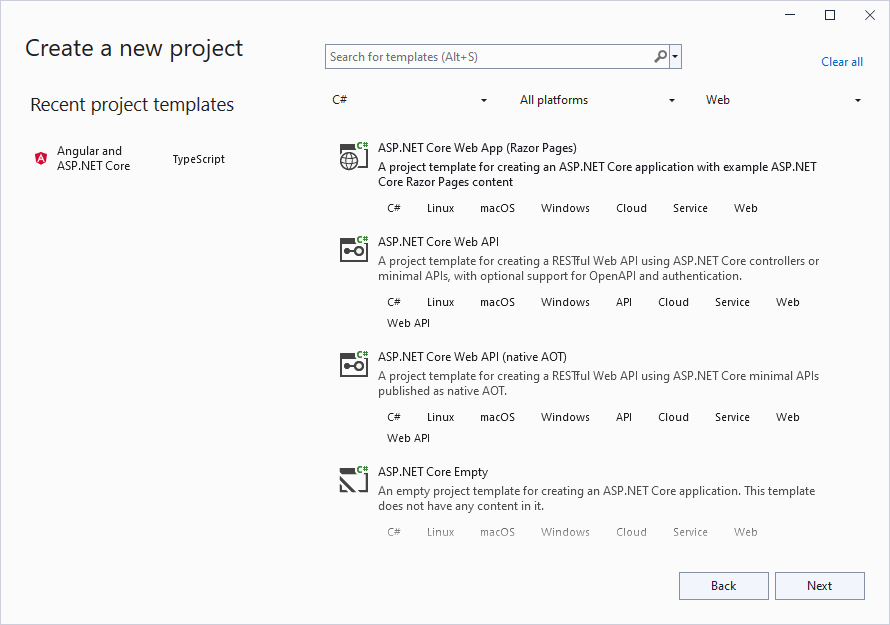
2. Open **Microsoft Visual Studio 2022** and create a new **ASP.NET Core Web App** project which includes example Razor Pages.
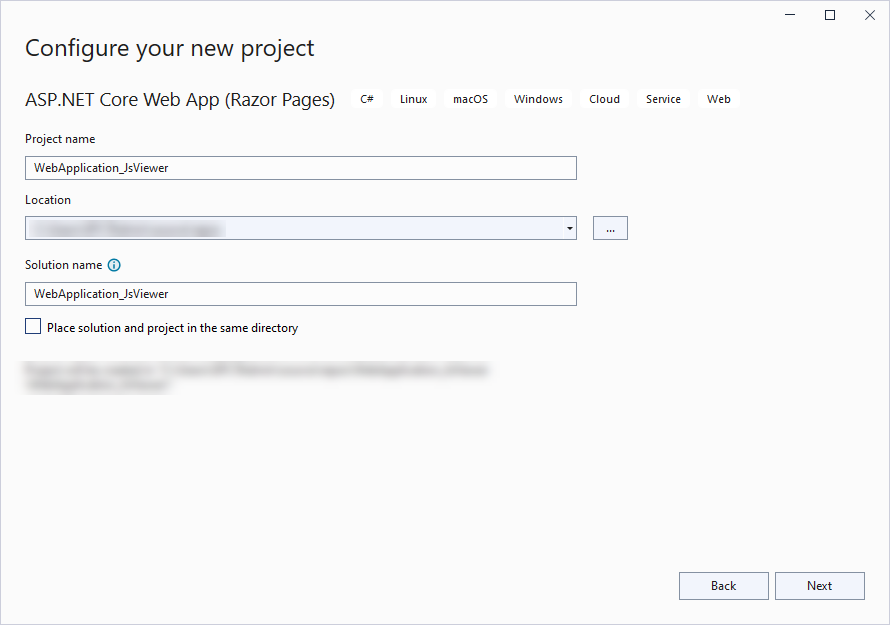
3. Type a name for your project and click **Next**.
4. Fill-in the additional info like 'Framework' as .NET 8.0.
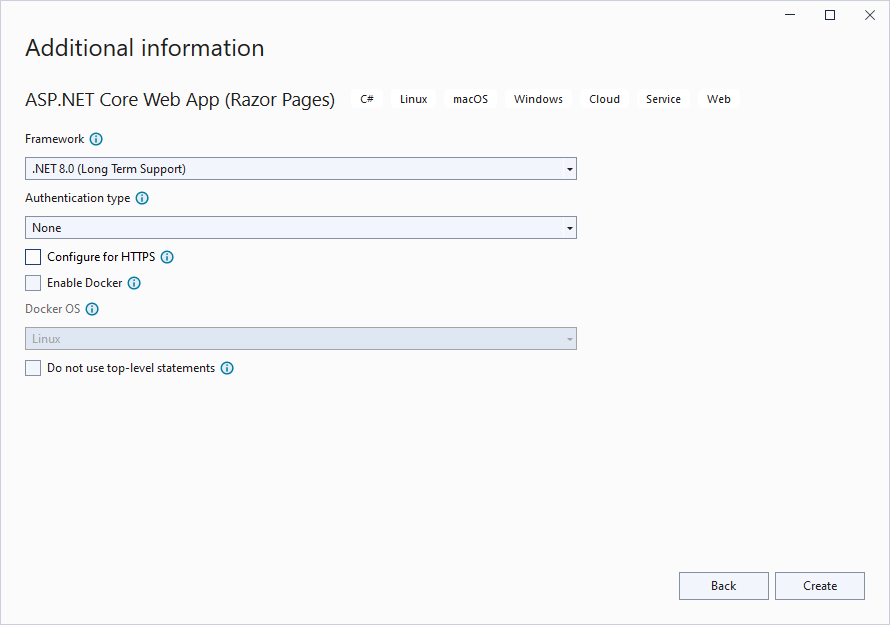
5. Uncheck the 'Configure for HTTPS' checkbox instruction and click **Create**.
**Configure ActiveReports in ASP.NET Core Middleware**
6. Right-click the project in the **Solution Explorer** and select **Manage Nuget Packages**.
7. Add the following package to the project.
```auto
MESCIUS.ActiveReports.Aspnetcore.Viewer
```
8. In the **License Acceptance** dialog that appears, click **I Accept**.
9. Add a new folder called 'Reports' in application's root and place the report you want to display in the viewer, in this folder.
10. Make sure to set the **Build Action** property of the report to 'Embedded Resource'.
11. Modify the content for the **Program.cs** file as follows to enable the application to use ActiveReports:
```csharp
using GrapeCity.ActiveReports.Aspnetcore.Viewer;
using System.Reflection;
var builder = WebApplication.CreateBuilder(args);
// Add services to the container.
builder.Services.AddRazorPages();
var app = builder.Build();
// Configure the HTTP request pipeline.
if (!app.Environment.IsDevelopment())
{
app.UseExceptionHandler("/Error");
app.UseHsts();
}
app.UseHttpsRedirection();
app.UseStaticFiles();
// Configure middleware for ActiveReports API and handlers.
app.UseReportViewer(settings =>
{
settings.UseEmbeddedTemplates("WebApplication_JsViewer.Reports", System.Reflection.Assembly.GetAssembly(app.GetType()));
});
app.UseRouting();
app.UseAuthorization();
app.MapRazorPages();
app.Run();
```
Make sure that the correct namespace is provided in the first argument of **UseEmbeddedTemplates** for the report.
> type=note
> **Note**: Instead of ‘UseEmbeddedTemplates', you can use either 'UseFileStore' or 'UseReportProvider’ method calls.
>
> * 'UseEmbeddedTemplates' stores reports as resources in dlls.
> * 'UseFileStore' stores reports in the file system.
> * 'UseReportProvider’ allows you to store reports in any user-defined location, like a custom database or any other type of location.