# ASP.NET MVC Core Integration

Learn to develop an ASP.NET Core application and render the reports in the ActiveReports WebDesigner.

## Content

Let us create an ASP.NET Core application using ActiveReports and render the reports in the WebDesigner.

1. Follow the steps from step 1 to step 8 in [WebDesigner ASP.NET Middleware](/activereportsnet/docs/v19.2/developers/create-applications/web-viewer-and-web-designer-middlewares/web-designer-aspnet-middleware) topic to create an ASP.NET Core Web Application with **ASP.NET Core Web App** template and configure the ActiveReports in ASP.NET Core Middleware.
2. Add the following additional package to the project:
    `MESCIUS.ActiveReports.Aspnetcore.Viewer`
3. To use npm packages, your project must contain a **package.json** file. Open the **Tools** menu > **NuGet Package Manager** \> **Package Manager Console** and run the following command in the Package Manager before installing any code dependencies:
    `npm init -y`
4. Add WebDesigner to the application.
    2\. Open the **Tools** menu > **NuGet Package Manager** and run the following command in the Package Manager Console to download and install the WebDesigner-related files and folders from [NPM](https://www.npmjs.com/package/@mescius/activereportsnet-designer)
    `npm install @mescius/activereportsnet-designer`
    The designer files/folders will be downloaded in your current directory: .\\node\_modules\\@mescius\\activereportsnet-designer\\dist
    3\. Similarly\, run the following command in the Package Manager Console\, to download and install the Web Viewer\-related files and folders from [NPM](https://www.npmjs.com/package/@mescius/activereportsnet-viewer)
    `npm install @mescius/activereportsnet-viewer`
5. Copy the following designer and viewer files/folder installed in the **node\_modules** to the **wwwroot\\js** and \*\*wwwroot\\\*\***css** folder in the application, respectively.
    * web-designer.css
    * web-designer.js
    * vendor folder
    * jsViewer.min.js
6. In Solution Explorer, right-click 'wwwroot' folder and select **Add** \> **New Item**.
7. Select **HTML Page** item type, input **index.html** and click **Add**.
8. In Solution Explorer, find newly-added **index.html** and modify its content as follows:

    ```html
    <!DOCTYPE html>
    <html>
    <head>
        <title>ActiveReports WebDesigner</title>
        <meta charset="utf-8">
        <meta name="viewport" content="width=device-width, initial-scale=1">
        <meta http-equiv="x-ua-compatible" content="ie=edge">
        <style>
            body, html {
                width: 100%;
                height: 100%;
                margin: 0;
                padding: 0
            }
            @@keyframes arwd-loader {
                from {
                    color: #fff
                }
                to {
                    color: #205f78
                }
            }
            .ar-web-designer {
                width: 100%;
                height: 100%
            }
            .ar-web-designer__loader {
                display: flex;
                width: 100%;
                height: 100%;
                background-color: #205f78;
                color: #fff;
                font-size: 18px;
                animation-name: arwd-loader;
                animation-duration: .62s;
                animation-timing-function: ease-in-out;
                animation-iteration-count: infinite;
                animation-direction: alternate;
                justify-content: center;
                align-items: center
            }
        </style>
        <link rel="stylesheet" href="vendor/css/fonts-googleapis.css" type="text/css" />
        <link rel="stylesheet" href="css/jsViewer.min.css" />
        <link rel="stylesheet" href="css/web-designer.css" />
    </head>
    <body>
        <!-- Required for the ActiveReports Web Viewer -->
        <script src="js/jsViewer.min.js"></script>
        <!-- designer-related js -->
        <script src="js/web-designer.js"></script>
        <!-- Designer root div -->
        <div id="ar-web-designer" class="ar-web-designer">
            <span class="ar-web-designer__loader"><b>AR WebDesigner</b></span>
        </div>
        <script>
           var viewer = null;
           GrapeCity.ActiveReports.Designer.create('#ar-web-designer', {
                appBar: {
                    openButton: { visible: true },
                    saveButton: { visible: true },
                    saveAsButton: { visible: true }
                },
                editor: { showGrid: false },
                data: {
                    dataSets: { canModify: true },
                    dataSources: { canModify: true }
                },
                preview: {
                    openViewer: (options) => {
                        if (viewer) {
                            viewer.openReport(options.documentInfo.id);
                            return;
                        }
                        viewer = GrapeCity.ActiveReports.JSViewer.create({
                            element: '#' + options.element,
                            renderFormat: 'svg',
                            reportService: {
                                url: 'api/reporting',
                            },
                            reportID: options.documentInfo.id,
                            settings: {
                                zoomType: 'FitPage'
                            }
                        });
                    }
                }
            });
        </script>
    </body>
    </html>
    ```
9. Modify the content for the **Program.cs** file as follows to enable the application to use ActiveReports:

```csharp
using GrapeCity.ActiveReports.Aspnetcore.Viewer;
using GrapeCity.ActiveReports.Aspnetcore.Designer;
DirectoryInfo ResourcesRootDirectory = new DirectoryInfo(Path.Combine(Directory.GetCurrentDirectory(), "resources" + Path.DirectorySeparatorChar));
var builder = WebApplication.CreateBuilder(args);
// Add services to the container.
builder.Services.AddControllersWithViews();
builder.Services.AddReportDesigner();
var app = builder.Build();
app.UseHttpsRedirection();
if (!app.Environment.IsDevelopment())
{
    app.UseDeveloperExceptionPage();
}
// Configure middleware for ActiveReports API and handlers.
app.UseReportDesigner(config => config.UseFileStore(ResourcesRootDirectory));
app.UseReportViewer(config => config.UseFileStore(ResourcesRootDirectory));
app.UseDefaultFiles();
app.UseStaticFiles();
app.Run();
```

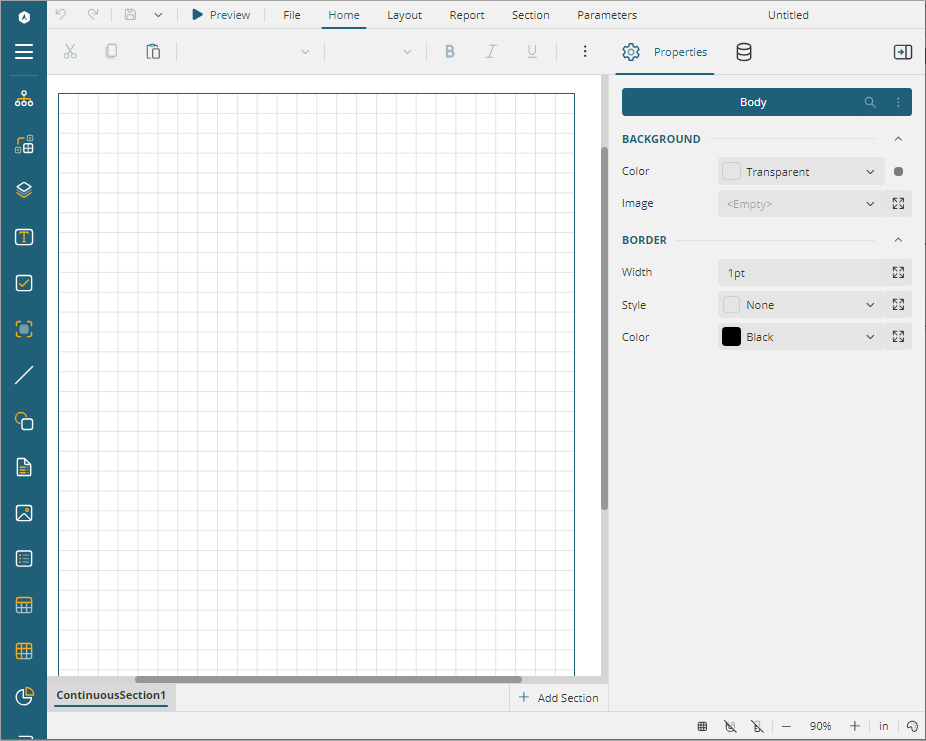
 11. Build your solution \(Build \> Build Solution\) and run it\. WebDesigner with a blank RDLX report opens in your browser.
![Web Designer](https://cdn.mescius.io/document-site-files/images/b298aea2-8cb8-4a0f-be88-4f54aa263ebd/images/webdesigner.png)