# Integration to VueJS Application

This topic explains how you can embed the ActiveReports WebDesigner component in your VueJS application (ASP.NET Core).

## Content


This page explains how you can embed the ActiveReports WebDesigner component in your VueJS application (ASP.NET Core). We will use **Vue and ASP.NET Core** with the JavaScript template to create the application.

1.  Open **Microsoft Visual Studio 2022** and create a new project, **Vue and ASP.NET Core** with JavaScript.
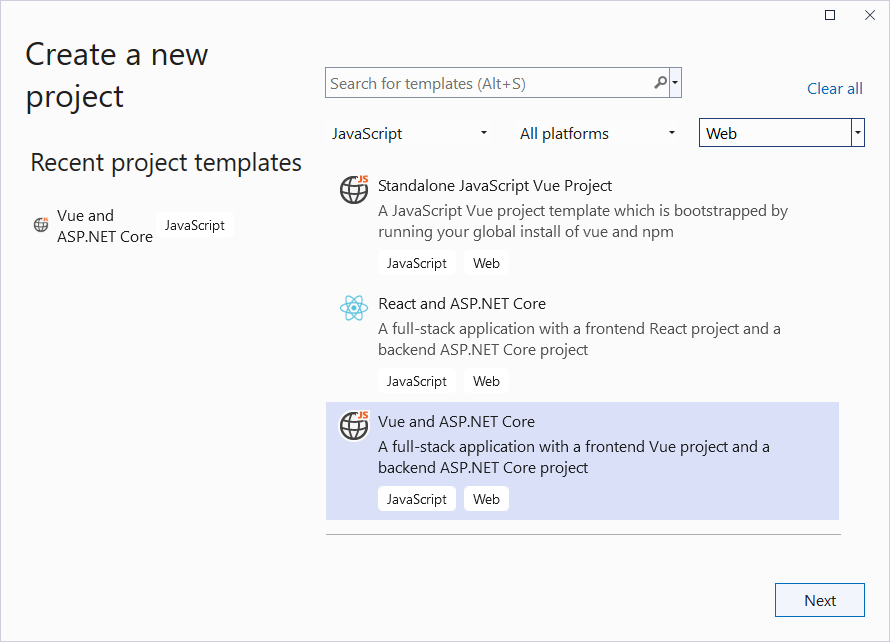
    
    ![Create a New Project Dialog](https://cdn.mescius.io/document-site-files/images/b298aea2-8cb8-4a0f-be88-4f54aa263ebd/images/asp-net-core-web-app-vue.png)
    
2.  Type a name for your project and click **Create**.
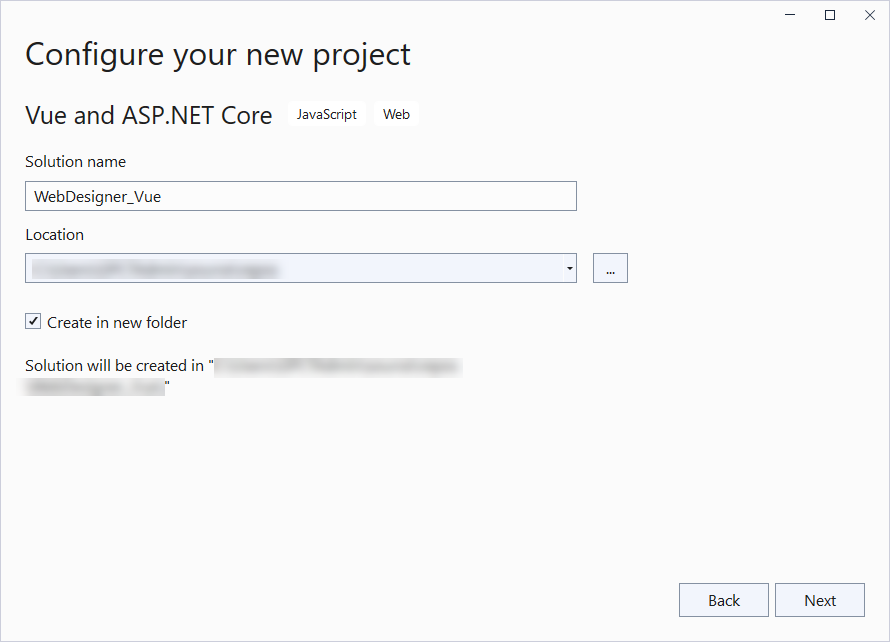
    
    ![Configure your New Project Dialog](https://cdn.mescius.io/document-site-files/images/b298aea2-8cb8-4a0f-be88-4f54aa263ebd/images/configure_project_vue.png)
    
3.  In the **Solution Explorer**, right-click the '.Server' project and select **Manage NuGet Packages**.
    
4.  Add the following packages to the project.
    
    ```
    
    MESCIUS.ActiveReports.Aspnetcore.Designer
    MESCIUS.ActiveReports.Aspnetcore.Viewer
    ```
    
5.  Add a new folder called 'resources' in the application's root and place the report you want to display in viewer, in this folder. The report you create in WebDesigner, on saving, is saved at this location.
    
6.  Update the 'Program.cs' file as follows:
    
    ```csharp
    using GrapeCity.ActiveReports.Aspnetcore.Designer;
    using GrapeCity.ActiveReports.Aspnetcore.Viewer;
    using GrapeCity.ActiveReports.Web.Designer;
    var builder = WebApplication.CreateBuilder(args);
    // Add services to the container.
    builder.Services.AddReportViewer();
    builder.Services.AddReportDesigner();
    builder.Services.AddMvc(options => options.EnableEndpointRouting = false);
    var app = builder.Build();
    app.UseHttpsRedirection();
    if (!app.Environment.IsDevelopment())
    {
        app.UseDeveloperExceptionPage();
    }
    var ResourcesRootDirectory =
        new DirectoryInfo(Path.Combine(Directory.GetCurrentDirectory(), "resources"));
    app.UseReportViewer(config => config.UseFileStore(ResourcesRootDirectory));
    app.UseReportDesigner(config => config.UseFileStore(ResourcesRootDirectory, null, FileStoreOptions.NestedFoldersLookup));
    app.UseDefaultFiles();
    app.UseStaticFiles();
    app.Run();
    ```
    
7.  Open the 'package.json' file and add the following packages for ActiveReports' Viewer and Designer under 'Dependencies':<br />
    
    ```
    
    "@mescius/activereportsnet-designer": "^18.x.x",
    "@mescius/activereportsnet-viewer": "^18.x.x"
    ```
    
8.  Add a new 'WebDesigner.vue' file in the **src\\components** folder and add the following code.
    
    ```html
    <template>
        <div id="ar-web-designer"></div>
    </template>
    <script>
        import { arWebDesigner } from '@mescius/activereportsnet-designer';
        import { createViewer } from '@mescius/activereportsnet-viewer';
        export default {
            mounted() {
                let serverUrl = 'https://localhost:7226';
                arWebDesigner.create('#ar-web-designer', {
                    rpx: { enabled: true },      
                    appBar: { openButton: { visible: true } },
                    editor: { showGrid: false },
                    data: { dataSets: { visible: true, canModify: true }, dataSources: { canModify: true } },
                    server: {
                        url: serverUrl + '/api'
                    },
                    preview: {
                        openViewer: (options) => {
                            if (this.viewer) {
                                this.viewer.openReport(options.documentInfo.id);
                                return;
                            }
                            this.viewer = createViewer({
                                element: '#' + options.element,
                                renderFormat: 'svg',
                                reportService: {
                                    url: serverUrl + '/api/reporting',
                                },
                                reportID: options.documentInfo.id
                            });
                        }
                    }
                });
            }
        }
    </script>
    <style>
        #ar-web-designer {
            height: 100vh;
            float: right;
            width: 100%;
        }
    </style>
    ```
    
9.  Open 'App.vue' inside the **src** folder and replace its default content with the following code.
    
    ```html
    <template>
        <div class="main">
            <WebDesigner />
        </div>
    </template>
    <script>
        import "@mescius/activereportsnet-viewer/dist/jsViewer.min.css";
        import "@mescius/activereportsnet-designer/dist/web-designer.css";
        import WebDesigner from './components/WebDesigner.vue';
        export default {
            name: 'app',
            components: {
                WebDesigner
            },
            methods: {
            }
        }
    </script>
    <style>
        .main {
            width: 100%;
            overflow-x: hidden
        }
    </style>
    ```
    
10.  To disable browser launch, set the 'launchBrowser' to 'false' in 'launchSettings.json' (in .Server project\\Properties).
    
11.  Press **Ctrl** + **Shift** + **B** to build your project and then press **F5** to run it.
    

## See Also

[WebDesigner ASP.NET Middleware](/activereportsnet/docs/v19.2/developers/create-applications/web-viewer-and-web-designer-middlewares/web-designer-aspnet-middleware)
