# Integration to VueJS Application
This topic explains how you can embed the JSViewer component in your VueJS application (ASP.NET Core).
## Content
This page explains how you can embed the Js Viewer component in your VueJS application (ASP.NET Core). To run the Vue Application Server, you will require the [node.js](https://nodejs.org/en) JavaScript runtime.
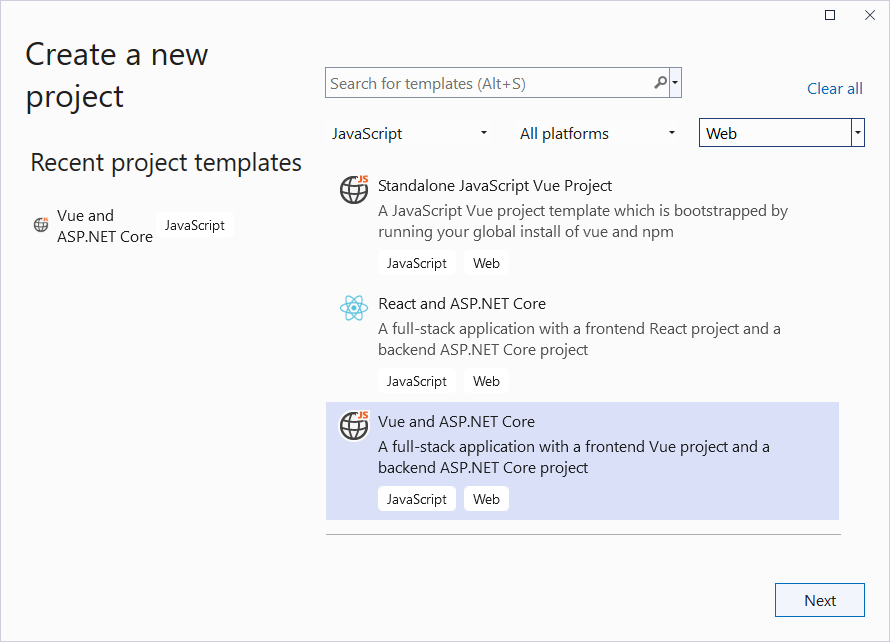
1. Open **Microsoft Visual Studio 2022** and create a new **Vue and** **ASP.NET Core** project.
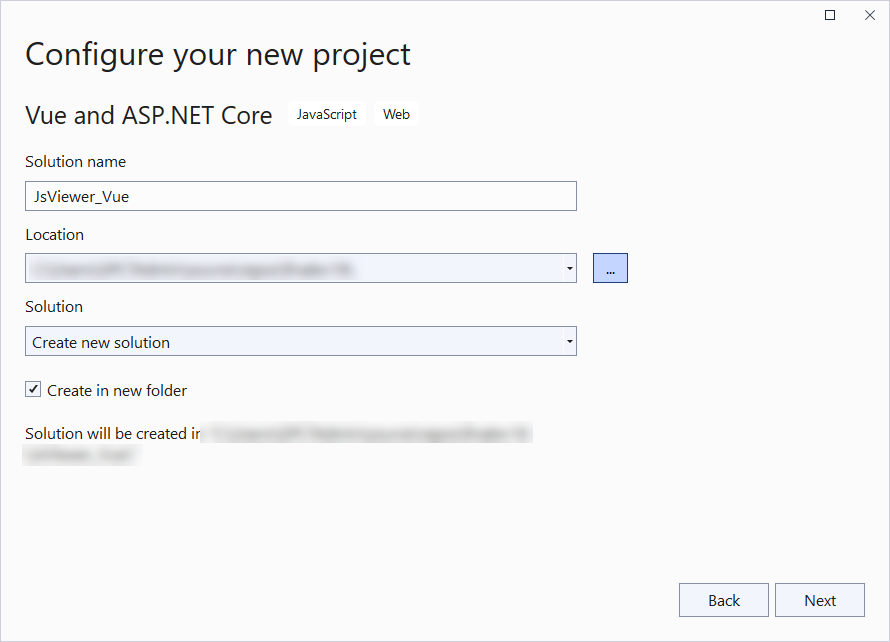
2. Type a name for your project and click **Next**.
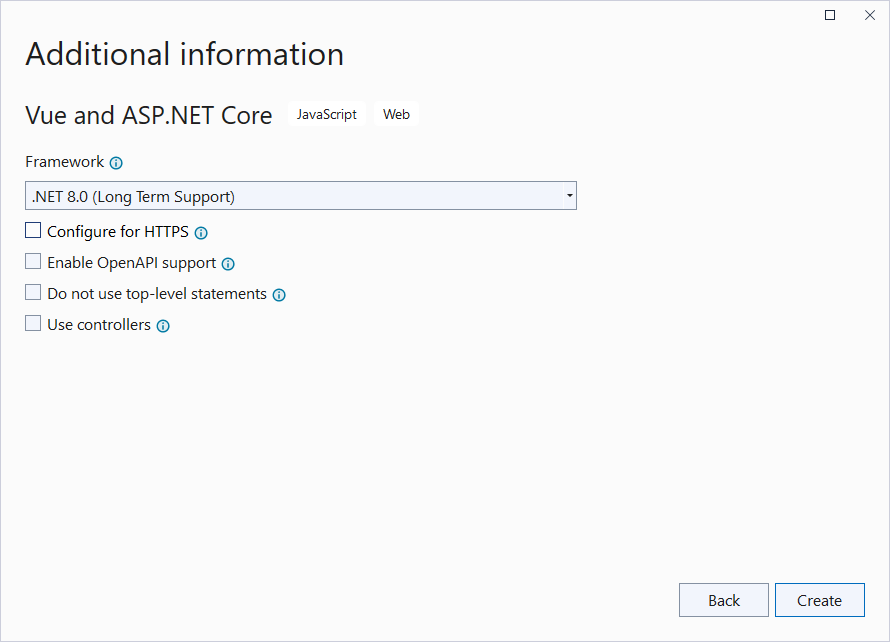
3. Select the **Framework** to a latest version and uncheck other options.
4. Right-click the project in the **Solution Explorer** and select **Manage NuGet Packages**.
5. Add the following package to the project.
```
MESCIUS.ActiveReports.Aspnetcore.Viewer
```
6. Create 'resources' folder in your sample project root; you can put your existing reports, themes, and images in this folder.
7. Make sure to set the **Build** Action property of the resources to 'Embedded Resource'.
8. Open 'Program.cs' file and update the file to include the 'using' statements at the top, and specify the resource folder, and add services to container, so that the complete file looks like below.
```csharp
using GrapeCity.ActiveReports.Aspnetcore.Viewer;
var builder = WebApplication.CreateBuilder(args);
// Add services to the container.
builder.Services.AddReportViewer();
builder.Services.AddControllers();
var app = builder.Build();
app.UseCors(options => options
.WithOrigins("http://localhost:5173")
.AllowAnyHeader()
.AllowAnyMethod()
.AllowCredentials()
);
var ResourcesRootDirectory =
new DirectoryInfo(Path.Combine(Directory.GetCurrentDirectory(), "resources"));
app.UseReportViewer(config => {
config.UseFileStore(ResourcesRootDirectory);
});
app.UseDefaultFiles();
app.UseStaticFiles();
app.UseHttpsRedirection();
app.UseAuthorization();
app.MapControllers();
app.MapFallbackToFile("/index.html");
app.Run();
```
9. In the '.client' project, open 'package.json' file and add the following package under 'dependencies':
```
"@mescius/activereportsnet-viewer": "^18.x.x"
```
10. Open the '.client' project in the command prompt or terminal window and run the following command to install the npm packages.
`npm install`
The viewer files/folders will be downloaded in your current directory: .\\node\_modules\\@mescius\\activereportsnet-viewer\\dist.
11. Open 'App.vue' inside the 'src' folder and replace its default content with the following code.
```html
```
12. Open 'vite.config.js' file and update the 'server' setting as follows.
```javascript
server: {
proxy: {
'/api': {
target: 'http://localhost:5001/' // Update the target to use HTTP
}
},
port: 5173,
https: false // Set https to false to run on HTTP
}
```
13. To disable browser launch, set the 'launchBrowser' to 'false' in 'launchSettings.json' (in .Server project\\Properties).
14. Run the application by pressing **F5**.
## See Also
[Js Viewer ASP.NET Core Middleware](/activereportsnet/docs/v19.2/developers/create-applications/web-viewer-and-web-designer-middlewares/jsvieweraspnet-middleware)