# Customize the Design View
This topic describes the Designer API part that concerns the options of the Design view customization.
## Content
### Get a currently active tab
By using **Designer.ActiveTabChanged** event, you can add a reaction to switching between the **Script**, **Design**, and **Preview** tabs. By using this event, you can get a currently active tab.
The example code is as follows.
```csharp
public partial class Form1 : Form
{
public Form1()
{
InitializeComponent();
_designer = new Designer() { Dock = DockStyle.Fill };
_designer.ActiveTabChanged += (sender, args) => {
//Get the currently editing report name.
var reportName = designer.Report switch {
PageReport pageReport => pageReport.Report.Name,
SectionReport sectionReport => sectionReport.Name,
_ => "Report"
};
//Set the form title to reflect the current designer state
this.Text = designer.ActiveTab switch {
DesignerTab.Script => $"{reportName} - Script",
DesignerTab.Preview => $"{reportName} - Preview",
_ => $"{reportName} - Edit"
};
};
Controls.Add(designer);
}
}
```
### Add or remove a grid on the Designer surface
The [Designer.DrawGrid](/activereportsnet/api/v19.2/MESCIUS.ActiveReports.Design.Win/GrapeCity.ActiveReports.Design.Designer.html) property adds or removes the grid on the design surface. You can setup this property at the designer initialization or any time later.
> type=note
> **Note**: You can control the grid visibility by using the buttons on the Tool Panel. You can deprecate it by using the [Designer.ToolPanel](/activereportsnet/api/v19.2/MESCIUS.ActiveReports.Design.Win/GrapeCity.ActiveReports.Design.Designer.html) property.
The code example below demonstrates how you can add your own button to switch the grid off.
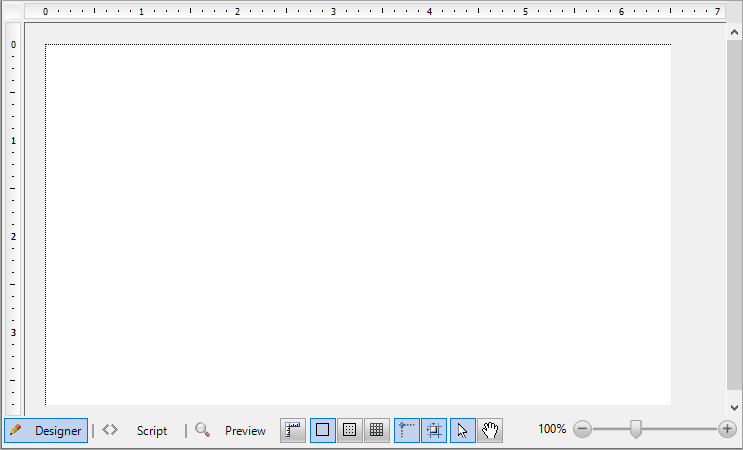
```csharp
void Button_OnClick(object sender, EventArgs e)
{
_designer.DrawGrid = false;
}
```
The code example below demonstrates how you can add your own button to switch the grid on.
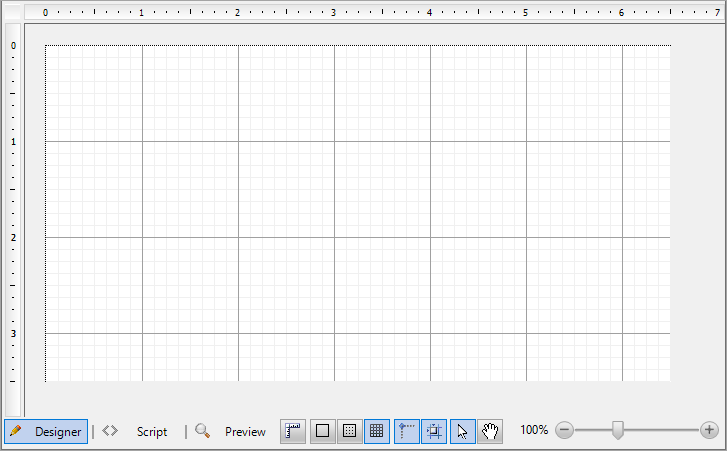
```csharp
void Button_OnClick(object sender, EventArgs e)
{
_designer.DrawGrid = true;
}
```
### Switch between the grid types
If the [Designer.DrawGrid](/activereportsnet/api/v19.2/MESCIUS.ActiveReports.Design.Win/GrapeCity.ActiveReports.Design.Designer.html) property is set to True, there are two possible grid types - Lines or Dots. You can switch between them by using the [Designer.GridMode](/activereportsnet/api/v19.2/MESCIUS.ActiveReports.Design.Win/GrapeCity.ActiveReports.Design.Designer.html) property.
This code example demonstrates how you can switch to the Dots grid mode.
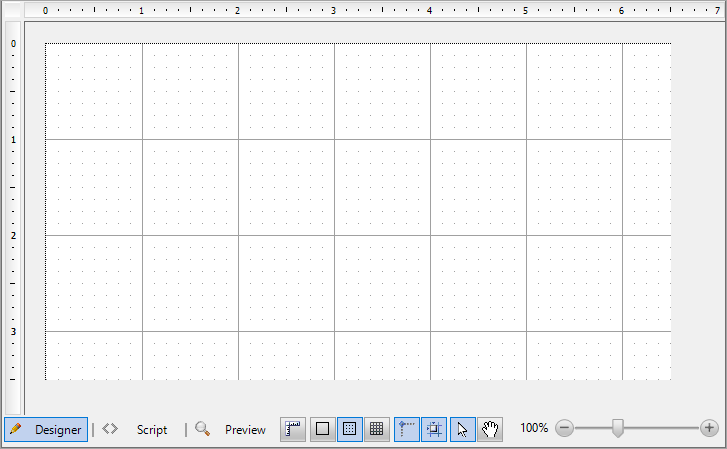
```csharp
_designer.GridMode = GridMode.Dots;
```
### Specify a number of grid dots or lines per unit
> type=note
> **Note**: This is for Section Report designer only.
The [Designer.GridX](/activereportsnet/api/v19.2/MESCIUS.ActiveReports.Design.Win/GrapeCity.ActiveReports.Design.Designer.html) and [Designer.GridY](/activereportsnet/api/v19.2/MESCIUS.ActiveReports.Design.Win/GrapeCity.ActiveReports.Design.Designer.html) properties specify how many dots (or lines) of grid per unit need to be drawn on the design surface. If you specify a similar code as in the example below, you will get the following result.
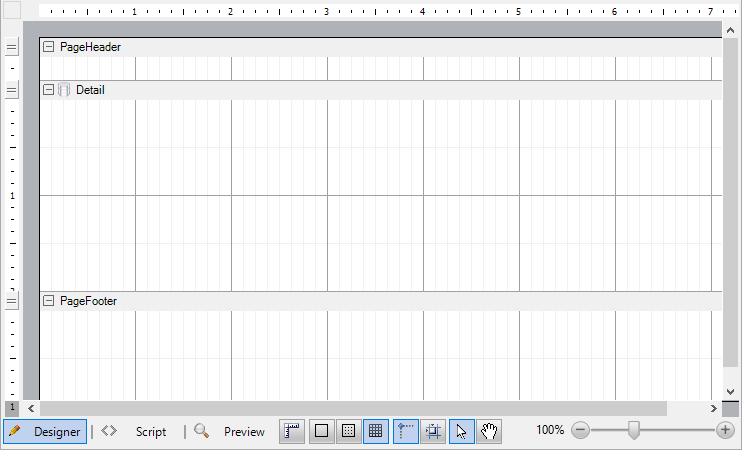
```csharp
_designer.GridX = 8;
_designer.GridY = 2;
```
### Show or hide the Preview tab
The [Designer.EnablePreview](/activereportsnet/api/v19.2/MESCIUS.ActiveReports.Design.Win/GrapeCity.ActiveReports.Design.Designer.html) property controls the visibility of the **Preview** tab on the Tool panel of the design surface.

```csharp
_designer.EnablePreview = true;
```

```csharp
_designer.EnablePreview = false;
```
### Show or hide the Script tab
The [Designer.EnableScripting](/activereportsnet/api/v19.2/MESCIUS.ActiveReports.Design.Win/GrapeCity.ActiveReports.Design.Designer.html) property controls the visibility of the **Script** tab on the Tool panel of the design surface.

```csharp
_designer.EnableScripting = true;
```

```csharp
_designer.EnableScripting = false;
```
### Change the layout mode of items
The [Designer.LayoutMode](/activereportsnet/api/v19.2/MESCIUS.ActiveReports.Design.Win/GrapeCity.ActiveReports.Design.Designer.html) property changes the items layout mode and is currently available for Section reports only.
```csharp
private void ButtonSnapGrid_Click(object sender, EventArgs args)
{
_designer.LayoutMode = designer.LayoutMode ^ LayoutMode.SnapGrid;
}
private void ButtonSnapLines_Click(object sender, EventArgs args)
{
_designer.LayoutMode = designer.LayoutMode ^ LayoutMode.SnapLines;
}
```
### Lock the position or size of report items
The [Designer.LockControls](/activereportsnet/api/v19.2/MESCIUS.ActiveReports.Design.Win/GrapeCity.ActiveReports.Design.Designer.html) property makes it impossible to change the position or size of report items.
The code example below opens the Windows Form with the designer with a pre-built report. You can change some properties of the existing controls but it is impossible to change the report layout.
```csharp
class TweakSalesReportForm : Form
{
public TweakSalesReportForm()
{
var _designer = new Designer {Dock = DockStyle.Fill};
var _propertyGrid = new PropertyGrid(){Dock = DockStyle.Right};
_designer.LoadReport(new FileInfo("c:\\reports\\Sales.rdlx"));
_designer.PropertyGrid = propertyGrid;
_designer.LockControls = false;
Controls.Add(designer);
Contorls.Add(propertyGrid);
}
}
```
### Deprecate pages in a Page report
With the [Designer.PageReportDesignerActions](/activereportsnet/api/v19.2/MESCIUS.ActiveReports.Design.Win/GrapeCity.ActiveReports.Design.Designer.html) property, you can deprecate some actions under pages in page reports.
```csharp
//Deprecate new page creation.
_designer.PageReportDesignerActions = PageReportDesignerActions.All ^ PageReportDesignerActions.AddPage
```
### Show or hide the Designer, Script, and Preview tabs
The [Designer.ReportTabsVisible](/activereportsnet/api/v19.2/MESCIUS.ActiveReports.Design.Win/GrapeCity.ActiveReports.Design.Designer.html) property controls the visibility of the **Designer**, **Script**, and **Preview** tabs.

```csharp
_designer.ReportTabsVisible = false;
```
### Show or hide the Tool panel
The [Designer.ReportTabsPanelVisible](/activereportsnet/api/v19.2/MESCIUS.ActiveReports.Design.Win/GrapeCity.ActiveReports.Design.Designer.html) property specifies whether the Tool panel is visible.
```csharp
_designer.ReportTabsPanelVisible = false;
```
### Specify a scrolling mode for the Viewer
The [Designer.ScrollingMode](/activereportsnet/api/v19.2/MESCIUS.ActiveReports.Design.Win/GrapeCity.ActiveReports.Design.Designer.html) property specifies the scrolling mode for the embedded report Viewer.
```csharp
_designer.ScrollingMode = ScrollingMode.Paged;
```
### Control the visibility of the Designer tools
The [Designer.ToolPanel](/activereportsnet/api/v19.2/MESCIUS.ActiveReports.Design.Win/GrapeCity.ActiveReports.Design.Designer.html) property controls the visibility of some items in the Tool panel, which is located next to the Preview tab of the Design surface.

The code example below demonstrates how to remove the zoom slider.
```csharp
_designer.ToolPanel = ToolPanelButton.All ^ ToolPanelButton.ZoomSlider;
```
The Tool panel includes these items that you can remove:
* DimensionLines
* GridMode
* SnapGrid
* SnapLines
* MouseMode
* ZoomSlider
### Show or hide the data source icon in the Detail section of Section report
The [Designer.ShowDataSourceIcon](/activereportsnet/api/v19.2/MESCIUS.ActiveReports.Design.Win/GrapeCity.ActiveReports.Design.Designer.html) property is used for Section reports and allows to control the visibility of the data source icon in the Detail section.
```csharp
public partial class Form1 : Form
{
Designer designer;
public Form1()
{
InitializeComponent();
_designer = new Designer() { Dock = DockStyle.Fill };
_designer.NewReport(DesignerReportType.Section);
_designer.ShowDataSourceIcon = false;
}
}
```
### Undo the latest operation
You can call the [Designer.Undo()](/activereportsnet/api/v19.2/MESCIUS.ActiveReports.Design.Win/GrapeCity.ActiveReports.Design.UndoManager.html) method of the object returned by UndoManager property to undo the latest operation. Just add the button you want and assign the Click event handler like in this sample code.
```csharp
private void UndoButton_Click(object sender, EventArgs args)
{
_designer.UndoManager.Undo();
}
```
### Redo the undone operation
To redo the undone operation, you can call the [Designer.Redo()](/activereportsnet/api/v19.2/MESCIUS.ActiveReports.Design.Win/GrapeCity.ActiveReports.Design.UndoManager.html) method of the object returned by UndoManager property. Just add the button you want and assign the Click event handler like in this sample code.
```csharp
private void RedoButton_Click(object sender, EventArgs args)
{
_designer.UndoManager.Redo();
}
```
### Specify zoom as scale factor
The [Designer.Zoom](/activereportsnet/api/v19.2/MESCIUS.ActiveReports.Design.Win/GrapeCity.ActiveReports.Design.Designer.html) property specifies zoom as scale factor.
```csharp
private void ResetZoom_Click(object sender, EventArgs e)
{
_designer.Zoom = 1;
}
```
### Add the PropertyGrid to the Designer
You can add the PropertyGrid component that allows you to set the properties of a selected report item.
### Use WinForms Designer
1. From the **ActiveReports 19 Toolbox**, drag and drop the **Designer** component on the form.
2. Drag and drop the **PropertyGrid** component from the **All Windows Forms** Toolbox group onto the surface of your form or the Designer component.
3. Select the **Designer** component and from properties pane, set the **PropertyGrid** property to the name of the PropertyGrid component.
### Use code
The code example below demonstrates adding the PropertyGrid component using the [Designer.PropertyGrid](/activereportsnet/api/v19.2/MESCIUS.ActiveReports.Design.Win/GrapeCity.ActiveReports.Design.Designer.html) property.
```csharp
using GrapeCity.ActiveReports.Design;
using GrapeCity.ActiveReports.Design.ReportExplorer;
class MyForm : Form
{
MyForm()
{
var _designer = new Designer() { Dock = DockStyle.Fill };
var _propertyGrid = new PropertyGrid { Dock = DockStyle.Right };
_designer.PropertyGrid = _propertyGrid;
Controls.Add(_designer);
Controls.Add(_propertyGrid);
}
}
```