# Blazor Viewer Application
This topic describes how to create a web application that embeds Blazor Viewer.
## Content
A Blazor Viewer application uses the same client-server model as the JS Viewer, so all details on the server-side configurations like [Custom Font Resolver](/activereportsnet/docs/v19.2/developers/extensibility-in-activereports/custom-font-resolver) or [Prevent Cross-Site Scripting Attacks](/activereportsnet/docs/v19.2/developers/create-applications/js-viewer-application/prevent-cross-site-scripting-attacks) are relevant for a Blazor Viewer as well.
This topic describes how to create a web application that embeds Blazor Viewer.
## NuGet Packages
The following packages are required to be included in the application:
* MESCIUS.ActiveReports.Aspnetcore.Viewer
* MESCIUS.ActiveReports.Blazor.Viewer
## Initialize Blazor Viewer Component
```html
```
## Create ActiveReports Blazor Viewer Server Application
Let us create a Blazor server application with ActiveReports Blazor Viewer using local report service.
### Using built-in ActiveReports application template
1. Open **Microsoft Visual Studio 2022**.
2. Select **ActiveReports 19 Blazor Server Application** template and click **Next**.
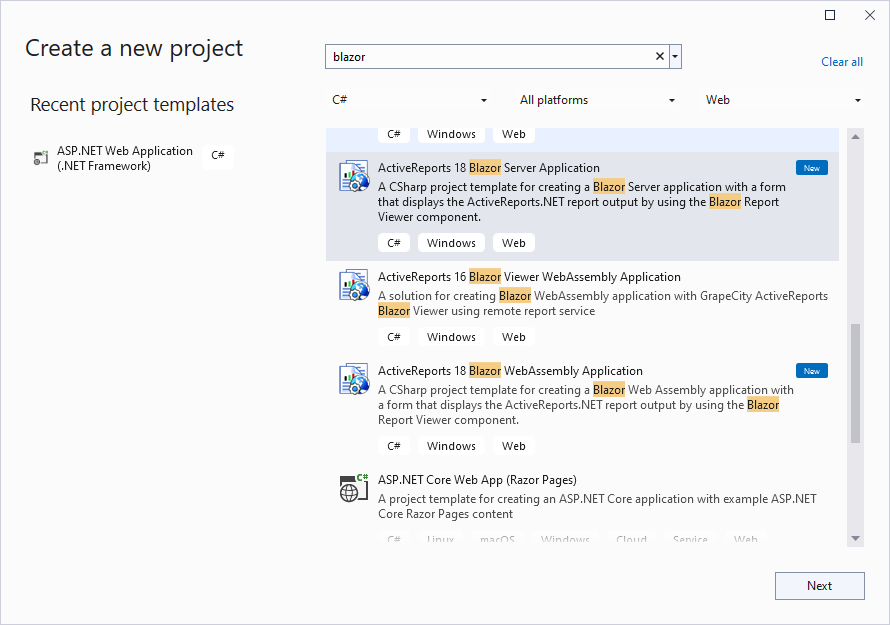
3. Type a name for your project and click **Create.**
4. From the **New Report** dialog, choose a report type, and click **Finish** to skip the data binding at this stage or choose **Next** to bind the data to the report.
The following required packages are automatically added to project:
* MESCIUS.ActiveReports.Aspnetcore.Viewer
* MESCIUS.ActiveReports.Blazor.Viewer
5. Open the report from the 'Reports' folder and design.
6. Make sure to set the **Build Action** property of the report to 'Embedded Resource'.
7. Run the application.
### Using Visual Studio Template
1. Open **Microsoft Visual Studio 2022**.
2. Create a new project and choose the template **Blazor Server App**.
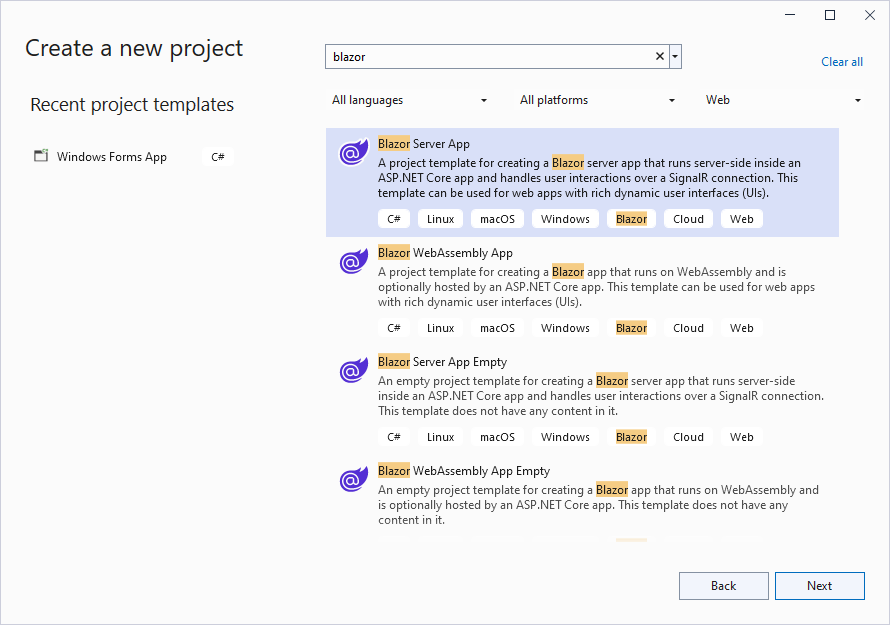
3. Type a name for your project (say, BlazorApp1) and click **Next**.
4. Select a target framework and uncheck 'Configure for HTTPS' option, and then click **Create**.
5. Add the following packages:
* MESCIUS.ActiveReports.Aspnetcore.Viewer
* MESCIUS.ActiveReports.Blazor.Viewer
6. Add a new folder called 'Reports' in application's root and place the report (say, Report.rdlx) you want to display in the viewer, in this folder.
7. Make sure to set the **Build Action** property of the report to 'Embedded Resource'.
8. Add a Razor component to the folder **Pages** (right-click Pages > Add - Razor component). Set a name for it, for example, BlazorViewer.razor.
9. Write the following code in BlazorViewer.razor page:
```html
@page "/blazorviewer"
BlazorViewerTest
@code {
}
```
10. In the **Shared** folder > NavMenu.razor page, add the following code:
```html
Blazor Viewer
```
11. In the **Data** folder, add **ReportService.cs** class:
```csharp
namespace BlazorApp1.Data
{
public class ReportsService
{
public static string EmbeddedReportsPrefix = "BlazorApp1.Reports";
public IEnumerable GetReports()
{
string[] validExtensions = { ".rdl", ".rdlx", ".rdlx-master", ".rpx" };
return GetEmbeddedReports(validExtensions);
}
private static string[] GetEmbeddedReports(string[] validExtensions) =>
typeof(ReportsService).Assembly.GetManifestResourceNames()
.Where(x => x.StartsWith(EmbeddedReportsPrefix))
.Where(x => validExtensions.Any(x.EndsWith))
.Select(x => x.Substring(EmbeddedReportsPrefix.Length + 1))
.ToArray();
}
}
```
12. Update **Program.cs** file:
* add following directives:
* using GrapeCity.ActiveReports.Aspnetcore.Viewer;
* using System.Reflection;
* add service to the application
* provide access to a report output from the browser by adding the **UseReportViewer()** middleware
```csharp
builder.Services.AddSingleton();
app.UseReportViewer(settings =>
{
settings.UseEmbeddedTemplates(ReportsService.EmbeddedReportsPrefix, Assembly.GetAssembly(typeof(ReportsService)));
});
```
> type=note
> **Note**: Instead of ‘UseEmbeddedTemplates', you can use either 'UseFileStore' or 'UseReportProvider’ method calls.
>
> * 'UseEmbeddedTemplates' stores reports as resources in dlls.
> * 'UseFileStore' stores reports in the file system.
> * 'UseReportProvider’ allows you to store reports in any user-defined location, like a custom database or any other type of location.
13. Run the application.
* * *
## Create ActiveReports Blazor Viewer WebAssembly Application
Here we describe creating the application using built-in ActiveReports application template. This application uses remote report service.
### Using built-in ActiveReports application template
1. Open **Microsoft Visual Studio 2022**.
2. Select **ActiveReports 19 Blazor WebAssembly Application** template and click **Next**.
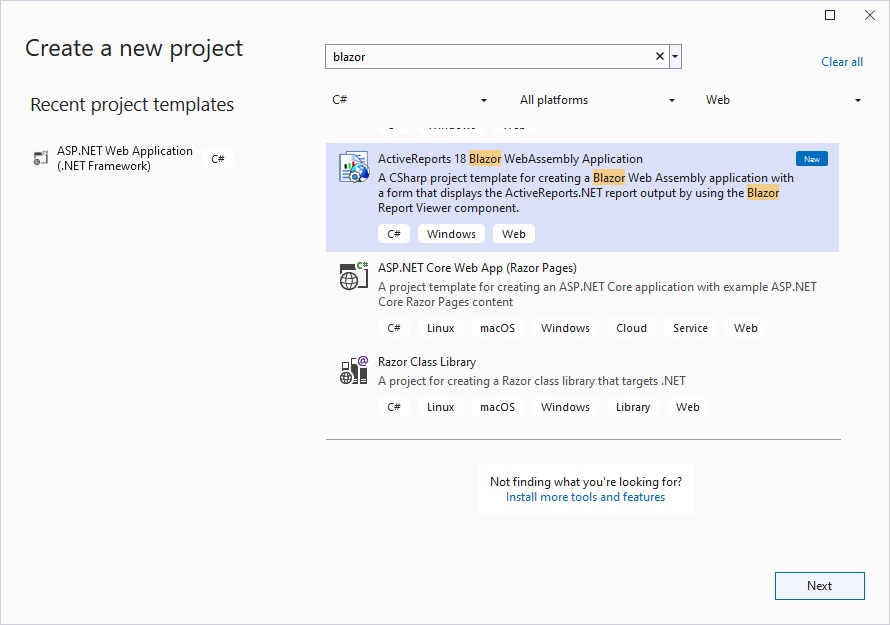
3. Type a name for your project and click **Create**.
4. From the **New Report** dialog, choose a report type, and click **Finish** to skip the data binding at this stage or choose **Next** to bind the data to the report.
The following required packages are automatically added to the project:
* MESCIUS.ActiveReports.Blazor.Viewer
5. Open the report from the 'Reports' folder and design.
6. Make sure to set the **Build Action** property of the report to 'Embedded Resource'.
7. Make sure to set multiple startup projects:
1. In the Solution Explorer, select the solution (the top node).
2. Choose the solution node's context (right-click) menu and then choose Properties.
3. In the Solution Property Pages dialog box, expand the Common Properties node, and choose Startup Project.
4. Choose the **Multiple Startup Projects** option and set the actions of both projects to **Start**.
8. Make sure that the URL is the same in **launchSettings.json** file of the ReportService project and **index.razor** file of BlazorViewerWebAssembly project.
9. Run the application.
### Using Visual Studio Template
1. Open **Microsoft Visual Studio 2022**.
2. Create a new project and choose the template **Blazor WebAssembly Standalone App**.
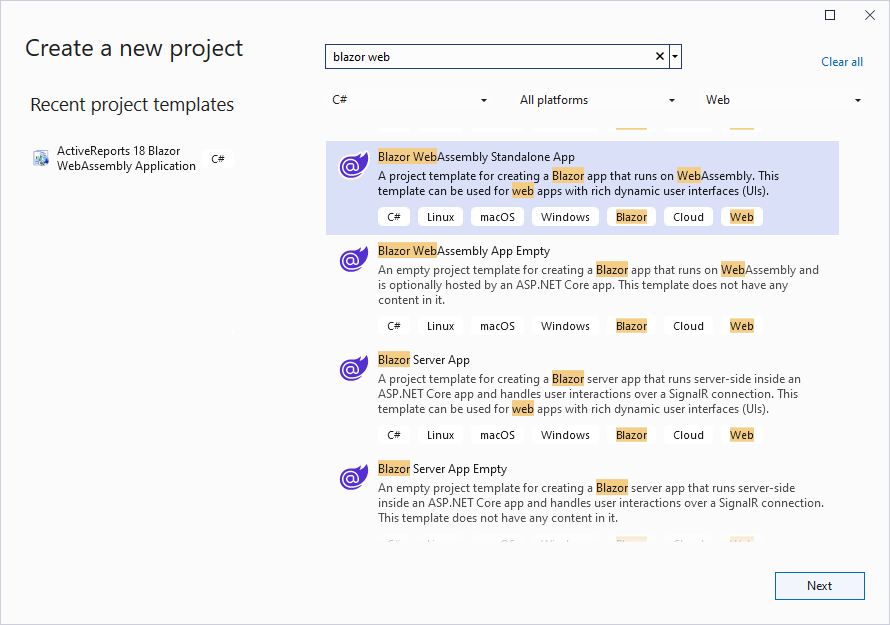
3. Type a name for your project and click **Next**.
4. Select a target framework and uncheck 'Configure for HTTPS' option, and then click **Create**.
5. Add the following package:
* MESCIUS.ActiveReports.Blazor.Viewer
6. Add a new folder called 'Reports' in application's root and place the report (say, Report.rdlx) you want to display in the viewer, in this folder.
7. Make sure to set the **Build Action** property of the report to 'Embedded Resource'.
8. Update the existing Index.razor page as follows:
```html
@page "/"
@using MESCIUS.ActiveReports.Blazor.Viewer
Index
@code{
private ReportServiceSettings _reportService = new ReportServiceSettings()
{
Url = "http://localhost:58865/",
};
}
```
9. Run the application.
## See Also
#### Samples
[Blazor Viewer](/activereportsnet/docs/v19.2/samples/web-samples/jsviewer-samples/blazorviewer)