# Licensing a Developer Machine
This topic provides detailed information about licensing a developer machine.
## Content
In order to open and effectively run ActiveReports.NET or compile ActiveReports projects in Visual Studio, the user needs to license the developer machine. In this topic, we'll cover licensing a machine (or multiple machines) with ActiveReports during installation, and deactivation of ActiveReports license. In this topic, we will be using MESCIUS License Manager tool (gclm). If ActiveReports or any MESCIUS inc. product is installed, then the gclm tool is already installed at _C:\\ProgramData\\GrapeCity\\gclm._
You can download the gclm deployment tool:
* Windows: [https://cdn.mescius.com/license/gclm\_deploy.exe](https://cdn.mescius.com/license/gclm_deploy.exe)
* Linux/MacOS: [https://www.nuget.org/packages/GrapeCity.LicenseManagerTool/](https://www.nuget.org/packages/GrapeCity.LicenseManagerTool/) or you may install the gclm tool from command line:
```
dotnet tool install -g GrapeCity.LicenseManagerTool
```
> type=note
> **Note**: Always run the License Manager as an **Administrator**.
### License ActiveReports during installation or Upgrade license from trial to purchase
1. Go to the Start menu and select **MESCIUS License Manager** to open the licensing manager window. This window appears automatically during the product installation.
2. In the **MESCIUS License Manager** window, click **Activate**.
3. Enter the serial key you have received from MESCIUS (including all the capital letters and special characters), and click **Activate**.
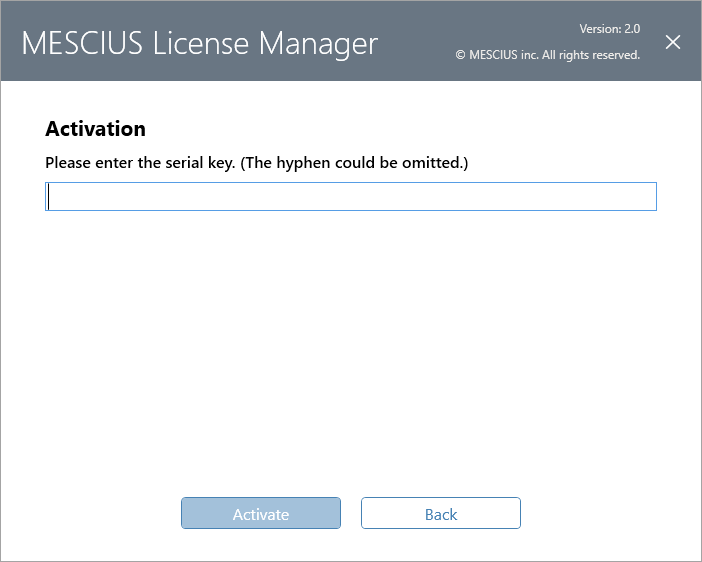
4. An activation message appears on the window. Click **OK** to complete the licensing process.
To see the license details, such as the license type (Trial or Product), edition (Professional or Standard), and date of activation and expiry, click **Details** in the licensing window.
### License ActiveReports on a machine without an internet connection
* Go to the Start menu and select **MESCIUS License Manager** to open the licensing manager window. This window appears automatically during the product installation.
* In the **MESCIUS License Manager** window, if you try to enter the serial key and click **Activate**, a network error is shown on the window. So, in such a case, click **Offline Activate** to proceed further with the licensing process.
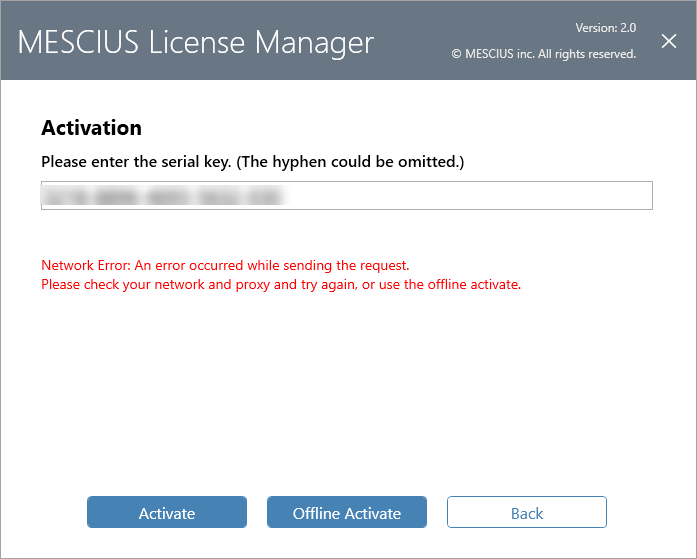
* Copy the Activation Key from the **MESCIUS License Manager** window.
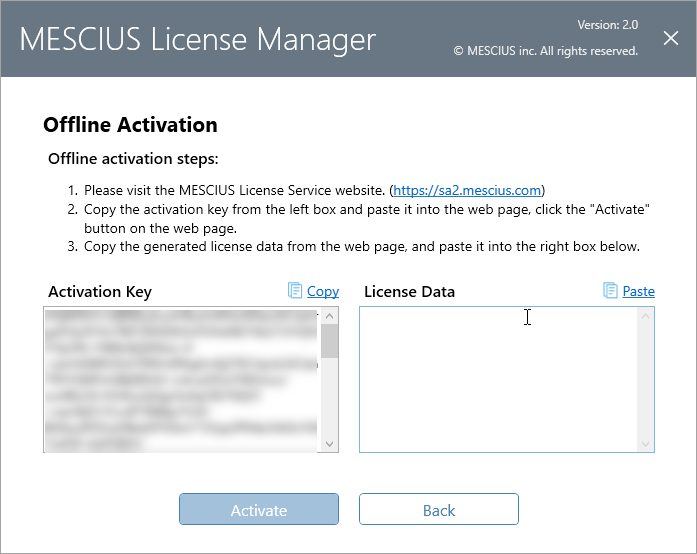2. Visit the following website [https://sa2.mescius.com](https://sa2.mescius.com/) on the other machine (with an internet connection), and click **Activation** to use offline Activation key to activate the license.
> type=note
> **Note**: Do not close the activation dialog on your original machine until the activation process is completed.
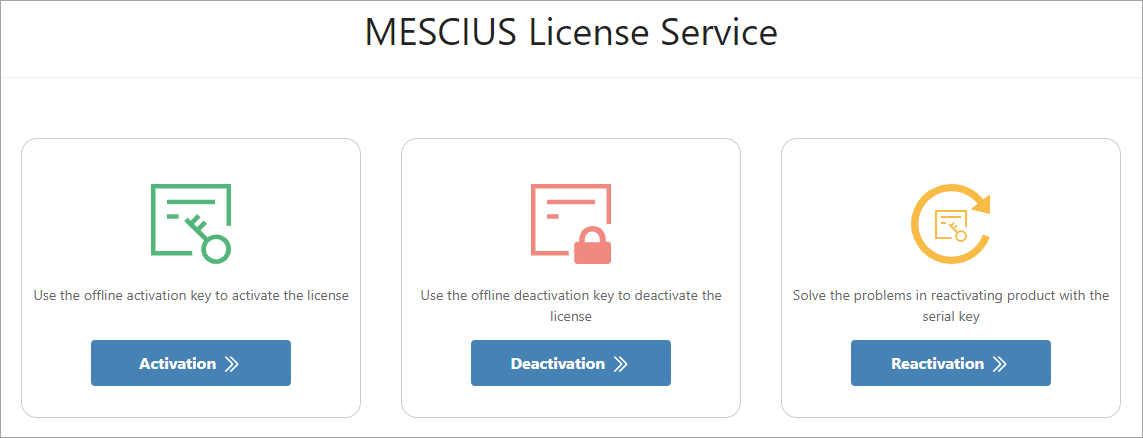
3. Enter the Activation Key you have copied in step 3 on the website, and click **Activate** again.
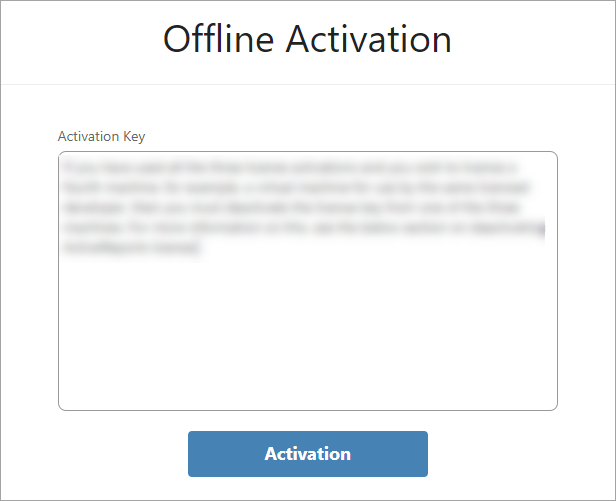
4. After a successful activation on the website, copy the License Data from the website and paste it in the licensing window.
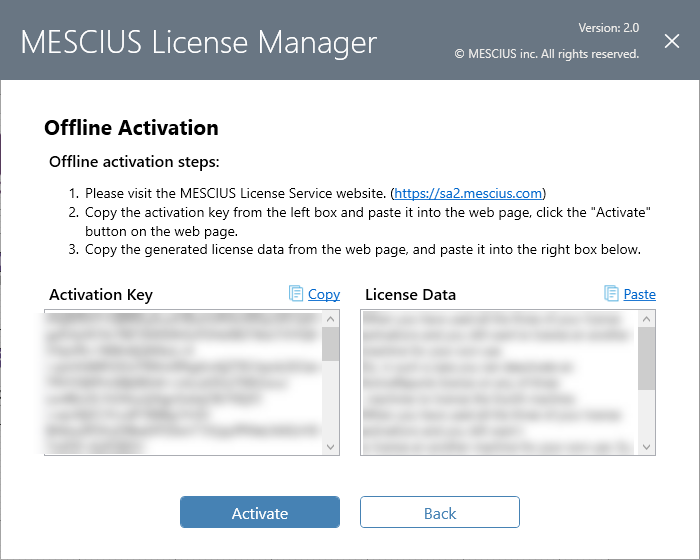
5. Click **Activate** and then **OK** to complete the licensing process.
If you want to use the command line tool to license ActiveReports, see [Offline Licensing with Command Line](/activereportsnet/docs/v19.2/developers/ar-how-licensing-activereports/offline-licensing-with-command-line) topic.
### Activate a license for ActiveReports on multiple machines
You can activate a single developer license key for ActiveReports on **three machines** for use by **one developer**.
If you have used all three license activations and you wish to license a fourth machine, for example, a virtual machine for use by the same licensed developer, then you must deactivate the license key from one of the three machines. For more information on this, see the below section on deactivating the ActiveReports license.
After you have deactivated licensing on one of the machines, you can then activate ActiveReports on the other machine.
### Deactivate ActiveReports license
When you have used all the three of your license activations and you still want to license an another machine for your own use. So, in such a case you can deactivate an ActiveReports license on any of three machines to license the fourth machine.
Follows these steps to deactivate an ActiveReports license on a machine:
1. Go to the Start menu and select **MESCIUS License Manager** to open the licensing manager window.
2. In the **MESCIUS** **License Manager** window, click **Deactivate**.
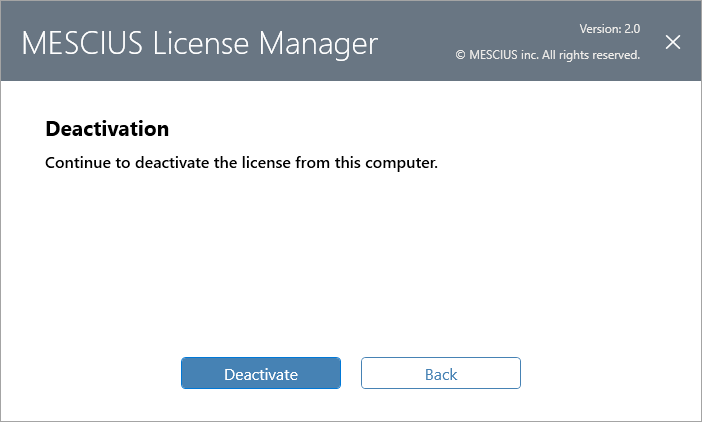
3. On the **Deactivation** page, click **Deactivate** again to confirm the deactivation process.
4. Click **OK** to complete the deactivation process.
### Deactivate ActiveReports license on a machine without an internet connection
Sometimes, the developer using the MESCIUS license might need to switch to a new machine. In this case, if the new machine does not have an active internet connection or there is some network issue, then the steps described in this section should be followed to deactivate the license.
1. Launch the **MESCIUS License Manager** tool (C:\\ProgramData\\GrapeCity\\gclm\\gclm.exe) and click **Deactivate** corresponding to the product version you want to deactivate.
The license manager fails to deactivate the serial key due to no internet connection, and shows a network error.
2. Click the **Offline Deactivate** button.
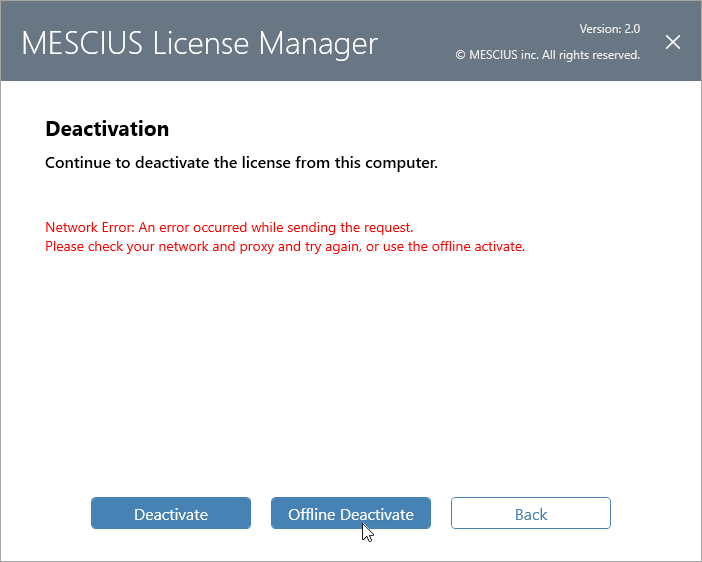
3. The Offline Deactivation window appears with instructions as shown in the following image.
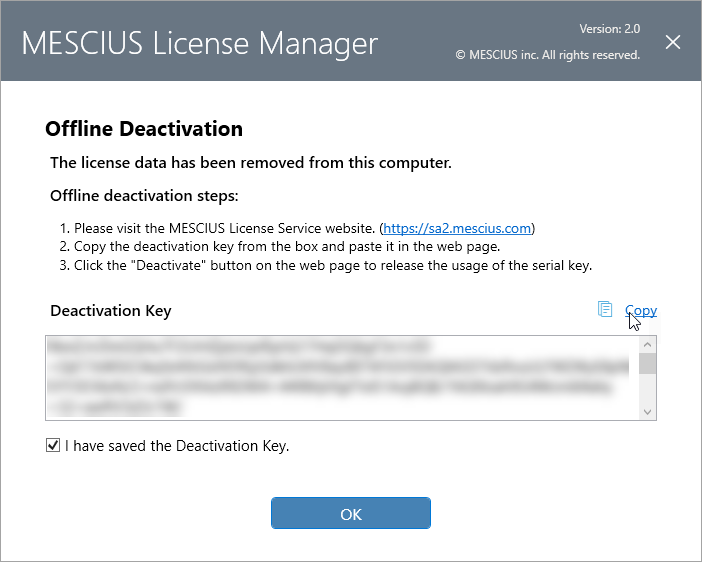
The steps for proceeding with the deactivation process are demonstrated as follows:
4. On a machine with an active internet connection, go to [https://sa2.mescius.com/](https://sa2.mescius.com/).

5. Copy the Deactivation key from the offline machine and send it via file transfer to another internet-connected system.
6. On the [https://sa2.mescius.com/](https://sa2.mescius.com/) website, click the Deactivation option to see a Deactivation window. Copy the deactivation key from step 2 and paste it into the Deactivation Key box.
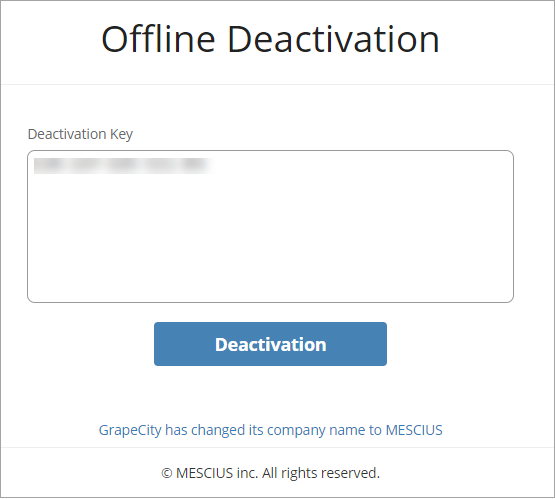
7. On successful deactivation, the "Deactivated Successfully" message appears.
### Determine whether a machine is licensed
1. Open any [Sample](/activereportsnet/docs/v19.2/samples) in Visual Studio from the included samples and click the **Preview** tab.
2. Scroll to the bottom of the report and check for any red evaluation text. If there are any, it means your machine is not licensed.
> type=note
> **Note**: To check for Professional Edition licensing, open a sample from the **[Designer Pro](https://github.com/activereports/Samples19/tree/main/DesignerPro)** folder, run it, and look for the evaluation messages.
## See Also
[Offline Licensing with Command Line](/activereportsnet/docs/v19.2/developers/ar-how-licensing-activereports/offline-licensing-with-command-line)
[Submitting a Reactivation Request](/activereportsnet/docs/v19.2/developers/ar-how-licensing-activereports/submit-reactivation-request)