# Blazor Server Application
This topic describes how to add the Blazor Designer component to your Blazor Server Application.
## Content
This topic describes how you can build a Blazor Application using the ActiveReports.NET Blazor Report Designer to allow end-users to modify existing or create new reports.
>type=note
> **Note**: Before following the steps of this tutorial, please ensure that you have met the following requirements:
>
> * **ActiveReports.NET Installation**: ActiveReports.NET should be installed on your machine. If you have not yet installed ActiveReports.NET, please refer to our [installation guide](/activereportsnet/docs/v19.1/devops/install-activereports) for detailed instructions.
> * **Visual Studio**: A version of Visual Studio 2019 or later with the **ASP.NET and web development** workload installed.
> * **Basic Knowledge of C# and Visual Studio**: Familiarity with C# programming and navigating Visual Studio is assumed. If you need a refresher, the [Microsoft C# Guide](https://docs.microsoft.com/en-us/dotnet/csharp/) and [Visual Studio Documentation](https://learn.microsoft.com/en-us/visualstudio) are excellent resources.
## Creating a New Project
1. Open **Microsoft Visual Studio 2022**.
>type=info
> This tutorial is based on Visual Studio 2022, but the steps are similar in other versions
2. Select the **Create a new project** option.
3. In the **Create a new project** dialog, select the **Blazor Server App Empty** template and click **Next** to continue.
4. In the **Configure your new project** dialog, in the **Project name** field, type a name for your project and click **Next**.
5. In the **Additional information** dialog, select a target framework (for the best compatibility with ActiveReports.NET, select **.NET 6.0** or newer), uncheck the **Configure for HTTPS** option, and click **Create**. Visual Studio will generate a new Blazor Server application project.
## Installing ActiveReports Nuget Packages
To use the ActiveReports.NET Blazor Report Designer, you must add the ActiveReports.NET NuGet packages to your project by following these steps.
1. In the Solution Explorer, right-click your project and select **Manage NuGet Packages for Solution**.
2. Go to the Browse tab and search for **MESCIUS.ActiveReports.Blazor.Designer**.
3. Click the package in the search results and then click **Install** on the right-hand side of the window.
4. Repeat steps 7 and 8 for adding the **MESCIUS.ActiveReports.Aspnetcore.Designer** package.
## Configuring the Report Designer middleware
The Blazor Report Designer communicates with the server-side via the ASP.NET middleware that you can configure as follows.
1. In the Solution Explorer, right-click the project, select **Add > New Folder** and set the name of this folder to *Reports*.
2. Open the **Program.cs** file, located in the root folder of the application.
3. Insert the following statements at the beginning of the file:
```auto
using GrapeCity.ActiveReports.Aspnetcore.Designer;
using GrapeCity.ActiveReports.Web.Designer;
```
3. Insert the following code before the `app.UseStaticFiles();` line:
```auto
var reportsDir = new DirectoryInfo(Path.Combine(app.Environment.ContentRootPath, "Reports"));
app.UseReportDesigner(config =>
{
config.UseFileStore(reportsDir, null, FileStoreOptions.NestedFoldersLookup);
});
```
## Initializing the report designer
From the Solution Explorer, open the **MainLayout.razor** file and replace the code with the following.
```cshtml
@inherits LayoutComponentBase
BlazorApp1
@Body
```
Then, from the Solution Explorer, open the **Pages\\Index.razor** file and replace the code with the following.
```cshtml
@page "/"
@using GrapeCity.ActiveReports.Blazor.Designer
Index
```
## Running the Project
1. To build your project, go to the **Build** menu in Visual Studio and select **Build Solution**.
2. Once the build is successful, go to the **Debug** menu and click **Start Debugging** or **Start Without Debugging**.
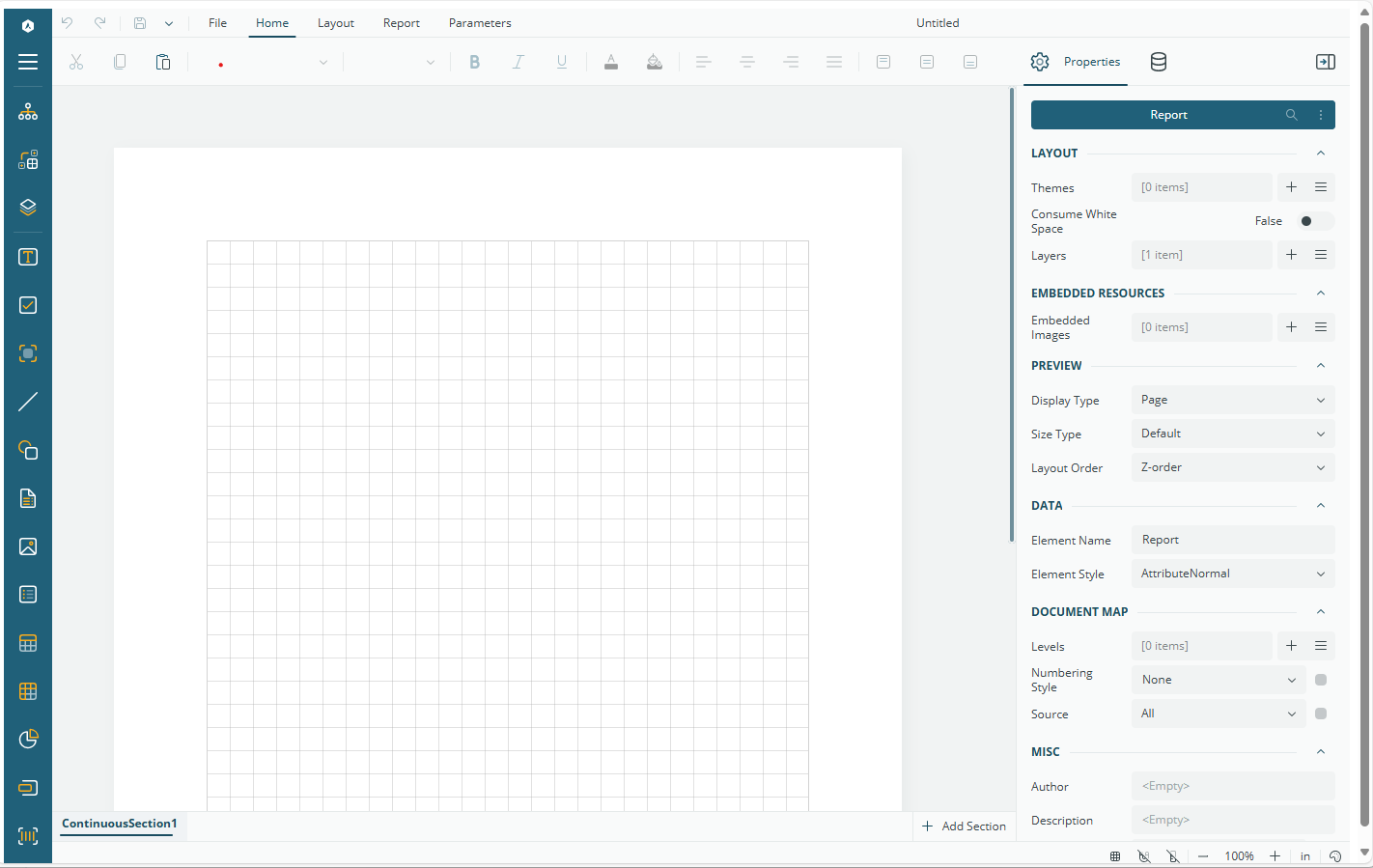
The web-report designer should appear in the default browser: