# Picture Control
This is a tutorial on how to use the Picture control in Section reports.
## Content
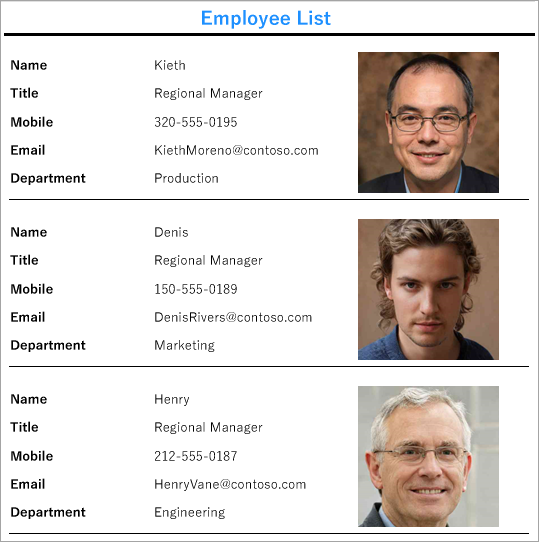
Let's say that we want to create a report that shows the photos of employees along with their details including name, job title, date of birth, mobile, email, and department. For such a report, we will use the **Picture** control along with other TextBox controls. The report connects to 'DimEmployees' JSON data available [here](https://demodata.mescius.io/contoso/odata/v1/DimEmployees).
The final report will look as shown.
### Create a Report
In the ActiveReports Designer, create a new Section report.
### Bind Report to Data
1. As you create a new report, the **Report Data Source** dialog appears for you to configure the report data connection. You can also access this dialog by clicking the Data Source  icon on the Detail section.
2. In the dialog, go to the **JSON** tab and click **Build** to open the **Configure JSON Data Source** dialog.
3. Enter the following URL in the **Data Path** as follows:
[https://demodata.mescius.io/contoso/odata/v1/DimEmployees](https://demodata.mescius.io/contoso/odata/v1/DimEmployees)
4. Click **OK** to close the dialog.
The Connection String displayed is as follows:
```plaintext
jsondoc=https://demodata.mescius.io/contoso/odata/v1/DimEmployees
```
For more information, see the [JSON Provider](/activereportsnet/docs/report-authors/data-binding/data-binding-in-section-reports/connect-to-a-datasource-section/json-provider-section) article.
5. Click **OK** to save the changes and close the **Report Data Source** dialog.
6. To fetch the required fields, enter the following query in the **JSON Path**.
```sql
$.value[*]
```
### Design Report Layout
1. Drag few **Label** controls to the Details section of the report, and set their **Text** property as follows:
* Label1: Name
* Label2: Title
* Label3: Mobile
* Label4: Email
* Label5: Email
* Label6: Department
2. Drag and drop few **TextBox** controls next to the Labels controls, and set their **DataField** property as follows:
* TextBox1: FirstName
* TextBox2: Title
* TextBox3: Mobile
* TextBox4: Email
* Department: DepartmentName
3. Drag and drop the **Picture** control in the Detail section and set the below properties as:
* **DataField**: AvatarUrl
* **SizeMode**: Zoom
4. In the **Script** tab, set the **Object** and **Event** to ActiveReports and ReportStart, respectively.
For more information, see the [Report Events](/activereportsnet/docs/report-authors/design-reports/design-section-reports/report-events) article.
5. Then, add the below script to download the images from URL. The script will look like as shown.
```csharp
public void ActiveReport_ReportStart()
{
rpt.ResourceLocator = new GrapeCity.ActiveReports.DefaultResourceLocator(new System.Uri("https://demodata.mescius.io"));
}
```
6. To provide a report title, drag and drop a **Label** control onto the PageHeader section of the report and set its **Text** property to 'Employee List'.
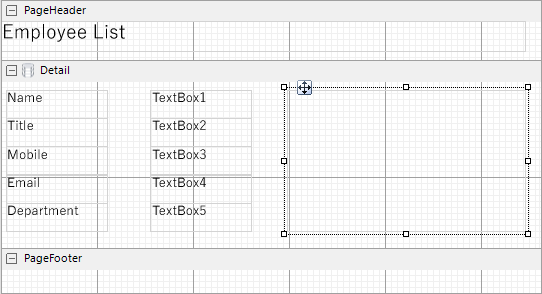
7. Improve the appearance of the report and preview.
## See Also
[Picture](/activereportsnet/docs/report-authors/report-controls/report-controls-section-report/picture)