# TextBox Control
Learn to design an RDLX report with TextBox controls that showcase item prices and total stock quantities.
## Content
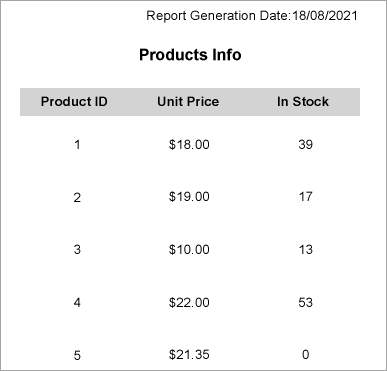
Let us create an RDLX report that uses TextBox controls to display the price and total number of items in stock. We will be using BandedList control to contain text boxes and display data for each row. The report connects to the 'Products' JSON data available [here](https://demodata.mescius.io/northwind/odata/v1/Products). The final report will be as shown.
> type=note
> If you are creating a new report in the Visual Studio Integrated Designer, see [Quick Start](/activereportsnet/docs/report-authors/standalone-designer-app/create-multi-section-rdl).
### Design Report Layout
1. Drag and drop the **BandedList** control on the report’s designer.
2. Drag the following data fields to the **Details** band of the BandedList control: [ProductId\], [UnitPrice\], and [UnitsInStock\]. All these fields are bound text boxes.
3. To provide headings (labels) to the data displayed in the text boxes in Details band, drag and drop three **TextBox** controls onto the Header band of the BandedList control and set the **Value** property of the text boxes to 'Product ID', 'Unit Price', and 'In Stock', respectively.
4. To display the total number of products in stock, drag and drop two **TextBox** controls onto the Footer band of the BandedList control and set the properties as follows.
- TextBox1: Set the **Value** property to **Total**:. This is an unbound text box.
- TextBox2: Set the **Value** property to the expression: =Sum(Fields!UnitsInStock.Value). This is a calculated textbox; the expression calculates the total number of products in stock.
5. To provide the report's title, drag and drop another **TextBox** control onto the top center in the design area. Enter the text of the title into the **Value** property or directly inside the text box, e.g. Products Info.
6. To add the information on the report generation date, drag and drop a **TextBox** control on the upper right corner of the report and set the **Value** property to the expression: ="Report Generation Date:" & Format(Now(), "dd/MM/yyyy").
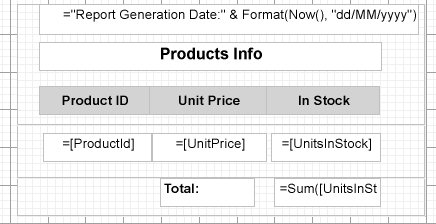
7. Modify the appearance of the report and preview.
## See Also
[TextBox](/activereportsnet/docs/report-authors/report-controls/report-controls-page-rdl-report/textbox)