# Line Control for Freehand Forms
This is a tutorial on how to create an order form that can be filled out by hand for ordering some goods.
## Content
Let’s say that we want to create an order form that needs to be filled out for ordering some goods.
The final report will look like as shown.
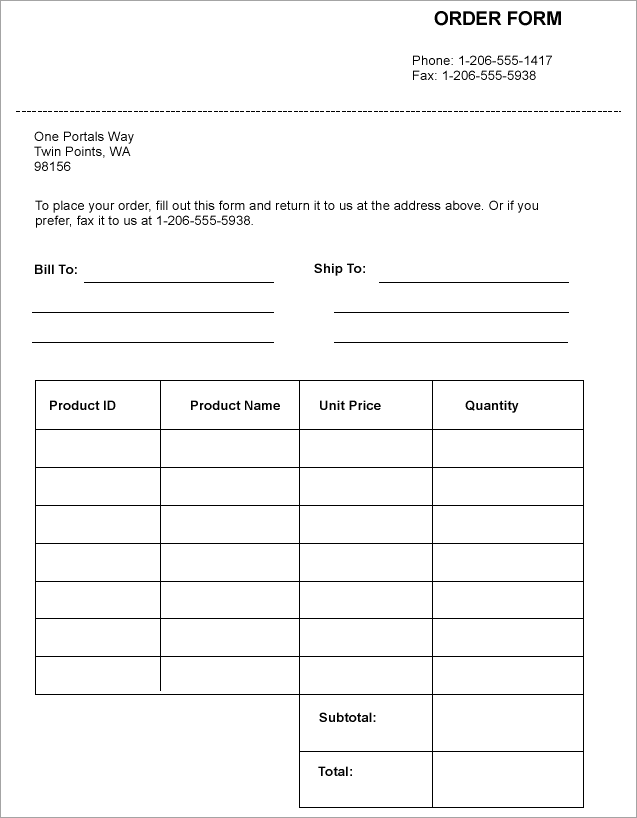
This form requires the billing and shipping information, some information on the product, its price and quantity to order, and the order's subtotals and totals.
Since the information is filled out freely, by hand, or in an electronic form, you don't need to use any datasets. All you need is to create the form with a few Line controls to show blank spaces and draw a blank table - to be filled out by hand.
### Design Report Layout
1. Drag and drop few TextBox controls to contain default information such as the Form name ('Order Form'), address, contact information, instructions to fill the form, etc.
2. Now, drag and drop the Line controls to draw horizontal lines that will show blank spaces that need to be filled for the 'Bill To:' and 'Ship To:' information.
3. Draw a table using Line controls. Drag and drop the Line controls one by one and draw the lines in horizontal and vertical directions.
> type=info
> **Tip**: To draw a perfect horizontal or vertical line, keep the **Shift** key pressed while drawing the line.
4. Drag and drop the TextBox controls to provide labels for table columns: 'Product ID', 'Product Name', 'Unit Price', and 'Quantity'.
5. Drag and drop the TextBox controls to provide labels for the 'Subtotal:' and 'Total:'.
6. Modify the appearance of the report and preview.
## See Also
[Line](/activereportsnet/docs/report-authors/report-controls/report-controls-page-rdl-report/line)
[Quick Start](/activereportsnet/docs/report-authors/standalone-designer-app/create-multi-section-rdl)