# CheckBox Control
This is a tutorial on how the CheckBox control can be used in Page/RDLX reports.
## Content
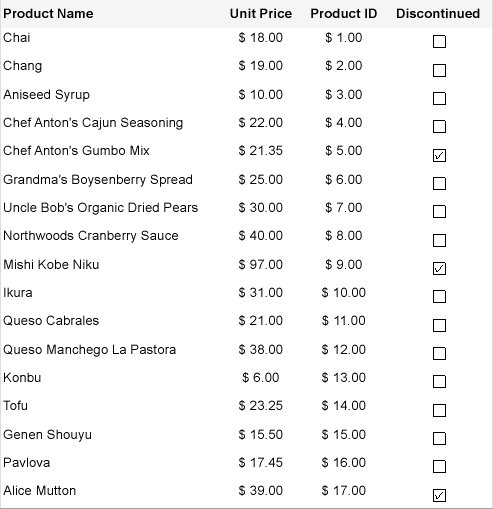
Let us create a report that displays information on Products that are 'Discontinued' in a Table data region. Since the value of 'Discontinued' is either True (1) or False (0), and a CheckBox control takes the Boolean value, we will use it to show the 'Tick' marks corresponding to the 'True' values. The report connects to the 'Products\_header\_tab.csv' data source available on [GitHub](https://github.com/activereports/Samples19/tree/main/Data/).
The final report will look as shown.
### Create a Report
In the ActiveReports Designer, create a new Page or an RDLX report.
> type=note
> If you are creating a new report in the Visual Studio Integrated Designer, see [Quick Start](/activereportsnet/docs/report-authors/standalone-designer-app/create-multi-section-rdl).
### Bind Report to Data
As you create a new report, you can configure the report data connection in the Report Wizard. You can also access tht **Report Data Source** dialog by right-clicking the Data Sources node in the **Report Explorer** and then selecting the **Add Data Source** option. See [CSV](/activereportsnet/docs/report-authors/data-binding/data-binding-page-rdl-reports/connect-to-a-data-source/csv) for details.
1. On the **Choose Data Source Type** screen of the wizard, select **CSV** and click **Next.**
2. To specify the **File Path**, click the **Browse** button and navigate to the desired folder on your system. For example, you can connect to the **Products\_header\_tab.csv** sample data source which can be downloaded from [GitHub](https://github.com/activereports/Samples19/tree/main/Data/).
3. Select the **Column Delimiter** as 'Tab'.
4. Then click **Next** to check the **Fields** section, which includes field names with their corresponding data types present in the CSV file.
5. Click **Finish** to successfully add the report with the CSV data source.
See [CSV Provider](/activereportsnet/docs/report-authors/data-binding/data-binding-page-rdl-reports/connect-to-a-data-source/csv) for more information on building SQL queries.
### Design Report Layout
1. Drag and drop **Table** data region onto the design area of the Report Designer.
2. In the cells of the details row, drag-drop the [ProductName\], [UnitPrice\], and [ProductID\]fields.
3. Add another column to the right of the [ProductID\] column.
4. Drag-drop the **CheckBox** control onto the empty textbox in the details row of the added column.
5. With CheckBox selected, set the **Checked** property to the expression:
=ToBoolean(ToInt32(Fields!Discontinued.Value)).
Note that since we used the CSV data, the field [Discontinued\]needs to be converted to boolean.
6. Preview the report.
## See Also
[CheckBox](/activereportsnet/docs/report-authors/report-controls/report-controls-page-rdl-report/checkbox)