# Apply Theme at Runtime Using Dynamic Expression
This topic explains how to apply a theme at runtime by using a dynamic expression so that the applied theme depends on the parameter’s value.
## Content
This topic explains how to apply a theme at runtime by using a dynamic expression so that the applied theme depends on the parameter’s value.
Consider a sample report 'PurchaseReport.rdlx' which can be downloaded from [GitHub](https://github.com/activereports/Samples19/tree/main/DesignerPro/ReportsGallery/Reports/Page%20Report/Other): ..\\Samples19\\DesignerPro\\ReportsGallery\\Reports\\Page Report\\Other.
> **Add Parameter for User Input**
1. Open 'PurchaseReport.rdlx' report.
2. From the **Report Explorer**, right-click the **Parameters** node and select **Add Parameter.**
3. In the General tab of the **Report - Parameters** dialog, specify the following:
* **Name**: ThemeParameter
* **Data type**: String
* **Text for prompting users for a value**: Select a Theme
4. Go to the **Available Values** tab, select **Non-queried** option and add two themes with Label and Value settings as follows:
| **S.no.** | **Label** | **Value** |
| --- | --- | --- |
| 1 | Theme1 | [.\\theme1.rdlx-theme](https://cdn.mescius.io/document-site-files/images/b298aea2-8cb8-4a0f-be88-4f54aa263ebd/file/theme1.rdlx-theme) |
| 2 | Theme2 | [.\\theme2.rdlx-theme](https://cdn.mescius.io/document-site-files/images/b298aea2-8cb8-4a0f-be88-4f54aa263ebd/file/theme2.rdlx-theme) |
5. Click **OK**.
**Add Theme to the Report**
6. Select the **Report menu** and click open the **Report Properties**.
7. Go to the **Themes** page and add a theme with expression:
=Parameters!ThemeParameter.Value
**Apply Theme to Report Controls**
8. Lets us apply themes to the table header and detail row. First, select the **Header** row of the table, and set following properties:
* Color: =Theme.Colors!Dark1
* Font > FontStyle: =Theme.Fonts!MajorFont.Style
* Font > FontFamily: =Theme.Fonts!MajorFont.Family
* Font > FontSize: =Theme.Fonts!MajorFont.Size
* Font > FontWeight: =Theme.Fonts!MajorFont.Weight
9. Select the **Detail** row of the table and set the following properties:
* Color: =Theme.Colors!Light1
* Font > FontStyle: =Theme.Fonts!MinorFont.Style
* Font > FontFamily: =Theme.Fonts!MinorFont.Family
* Font > FontSize: =Theme.Fonts!MinorFont.Size
* Font > FontWeight: =Theme.Fonts!MinorFont.Weight
10. Select all the text boxes below the table and set the **BackgroundColor** property to =Theme.Colors!Light1
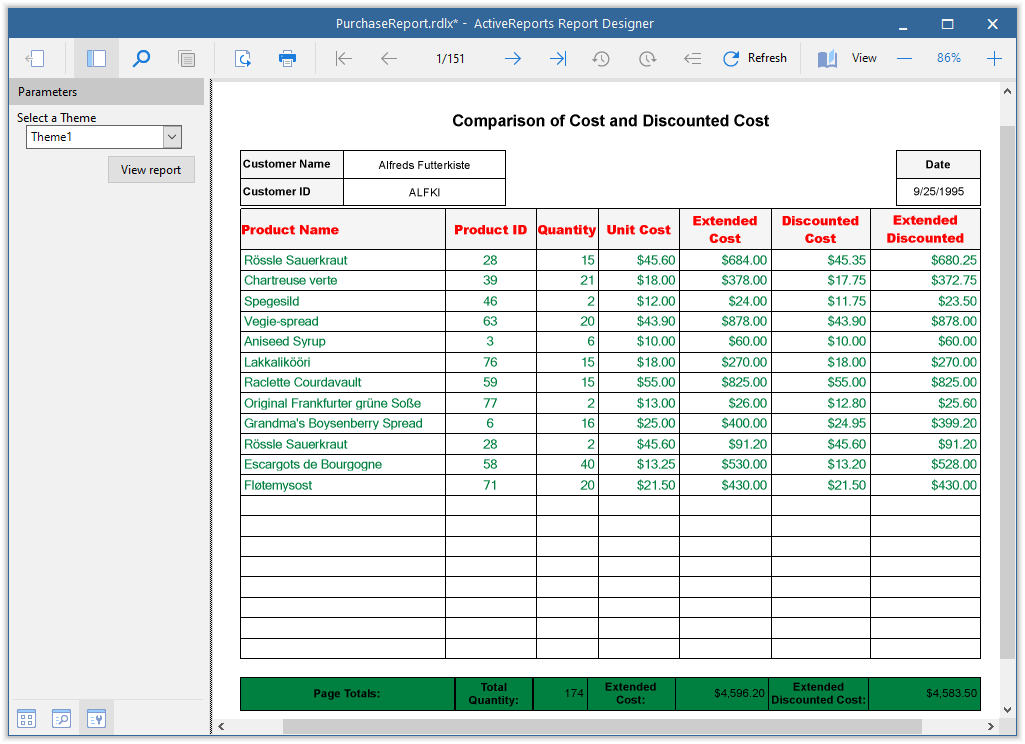
11. Preview the report and select any one of the two themes and click **View Report** to view the theme applied to the report.
> type=note
> **Note**: Since the report needs to be re-rendered for theme to apply, on preview, you can not change the theme of the report by changing the theme selection from the report parameter. The report prompts for the report parameter for the first time and shows the result on clicking View Report, however there is no change in the applied theme if you change the theme and click View Report, unless there are updates in report that causes report to re-render.
## See Also
[Themes](/activereportsnet/docs/report-authors/design-reports/design-page-rdl-reports/report-appearance/themes)