# Themes
Learn to create and add themes with ActiveReports; customize and apply themes, use constant expressions in a theme, and much more.
## Content
Work with ActiveReports to create and add themes, customize and apply themes, use constant expressions in a theme, and much more. A theme is a collection of properties that defines the appearance of a report. A theme includes colors, fonts, images, and constant expressions that you can apply to report elements once you add a theme to a report.
You can add one or many themes to a report. If a report has multiple themes, you can use the report's **[CollateBy](/activereportsnet/api/MESCIUS.ActiveReports.Core.Rdl/GrapeCity.ActiveReports.PageReportModel.CollateBy.html)** enumeration to control the page order in a report. See [Set Up Collation](/activereportsnet/docs/report-authors/design-reports/design-page-rdl-reports/report-appearance/themes#use-dynamic-expressions-in-a-theme) for more information.
The [Theme Editor](/activereportsnet/docs/devops/features-devops/ar-components/theme-editing-app) and the **Report - Themes** dialog allow you to manage themes in a report.
The theme saved as an .rdlx-theme file on your local machine can be added in your report using the **Report – Themes** dialog. Or, you can add a dynamic theme using an expression.
Also, in the File menu, select **Open** to open and modify an existing theme and select **Save** or **Save As** to save the changes on your local machine.
### To access the Report - Themes dialog
1. In the Designer, click the gray area around the report page to select a report.
2. Do one of the following:
* In the Properties window, select the **Themes** property and click the ellipsis (…) button to open the Report - Themes dialog.
* With the report selected, in the Properties window under properties where the commands are displayed, click the **Property dialog** link. In the Report dialog that appears, go to **Themes**.
* On the **Report** menu, select **Report Properties** and go to Themes in the Report dialog that appears.
### Create and add themes
A theme is a collection of properties that defines the appearance of a report. A theme includes colors, fonts, images, and expressions that you can apply to report elements once you add a theme to a report.
You can add one or many themes to a report. If a report has multiple themes, you can use the report's [CollateBy](/activereportsnet/api/MESCIUS.ActiveReports.Core.Rdl/GrapeCity.ActiveReports.PageReportModel.Report.html) property to control the page order in a report.
Use the following instructions to create and add themes.
### Create a new theme
1. Open **Theme Editor**.
2. In the Theme Editor that opens, define the colors, fonts, images, and constant expressions properties for your new theme under the corresponding tabs.
3. On the **File** menu, select **Save**.
4. Choose a directory on your local machine and enter the name of a new theme, then click **Save**.
### Add a theme to the report
1. In the Designer, click the gray area around the report page to select a report.
2. In the Properties window, select the **Themes** property and click the ellipsis (…) button to open the Report - Themes dialog.
3. In the Report - Themes dialog that opens, click the **Add...** icon.
4. From the **Value** drop-down, select <**Open File...>**.
5. In the Open dialog that appears, select a theme file from your local files, click **Open**, and then select **OK.**
### Customize and apply themes
Use the following instructions to customize an existing theme and apply it to your report.
### Modify a theme
1. In the designer, click the gray area around the report page to select a report.
2. In the Properties panel, select the **Themes** property and click the ellipsis (…) button to open the Report - Themes dialog.
3. In the Report - Themes dialog that opens, select an existing report theme.
4. Click the **Edit...** icon above the list of themes.
5. In the Theme Editor that opens, modify the theme properties and click **OK** to close the dialog.
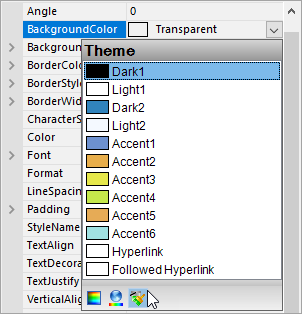
### Apply a theme color
1. In the designer, select the report’s control (for example, a **TextBox**).
2. In the Properties panel, go to the color-related property (for example, the **BackgroundColor** property) and click the arrow to display the drop-down list of values.
3. In the list that appears, go to the **Theme** tab and select the color you want.
### Apply a theme font
1. In the designer, select the report’s control (for example, a **TextBox**).
2. In the Properties window, go to a property from the Font properties group (for example, the **Font** property) and click the arrow to display the drop-down list of values.
3. In the values list that appears, select a font defined in a theme (for example, **=Theme.Fonts!MinorFont.Family**).
### Use Constant Expressions in a theme
In the Theme Editor, you can define constant expressions to be used in a theme. Later, you can apply a constant expression to the report’s control by selecting it in the Value field of that control.
Constant expressions allow you to define a name and an associated value to be used in themes.
Use the following instructions to create and use constant expressions in themes.
### Define a constant expression
1. In the [Theme Editor](/activereportsnet/docs/devops/features-devops/ar-components/theme-editing-app), go to **Constants**.
2. Double-click the field under **Name** and enter the Constant name (for example, **Header**).
3. In the next field to the right, under **Value**, enter the Constant value (for example, **Invoice#**).
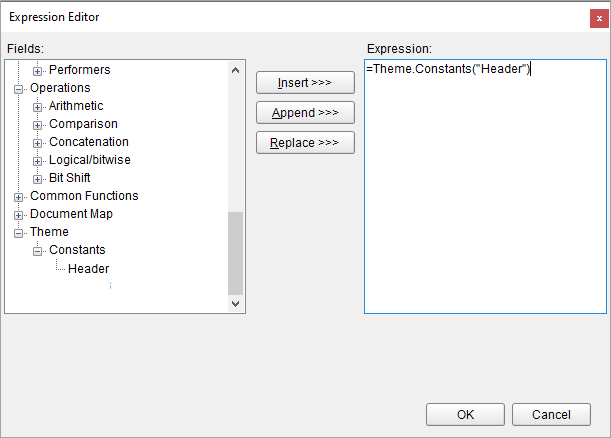
### Use a constant expression
1. In the Designer, select the report’s control (for example, a **TextBox**).
2. In the Properties Panel, go to the **Values** field and select the **\** option from the drop-down list to open the Expression Editor.
3. In the Expression Editor, expand the **Themes** node with the constant expressions defined in the report theme.
4. In the Themes node, select a constant and then click the **Replace** or **Insert** button.
5. Click **OK** to add the constant expression in the TextBox.
### Use Dynamic Expressions in a theme
Dynamic expressions allow you to define themes based on some condition that is evaluated at run-time.
### To add a dynamic expression in a theme
1. In the Designer, click the gray area around the report page to select a report.
2. In the Properties window, select the **Themes** property and click the ellipsis (…) button to open the **Report - Themes** dialog.
3. In the Report - Themes dialog that opens, click **Value** and then **** icon.
4. Enter the expression with dynamic condition and click **OK**.
See tutorial on how to [Apply Theme at Runtime Using Dynamic Expression](/activereportsnet/docs/report-authors/design-reports/design-page-rdl-reports/tutorials-page-rdl-report-scenarios/apply-theme-at-runtime).
### Set Up Collation
You can add multiple themes to a report. In this case, the report renders a combination of multiple outputs for each theme. For example, if a report has two themes, then the report output includes a combination of the first and the second themes, applied to each report page. You can control the combination rules of the report output in the **CollateBy** property.
> type=warning
> **Caution**: If you are using collation in a report, you cannot use interactive features, such as drill down, links, document map, and sorting.
You can control the page order of a rendered report with multiple themes by selecting the collation mode in the **CollateBy** property of the report:
> type=note
> **Note**: The collection of [constant expressions](/activereportsnet/docs/report-authors/design-reports/design-page-rdl-reports/expressions) must be the same in all themes of a report. See [Use Constant Expressions in a Theme](/activereportsnet/docs/report-authors/design-reports/design-page-rdl-reports/report-appearance/themes#use-constant-expressions-in-a-theme) for further information.
1. In the Designer, click the gray area around the report page to select the report.
2. In the Properties Panel, go to the **CollateBy** property and select one of the available options:
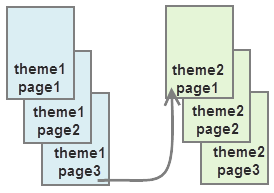
* **Simple**. Renders report pages without any specific sorting. For example, if you have a report with 2 themes, the report renders all pages with theme 1, then all pages with theme 2.
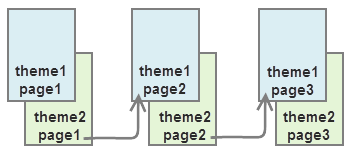
* **ValueIndex**. Sorts report pages by page number. For example, if you have a report with 2 themes, the report renders page 1 for theme 1 and 2, then page 2 for theme 1 and 2, and so on.
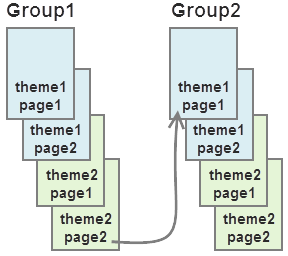
* **Value**. Sorts report pages by the grouping expression that you specify in the report's FixedPage dialog. For example, if you have a report with 2 themes with grouping, the report renders group1 (pages 1 and 2 of theme1, then pages 1 and 2 of theme2), then group 2 (pages 1 and 2 of theme1, then pages 1 and 2 of theme2), and so on.
> type=note
> **Note**: In RDLX Reports, the **Value** collation mode is not available by design.
See [Add Page Numbering](/activereportsnet/docs/report-authors/design-reports/design-page-rdl-reports/tutorials-page-rdl-report-scenarios/add-page-numbering) for information on setting cumulative page count formats for Page Report.