# Styles
Learn about styles, style sheets, usage, style sheet properties, stylesheet editor dialogue, and more, in ActiveReports.
## Content
**Style** is a set of properties that you can apply to selected controls in your Page or RDLX reports to quickly change their appearance. Just one single style can define properties for font, background color, line spacing, border color, padding, and many more. You can create four different types of styles:
* Common
* Text
* Table Of Contents
* Table Of Contents Level
In ActiveReports, you can create multiple styles and store them in a **style sheet**. A style sheet is a collection of styles.
You can add a style sheet to your Page or RDLX report in the report's [StyleSheetSource](/activereportsnet/api/MESCIUS.ActiveReports.Core.Rdl/GrapeCity.ActiveReports.PageReportModel.Report.StyleSheetSource.html) and [StyleSheetValue](/activereportsnet/api/MESCIUS.ActiveReports.Core.Rdl/GrapeCity.ActiveReports.PageReportModel.Report.StyleSheetValue.html) properties. Then you can apply a style to a control, using the control's [StyleName](/activereportsnet/api/MESCIUS.ActiveReports.Core.Rdl/GrapeCity.ActiveReports.PageReportModel.Style.StyleName.html) property.
There are two ways to use the style sheets:
* Embed the style sheets within the report and use its styles on controls in that report
* Save the style sheets externally in **\*.rdlx-styles** format and use it in multiple reports
### Why use Styles?
Using styles gives you more control over the report formatting. Let us look at a few scenarios and see how styles are helpful while designing reports.
**Scenario: Reusing Styles**
In this example we will learn how styles can help save time and maintain consistent formatting by providing the flexibility to use the same style sheet in multiple subreports.
An organization wants to create an Annual Sales Report with multiple subreports that represent Sales by District and Sales by Product. Since all the subreports are a part of the Annual Sales Report, the formatting must be consistent. If you manually set properties for each control on the report to format it and then replicate those same set of properties for the two subreports, you will spend much time on this routine job. Also, such multiple routine operations may lead to inconsistent styling in your reports. Let us look at the screenshot below and see how the ActiveReports **Style** feature can help you generate consistent styles in all reports.
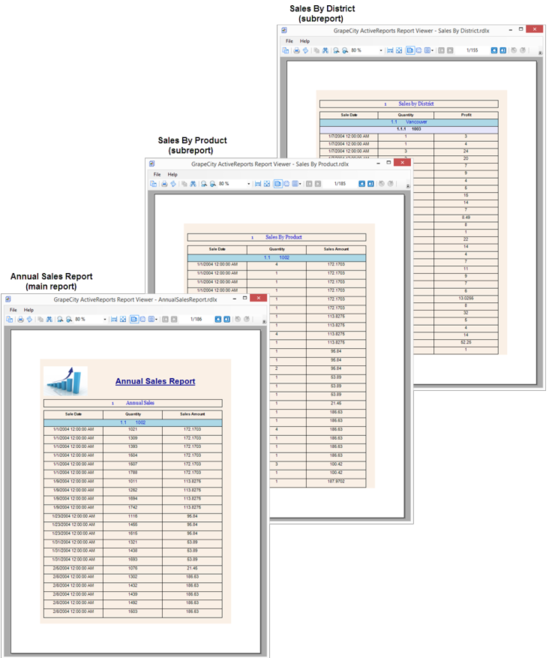
* Create a style sheet for designing the Annual Sales Report (main report).
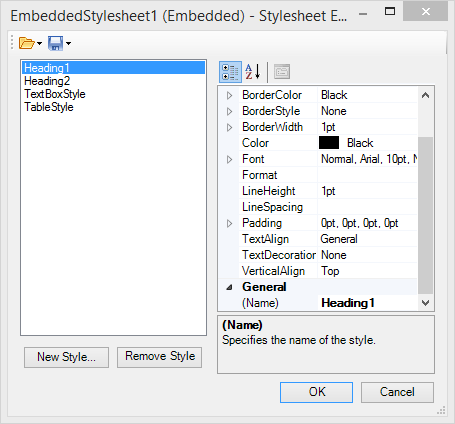
* Add styles to the style sheet in the **Stylesheet Editor** dialog. These styles can be applied to various controls on Annual Sales Report in the [StyleName](/activereportsnet/api/MESCIUS.ActiveReports.Core.Rdl/GrapeCity.ActiveReports.PageReportModel.Style.StyleName.html)property.
* Once the Annual Sales Report is designed, you can set the [InheritStyleSheet](/activereportsnet/api/MESCIUS.ActiveReports.Core.Rdl/GrapeCity.ActiveReports.PageReportModel.Subreport.InheritStyleSheet.html) property to True (by default) for each subreport.
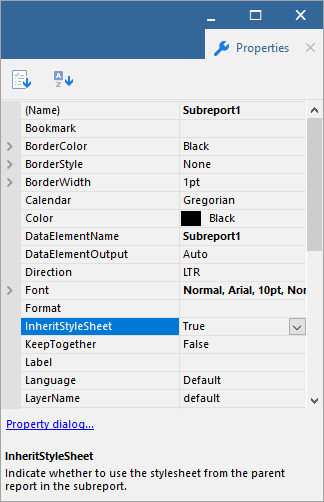
By setting the **InheritStyleSheet** property to **True**, the style sheet used for the Annual Sales Report is automatically inherited in the subreports. This makes all the styles in the style sheet available to the two subreports. To apply the styles to the report controls in a subreport, follow these simple steps:
1. Select the report control.
2. In the control's **StyleName** property, specify the name of the style you want to use.
You can also use the same style sheet in multiple reports by saving the style sheets externally in **\*.rdlx-styles** format.
**Scenario: Enhancing Report Portability**
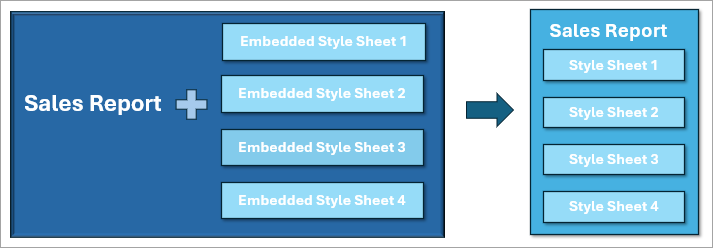
In ActiveReports, you can embed external style sheets in a report. This is particularly useful when you want to send reports that are styled with multiple style sheets. Let us take an example of a Sales Report to see how embedded style sheets can help improve the report portability.
An organization wants to send a Sales report that is styled with 4 different external style sheets. While sending the styled report, 5 files must be sent together - one report and 4 external style sheets. The person receiving these files needs to maintain and store 5 different files. Moreover, if the location of a style sheet is changed, the style sheet will no longer be applied to the report until the path is modified in the report.
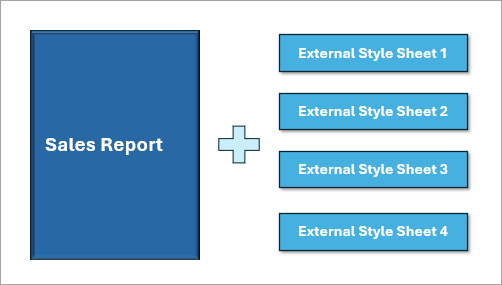
By embedding the external style sheets within the Sales report, only 1 file needs to be sent which in turn improves the portability of the report.
The styles feature consists of the following elements.
* [Style Sheet Properties](/activereportsnet/docs/report-authors/design-reports/design-page-rdl-reports/report-appearance/styles#style-sheet-properties)
* [Stylesheet Editor](/activereportsnet/docs/report-authors/design-reports/design-page-rdl-reports/report-appearance/styles#stylesheet-editor)
* [Add New Style Dialog](/activereportsnet/docs/report-authors/design-reports/design-page-rdl-reports/report-appearance/styles#add-new-style-dialog)
* [Embed Stylesheet Dialog](/activereportsnet/docs/report-authors/design-reports/design-page-rdl-reports/report-appearance/styles#embed-stylesheet-dialog)
* [Open Embedded Stylesheet Dialog](/activereportsnet/docs/report-authors/design-reports/design-page-rdl-reports/report-appearance/styles#open-embedded-stylesheet-dialog)
### Style Sheet Properties
In the Properties panel, the **Source** property and the **Value** property are used to define the style sheet of a report. For subreports, use the **InheritStyleSheet** property.
| **Property Name** | **Description** |
| ------------- | ----------- |
| Source | The source of a report's style sheet. You can choose from the following options: **External** \- Choose this option if the style sheet \(**\*.rdlx-styles** format) is located as an external source, such as a local file, an http location or a custom resource. To learn how to create external style sheets, see [Working with External Style Sheets](/activereportsnet/docs/report-authors/design-reports/design-page-rdl-reports/report-appearance/styles#working-with-external-style-sheets). **Embedded** \- Choose this option if style sheet is embedded in the report\. The embedded style sheets are displayed under the **Embedded StyleSheets** node of the Report Explorer.To learn how to create embedded style sheets, see [Working with Embedded Style Sheets](/activereportsnet/docs/report-authors/design-reports/design-page-rdl-reports/report-appearance/styles#working-with-embedded-style-sheets). |
| Value | The style sheet to apply to the report. You can choose from the following options: **Expression** \- Opens the Expression Editor dialog to create a valid expression\. **New** \- Opens the **New Stylesheet Editor** dialog to create an external or embedded style sheet. **Open file** \- Opens the **Open Stylesheet from file** dialog to navigate to a local style sheet file. This option is only available for external style sheets. For embedded style sheets, a list of available style sheets in the report is provided. |
| InheritStyleSheet | The style sheet to inherit in a subreport. Setting the **InheritStyleSheet** property to True (default value) inherits the style sheet of the main report in the subreport. |
> type=note
> **Note**: Field values are not evaluated when used as an expression in **Stylesheet Value**, **StyleName**, and **Styles** properties.
### Stylesheet Editor
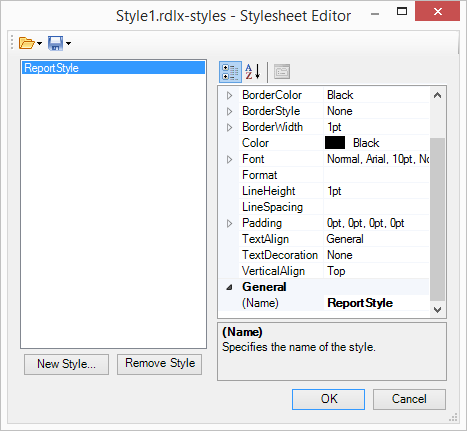
To open the **Stylesheet Editor** dialog:
1. Go to the **Report** menu of the standalone designer or Visual Studio .NET designer.
2. Select the **Stylesheet Editor** option.
The Stylesheet Editor dialog consists of the following elements.
| **Element** | **Description** |
| ------- | ----------- |
| Open Stylesheet from File | Opens a style sheet (**\*.rdlx-styles** format) located externally. |
| Open Embedded Stylesheet | Opens a style sheet embedded in the report. |
| Save Stylesheet to File | Saves the current style sheet as an external style sheet in **\*.rdlx-styles** format. |
| Embed Stylesheet | Embeds the current style sheet in the report. |
| New Style | Creates a new style in the current style sheet. |
| Remove Style | Removes a style from the current style sheet. |
| Property panel | Modifies the properties of the selected style based on the selected style type. Available style properties change depending on the type of style selected. You set the style type when you create a new style. The style type is selected when a new style is created. |
| OK | Saves the current style. |
| Cancel | Closes the dialog without saving the changes. |
> type=note
> **Note**: The values set in the Properties panel override the values defined in the report's style sheet. The overridden values are displayed in bold in the Properties panel.
### Add New Style Dialog
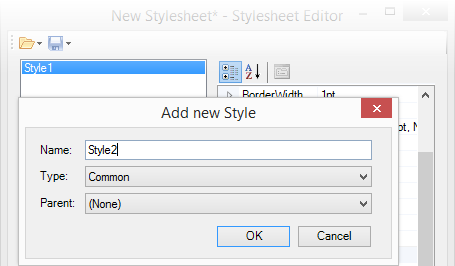
You can open the **Add New Style** dialog by clicking the **New Style** option in the **Stylesheet Editor** dialog.
The **Add New Style** dialog consists of the following elements.
| **Element** | **Description** |
| ------- | ----------- |
| Name | Contains the name of the new style. |
| Type | Sets the type of control to which you can apply the style, which determines the options that are available in the **Properties panel** of the **Stylesheet Editor** dialog. Common Apply this style type to the following report controls: \* CheckBox \* Image \* List \* Tablix \* Shape \* Table \* TableOfContents \* TextBox Text Apply this style type to the **TextBox** report control. It includes all properties of the Common style type, plus it offers properties specific to the TextBox control. TOC Apply this style type to the **TableOfContents** control. TOC Level Apply this style type to the **ToC.Level** object of the TableOfContents control. |
| Parent | Represents the parent style of a new style. If the parent style is specified, the property values are taken from the selected parent style values. By default, the parent style is set to **None**. |
### Embed Stylesheet Dialog
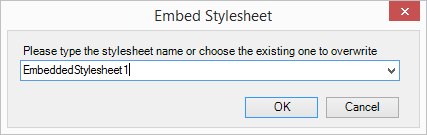
You can access the **Embed Stylesheet** dialog by selecting the **Save current Stylesheet** option and then selecting **Embed Stylesheet** in the **Stylesheet Editor** dialog.
The **Embed Stylesheet** dialog consists of the following elements.
| **Element** | **Description** |
| ------- | ----------- |
| Drop-down list box for style sheet name | Enter a name for the embedded style sheet, or choose an existing style sheet from the drop-down list box to overwrite. |
### Open Embedded Stylesheet Dialog
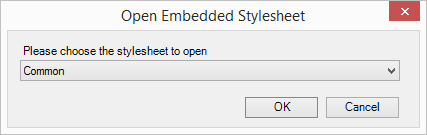
You can access the **Open Embedded Stylesheet** dialog by selecting the **Open stylesheet** option and then selecting **Open embedded Stylesheet** from the **Stylesheet Editor** dialog.
The Open Embedded Stylesheet dialog consists of the following elements.
| **Element** | **Description** |
| ------- | ----------- |
| Drop-down list box for opening style sheet | Provides a drop-down list box to choose an existing style sheet to overwrite. You can also enter a new name for the style sheet here. |
### Working with Styles within a Style Sheet
For any of these operations, you first need to open the style sheet in the editor.
#### To open the editor for embedded style sheets
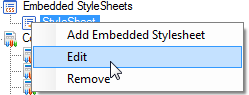
1. In the Report Explorer, expand the **Embedded StyleSheets** node and select the existing style sheet you want to edit.
2. Right-click and select **Edit** to open it in **Stylesheet Editor** dialog.
#### To open the editor for external style sheets
1. In the standalone designer or Visual Studio designer, click the Report menu and select the **Stylesheet Editor**.
2. In the Stylesheet Editor dialog, click the Open button and select the **Open Stylesheet from File** option.
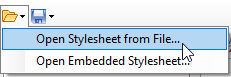
3. In the **Open** dialog, navigate to the **\*.rdlx-styles** file that you want to open.
4. Click **Open** to open the external stylesheet in the **Stylesheet Editor**.
#### To add a new style to a style sheet
* In the **Stylesheet Editor** dialog, click the **New Style** button to add a new style.2. In the [Add New Style dialog](/activereportsnet/docs/report-authors/design-reports/design-page-rdl-reports/report-appearance/styles#add-new-style-dialog), enter the **Name** of the style, and then select the **Type** and **Parent** style.
> type=info
> **Tip**: For more information on the style types, see [Working with Styles](/activereportsnet/docs/report-authors/design-reports/design-page-rdl-reports/report-appearance/styles#working-with-styles-within-a-style-sheet). To create style types for TableOfContents controls and heading levels, see [Apply styles to the TableOfContents control](/activereportsnet/docs/report-authors/design-reports/design-page-rdl-reports/report-appearance/styles#apply-styles-to-the-tableofcontents-control) and [Apply styles to the TableOfContents levels](/activereportsnet/docs/report-authors/design-reports/design-page-rdl-reports/report-appearance/styles#apply-styles-to-the-tableofcontents-levels).
#### To modify a style in a style sheet
1. In the **Stylesheet Editor**, select the existing style that you want to modify and use the property fields on the right to make the changes.
2. Click **OK** to save the changes.
#### To remove a style from a style sheet
1. In the **Stylesheet Editor**, select the style that you want to remove and click **Remove Style.**
2. Click **OK** to save the changes.
#### To use a style from a style sheet at design time
1. Click the gray area around the report to select it, and under the Properties panel, click the **Property dialog** link in the Commands section. See Properties panel for more information on how to access commands.
2. In the Report dialog, go to the **Appearance** page.
3. In the **Appearance** page, set the Stylesheet Source to Embedded and in the Value field select an existing embedded style sheet. (Or select External and select the \ option and navigate to an **\*.rdlx-styles** external style sheet.)
> type=info
> **Tip**: You can also access the **Source** and **Value** properties in the Properties panel by expanding the **Stylesheet** node.
4. Click **OK** to close the dialog.
5. On the design surface, select the control you want to apply the style to.
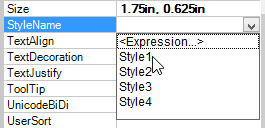
6. In the Properties panel, from the **StyleName** property drop-down, select a style to apply to the controls.
### Working with Embedded Style Sheets
#### Create and save a style sheet
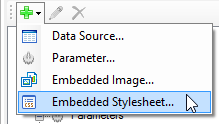
1. In the Report Explorer, right-click the **Embedded StyleSheets** node, and select the **Add Embedded Stylesheet** option to access the **Stylesheet Editor** dialog.
> type=info
> **Tip**: You can also access the **Stylesheet Editor** dialog from the Report Explorer by clicking the Add button and selecting **Embedded Stylesheet**. In the standalone designer or Visual Studio designer, from the **Report** menu, select **Stylesheet** Editor.
2. Click the Save button and select **Embed Stylesheet** to embed the style sheet into the report.
3. Enter a name for the style sheet or choose an existing style sheet from the drop-down to overwrite, and then click **OK** to save the embedded style sheet.
All the saved style sheets embedded in the report appear under the **Embedded StyleSheets** node in the Report Explorer.
#### Save embedded style sheet as an external style sheet
1. In the Report Explorer, expand the **Embedded StyleSheets** node and select the embedded style sheet.
2. Right-click and select **Edit** to open the **Stylesheet Editor** dialog.
3. In the Stylesheet Editor dialog, click the Open button and select the **Save Stylesheet to file** option to save the embedded style sheet externally.
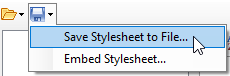
4. In the **Save As** dialog, navigate to the location where you want to save the style sheet, provide a name for the style sheet and click the **Save** button to save it as an external **\*.rdlx-styles** file.
### Working with External Style Sheets
#### Create and save a style sheet
1. In the standalone designer or Visual Studio designer, click the **Report** menu and select the **Stylesheet Editor**.
2. In the Stylesheet Editor dialog, click the Open button and select the **Save Stylesheet to file** option.
3. In the **Save As** dialog, navigate to the location where you want to save the style sheet, provide a name for the style sheet and click the **Save** button to save it as an external **\*.rdlx-styles** file.
#### Embed External style sheet into a report
1. In the standalone designer or Visual Studio .NET designer, click the Report menu and select the **Stylesheet Editor**.
2. In the Stylesheet Editor dialog, click the Open button and select the **Open Stylesheet from file** option.

3. In the Open dialog, navigate to the external style sheet **(\*.rdlx-styles file)** that you want to load and click the **Open** button to load it in the Stylesheet Editor dialog.
4. In the Stylesheet Editor dialog, click the Save button and then select the **Embed Stylesheet** option.
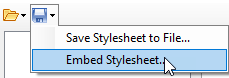
5. In the **Embedded Stylesheet** dialog, enter a name for the style sheet and then click **OK** to embed the loaded style sheet into your report.
All the saved style sheets embedded in the report appear under the **Embedded StyleSheets** node in the Report Explorer.
## Apply styles to the TableOfContents control
In the TableOfContents control, you can apply styles in the **StyleName** property.
* Create a new style sheet and add styles that you want to apply to the TableOfContents control. For information on how to create style sheets and style types, see the previous sections of this topic.
* Apply the style sheet to the report.2. From the toolbox, drag and drop the **TableOfContents** control onto the report design surface, preferably at the start or end of the report layout to justify the significance of the control.
3. On the design surface, select the TableOfContents control.
4. In the Properties panel, from the **StyleName** property drop-down, select a style to apply to the TableOfContents control.
## Apply styles to the TableOfContents levels
In the TableOfContents control, you can apply styles to each TableOfContents level in the **StyleName** property, available in the **LevelDesigner Collection Editor** dialog.
1. Create a new style sheet and add styles that you want to apply for the TableOfContents level. For information on how to create style sheets and style types, see the previous sections of this topic.
2. From the toolbox, drag and drop the **TableOfContents** control onto the report design surface, preferably at the start or end of the report layout to justify the significance of the control.
3. With the TableOfContents control selected, click the **Levels (Collection)** property from the Properties panel and then click the ellipsis button that appears.
4. In the **LevelDesigner Collection Edior** dialog that appears, select a TableOfContents level on which to want to apply the style.
5. From the list of properties on the right, drop-down the **StyleName** property to select a style to apply.
## See Also
#### Developers
[Apply Styles through Code](/activereportsnet/docs/developers/working-with-reports-devs/page-rdl-report-developers/applying-styles-through-code)