# XML Provider
This topic provides ActiveReports samples demonstrating data binding with an XML data provider in a Page/RDLX report.
## Content
This article explains connecting a section report to an XML data source.
## Connect to an XML Data Source
1. In the designer, select the **Data Source** icon on the Detail section of the report or click the gray area around the design surface and select the **Edit Data Source** link in the Properties pane.
2. In the **Report Data Source** dialog that appears, select the **XML** tab to connect to an XML data source.
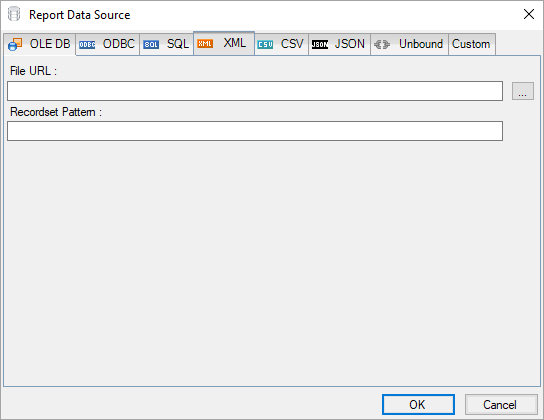
3. Click the Ellipsis (...) button next to **File URL** field select the option to specify the XML file path. For example, you can connect to the Factbook.xml sample data source which can be downloaded from [GitHub](https://github.com/activereports/Samples19/tree/main/Data/).
4. In the **Recordset Pattern** field, enter a valid XPath expression. For example,
```javascript
//countries
```
For more information about the XPath expressions, please see [https://www.w3schools.com/xml/xpath\_intro.asp](https://www.w3schools.com/xml/xpath_intro.asp).
5. Click the **OK** button to close the **Report Data Source** dialog. Your report is now connected to the XML data source successfully.