# Report Layouts
Learn about supported report layouts in ActiveReportsJS.
## Content
In ActiveReportsJS, a report typically consists of two types of content:
* `Static content`, such as a company logo or a report title, does not change its size at runtime.
* `Dynamic content` includes [data regions](/activereportsjs/docs/v6.1/ReportAuthorGuide/Report-Items/Data-Regions), such as a [Table](/activereportsjs/docs/v6.1/ReportAuthorGuide/Report-Items/Data-Regions/Table), that visualize the [bound data](/activereportsjs/docs/v6.1/ReportAuthorGuide/Databinding) and can grow both vertically and horizontally at runtime.
A report creation process starts with choosing between `Continuous Page Layout`, `Fixed Page Layout`, and `Pageless Layout`. The layout type determines how the report output arranges the dynamic content into output pages.
### Pageless Layout
`Pageless layout` is unique in that it does not operate on the concept of pages. A report of this layout type consists of one or more `sections`, which are displayed in separate tabs in the report viewer. Each section has a static size at design time, but it can change at the preview time to accommodate the growing content.
In addition, a section could include a scrollable area. This is created by using the [Container](/activereportsjs/docs/v6.1/ReportAuthorGuide/Report-Items/Supplemental-Report-Items/Container) report item, with the `Can Grow` property set to `False` and the `Overflow` property set to `Auto`, allowing for navigation through the dynamic content.
You can set the DisplayName property of a section to an [expression](/activereportsjs/docs/v6.1/ReportAuthorGuide/Expressions) that evaluates at runtime. This expression could refer to a [report parameter](/activereportsjs/docs/v6.1/ReportAuthorGuide/Expressions/references#parameters) or a [global value](/activereportsjs/docs/v6.1/ReportAuthorGuide/Expressions/references#global-values), such as the current datetime. This feature provides dynamic naming capabilities, further enhancing the flexibility of your reports.
Additionally, you can set the `Hidden` property of a section to an expression that evaluates at runtime, which can use report parameter values. If the `Hidden` property evaluates to a boolean `True` value, the section will be hidden. This feature allows for the dynamic hiding of certain sections based on runtime conditions, offering even more control over how the content is presented.
You could use the Pageless layout for analytical reports that do not require pagination, printing, or exporting to PDF.
For a step-by-step tutorial on creating your first pageless report, please refer to the [Get Started with the Pageless Report](/activereportsjs/docs/v6.1/ReportAuthorGuide/QuickStart/get-started-with-analytical-reports/pageless-reports) walkthrough.
### Continuous Page Layout
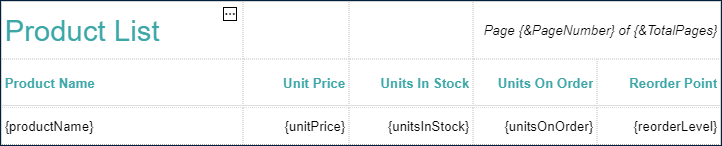
The `Continuous Page Layout` lets a data region grow until there is no more space on the current page and then produces a new one. Suppose, we have a report containing the [Table](/activereportsjs/docs/v6.1/ReportAuthorGuide/Report-Items/Data-Regions/Table) that visualizes the [Product List](https://demodata.grapecity.com/northwind/api/v1/Products). The first and the second rows print the report title, column headers, and page numbering on each page. The third row repeats for each data record.
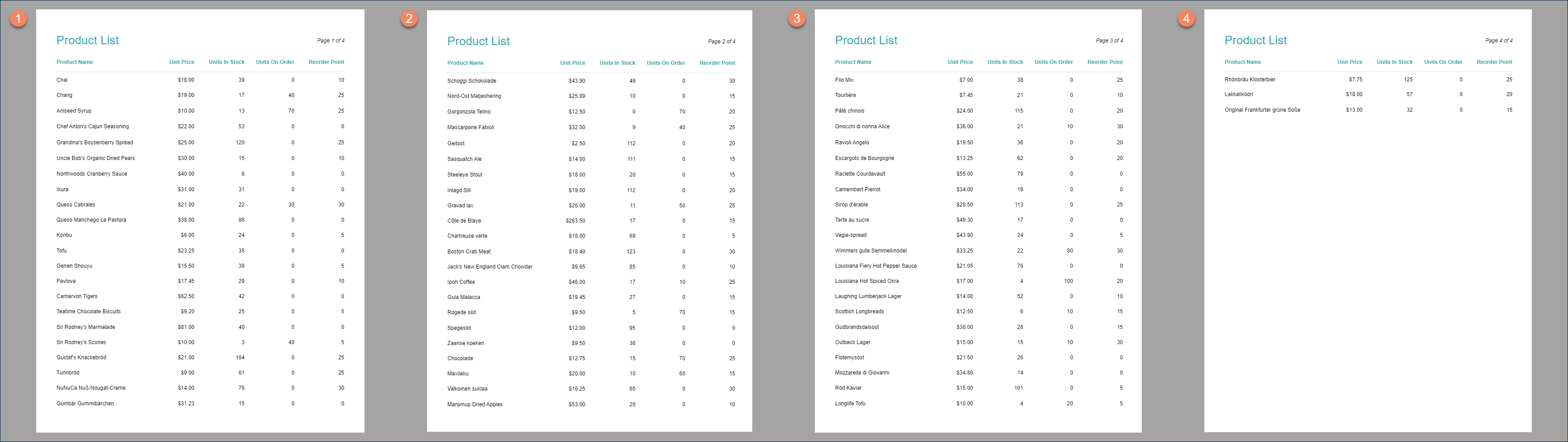
At runtime, the report output generates four pages to accommodate the growing table content.
Data regions might have `hard page breaks`, as in the [Get Started With Tabular Report](/activereportsjs/demos/Reports/GetStartedWithTabularReports/purejs) demo. In that case, continuous page layout lets a data region grow until the hard page break occurs and then produces the new page.
The same principle applies for a [Tablix](/activereportsjs/docs/v6.1/ReportAuthorGuide/Report-Items/Data-Regions/Tablix) data region that can grow in horizontal direction—once there is no more space on the page or the hard page break occurs, the `Continous Page Layout` generates the new page. A `Tablix` can also grow in both vertical and horizontal directions. In that case, the `Layout Order` property of a report determines the manner in which a tablix splits into several pages. The default `Z-Order` value means that horizontal growing occurs first, then the vertical growing occurs. The `N-Order` value means that the vertical growing occurs first, then the horizontal growing occurs.
A report built with `Continuous Page Layout` may have multiple `sections` each with its own page size, orientation, and margins. For example, the report in the [Multi-Section Layout demo](/activereportsjs/demos/Reports/MultiSectionLayout/purejs) contains two sections. The first section is called `Dashboard` and set in `Portrait` orientation, and showcases a summary of taxi drive statistics. The second section called `Report`, in contrast, uses the `Landscape` orientation to display a detailed table of information about each taxi drive.
At the design-time, you can add new sections and switch between them by using controls at the bottom of the design surface.
Additionally, you can set the `Hidden` property of a section to an expression that evaluates at runtime, which can use report parameter values. If the `Hidden` property evaluates to a boolean `True` value, the section will be hidden. This feature allows for the dynamic hiding of certain sections based on runtime conditions, offering even more control over how the content is presented.
The `Galley mode` allows you to preview a `Continuous Page Layout` without pagination applied. The page size and margins are ignored, but hard page breaks still occur. This preview mode makes a lot of sense for non-printable, dashboard-like views, such as the [Drill-Down Report](/activereportsjs/docs/v6.1/ReportAuthorGuide/QuickStart/get-started-with-analytical-reports/Get-Started-With-DrillDown-Report).
### Fixed Page Layout
The `Fixed Page Layout` lets you specify how much space a data region should take on a page and where it should continue if new pages are required to accommodate growing content. In addition, it has advanced data binding capabilities.
### Fixed Size
[Data regions](/activereportsjs/docs/v6.1/ReportAuthorGuide/Report-Items/Data-Regions) in fixed layout reports have the `Fixed Width` and `Fixed Height` properties to specify the size that could be taken at runtime.
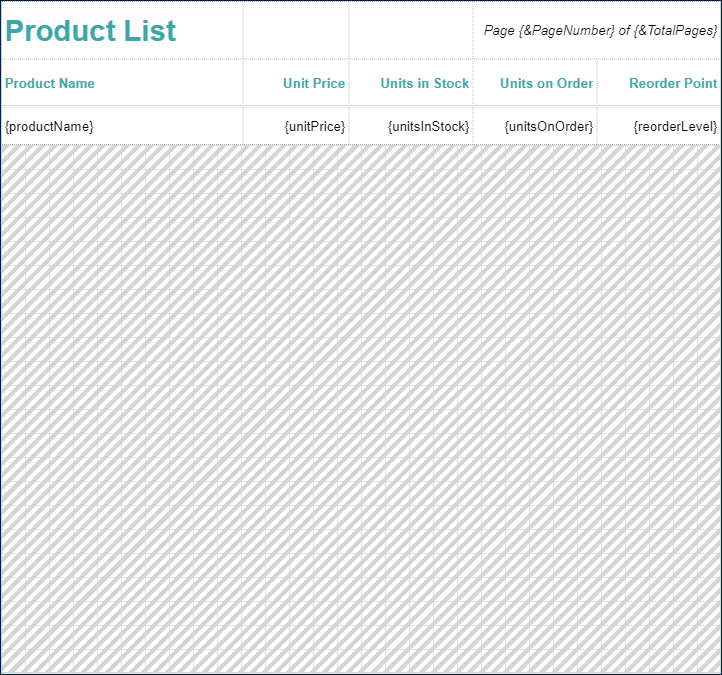
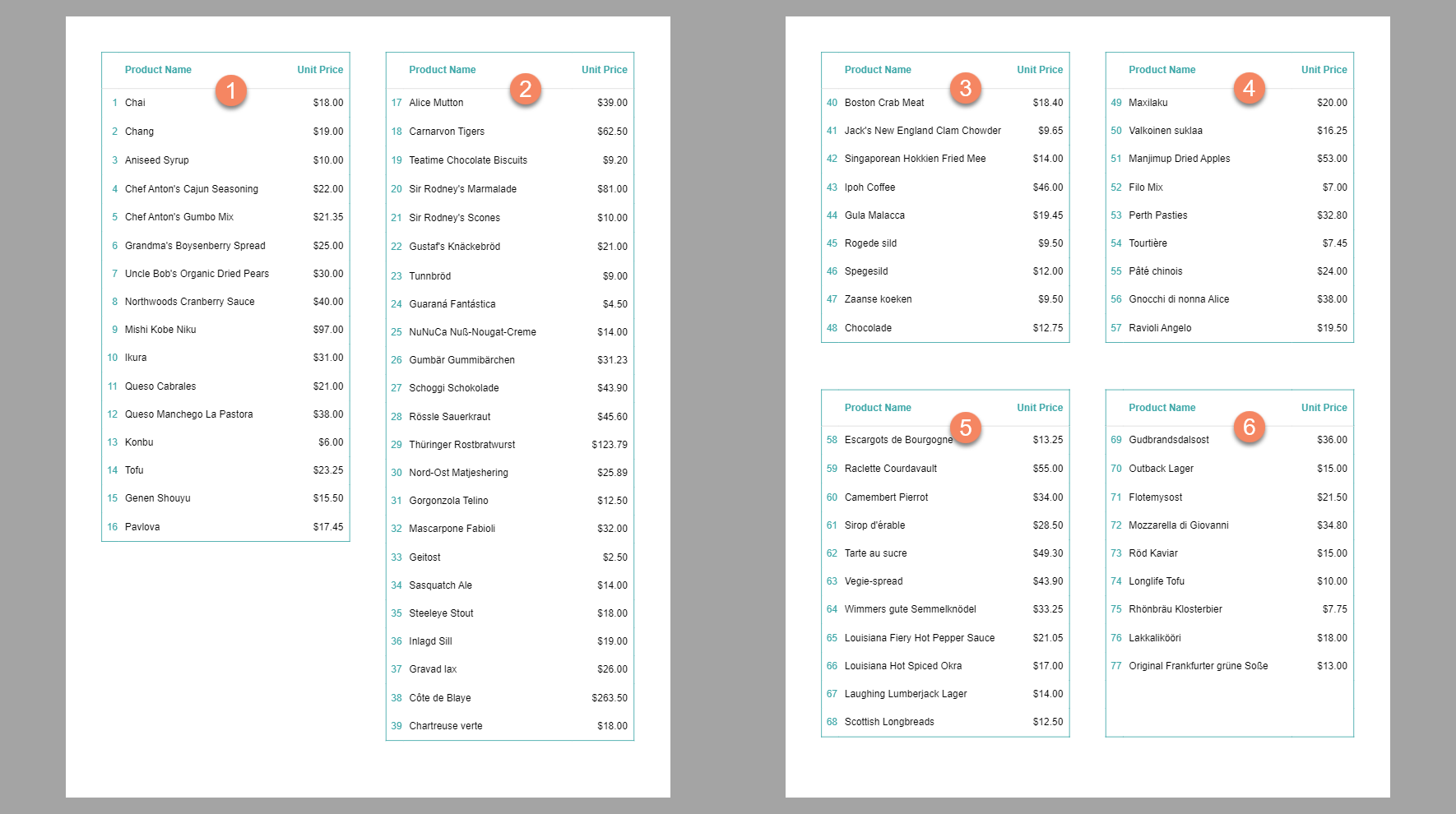
Suppose, we have a report containing a [Table](/activereportsjs/docs/v6.1/ReportAuthorGuide/Report-Items/Data-Regions/Table) that visualizes the [Product List](https://demodata.grapecity.com/northwind/api/v1/Products). The first and the second rows print the report title, column headers, and page numbering on each page. The third row repeats for each data record. The `Fixed Height` property of the table is set to `7in`:
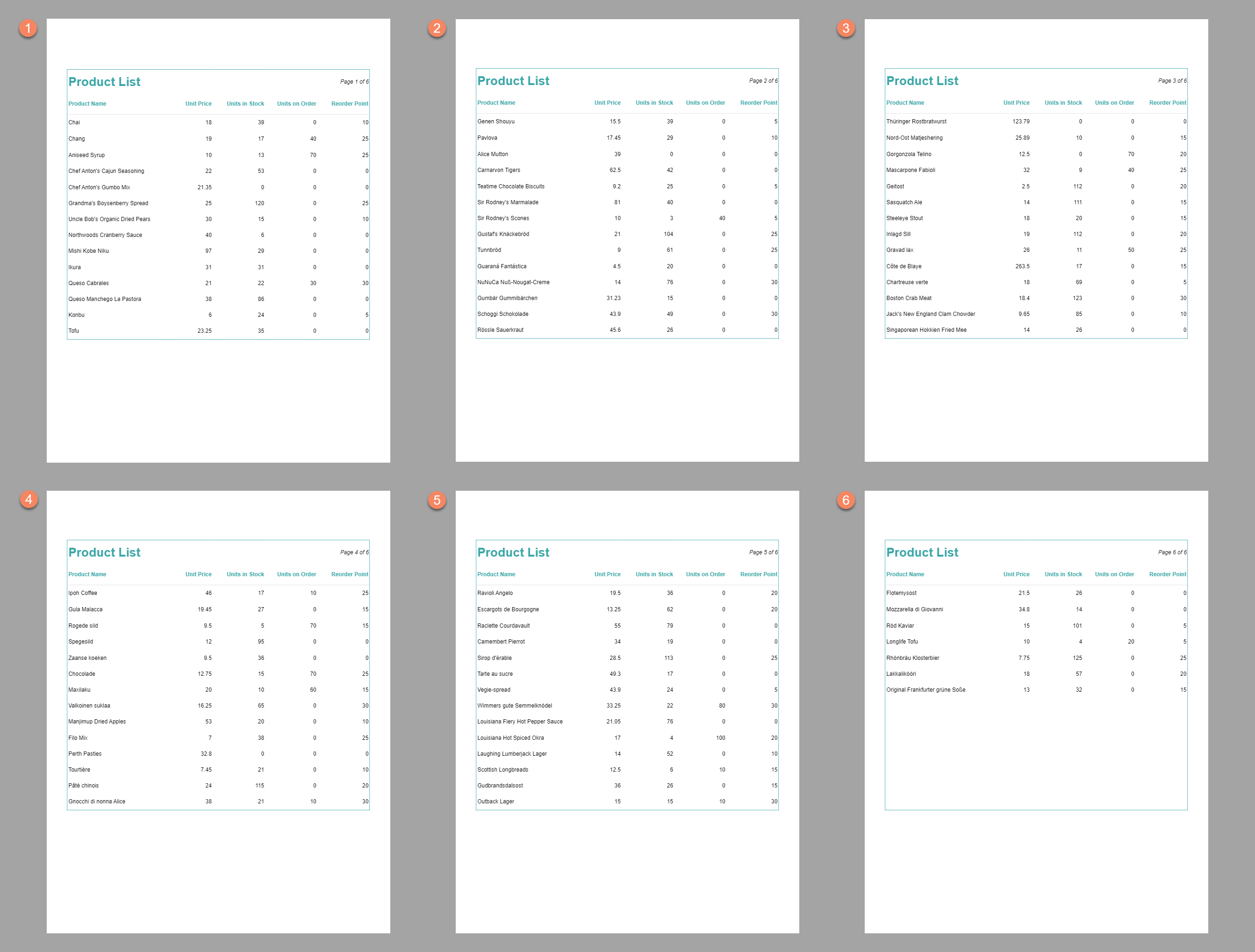
At runtime, the report output divides the growing table content into six *chunks* of 7in height and places each chunk on a new page. The last chunk does not have enough data to fill in the full height, printing empty rows instead(this behavior is optional).
### Overflow Place Holder
The `Fixed Page Layout` allows you to specify the location and the size of those above *chunks* by adding pages at design-time and using the `OverflowPlaceHolder` report item. For instance, the report layout in the [Get Started with Fixed Reports demo](/activereportsjs/demos/Reports/GetStartedWithFixedReports/purejs) has two pages at design-time. The first one includes the `Invoice` header and the `Order Details` table. If this table does not fit on the single page, the report prints the remaining rows on the second, third, etc., pages that do not repeat the header.
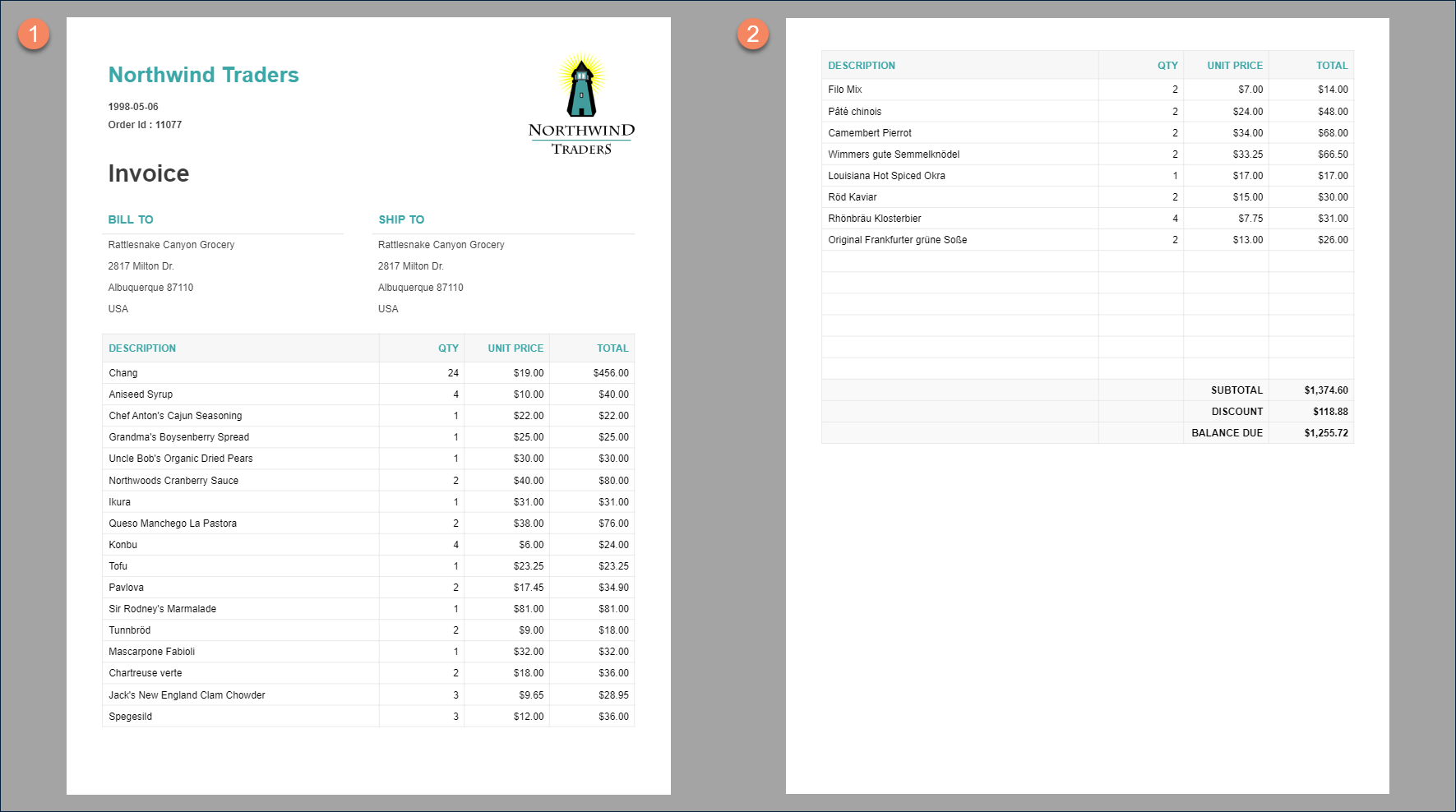
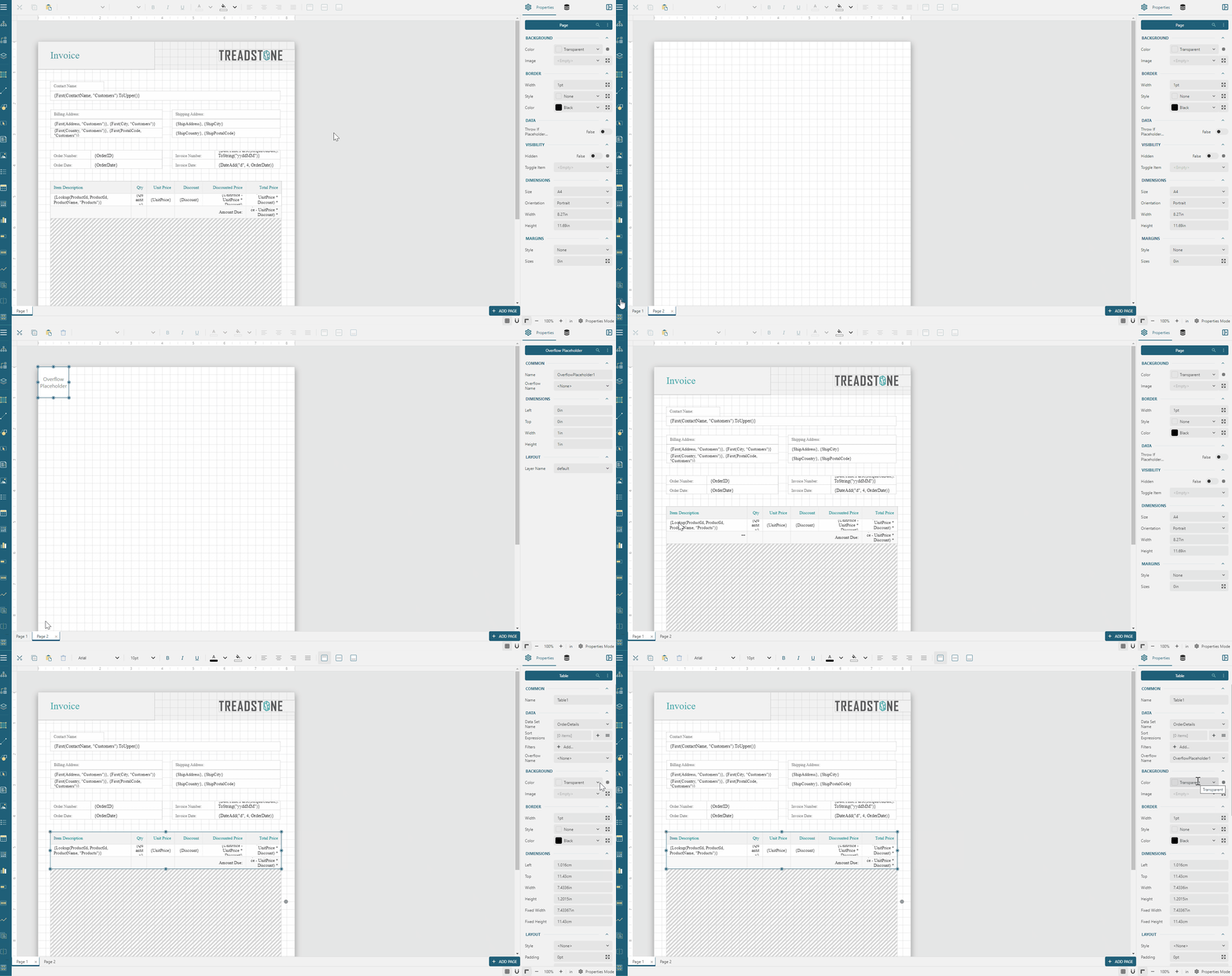
[Data regions](/activereportsjs/docs/v6.1/ReportAuthorGuide/Report-Items/Data-Regions) in fixed layout reports have `Overflow Name` property that points to the `OverflowPlaceHolder`.
DOC-DETAILS-TAG-OPEN
DOC-SUMMARY-TAG-OPEN
Expand to watch adding a new page, and setting the overflow place holder in action
DOC-SUMMARY-TAG-CLOSE
DOC-DETAILS-TAG-CLOSE
Initially, an `OverflowPlaceHolder` derives its size from the `Fixed Width` and `Fixed Height` properties of the "parent" data region. However, you can change this size to make subsequent data *chunks* larger or smaller than the first one. The `OverflowPlaceHolder` also has the `Overflow Name` property that allows you to build a layout chain starting from the data region and processing through several placeholders.
Data regions might have "hard" page breaks between group instances or otherwise. In that case, a fixed page layout lets a data region grow until the hard page break occurs and then moves to the next `OverflowPlaceHolder` in the chain.
### Fixed Layout Page
A fixed layout page exposes the following properties:
* Each Fixed Layout Page could have distinct dimensions, which you can set using the following properties
* The `Margins` section
* The `Style` property is a shortcut to various predefined values of page margins.
* The `Sizes` property determines the `Left`, `Top`, `Right`, and `Bottom` margins in [Length](/activereportsjs/docs/v6.1/ReportAuthorGuide/Report-Items/Common-Properties#length) units.
* The `Dimensions` section
* The `Size` property is a shortcut to standard page sizes, such as `Letter` or `A4`.
* The `Orientation` property determines the direction in which the report content displays.
* The `Width` and `Height` properties allow you to set the custom page size in [Length](/activereportsjs/docs/v6.1/ReportAuthorGuide/Report-Items/Common-Properties#length) units.
* A subset of [Style properties](/activereportsjs/docs/v6.1/ReportAuthorGuide/Report-Items/Common-Properties#style-properties) allows you to set the page background color, image, and border.
* The `Throw If Placeholder Empty` flag indicates whether a report output should omit a page if an overflow placeholder on this page does not have any content.
* The [Visibility configuration](/activereportsjs/docs/v6.1/ReportAuthorGuide/Report-Items/Common-Properties#visibility) allows you to set static or dynamic page visibility.
### Fixed Layout Data Binding
The `Fixed Page Layout` allows you to create master-detail reports where each master record restarts those above layout chain to print detail data. An example of such a report is a catalog where each product category(the master record) displays the title page followed by the price list(detail data).
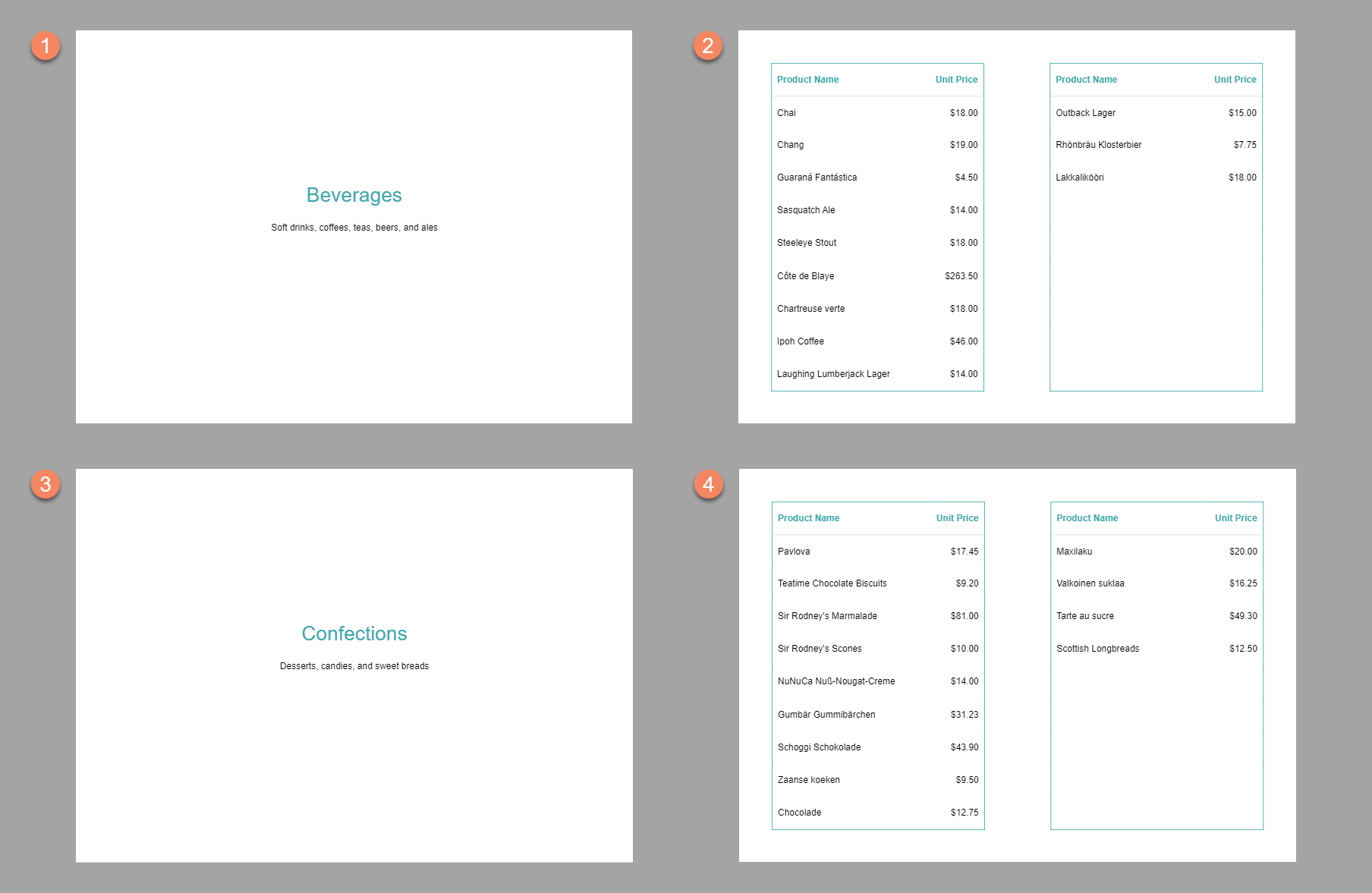
This feature can be implemented by using the following properties of the `Report` object that loaded into the `Properties panel` if you select the `Report` item in the [Report Explorer](/activereportsjs/docs/v6.1/ReportAuthorGuide/Report-Designer-Interface#report-explorer) or click anywhere on the gray area around the page layout.
DATA Section
* The `Data Set Name` points to the [data set](/activereportsjs/docs/v6.1/ReportAuthorGuide/Databinding#data-set-configuration) where the data come from.
* The `Sort Expressions` is the [collection](/activereportsjs/docs/v6.1/ReportAuthorGuide/Report-Items/Common-Properties#collection) of items that allows you to arrange the appearance of data records. Each item consists of the [expression](/activereportsjs/docs/v6.1/ReportAuthorGuide/Report-Items/Common-Properties#expression) and the sort direction.
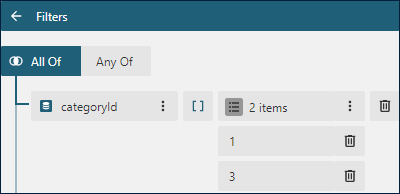
* The [Filters Editor](/activereportsjs/docs/v6.1/ReportAuthorGuide/Report-Designer-Interface#filters-editor) allows you to filter out certain data records. For instance, the product catalog displayed above prints only two out of eight product categories. To achieve that, we set the following filter for the fixed page layout.
GROUP section
* The `Name` is the group `Id`. It can be safely ignored.
* The `Group Expressions` is the [collection](/activereportsjs/docs/v6.1/ReportAuthorGuide/Report-Items/Common-Properties#collection) of [bound field references](/activereportsjs/docs/v6.1/ReportAuthorGuide/Expressions/references#data-set-fields) or more advanced expressions. Unique values of group expressions generate master records. For instance, the product catalog example has the `{categoryId}` group expression.
* The `Label` [expression](/activereportsjs/docs/v6.1/ReportAuthorGuide/Report-Items/Common-Properties#expression) determines the text of a master record link in the [Report Map](/activereportsjs/docs/v6.1/ReportAuthorGuide/Interactivity#report-map).
* The [Filters Editor](/activereportsjs/docs/v6.1/ReportAuthorGuide/Report-Designer-Interface#filters-editor) of a group allows you to filter out certain group instances.