# Licensing
Learn how to license ActiveReportsJS
## Content
### Evaluation version
If you are using the evaluation version of ActiveReportsJS, the following constraints are applied:
* A watermark with an evaluation message appears on a report preview and in exported files
* The standalone designer application is available for 30 days
To extend your trial period, please contact us.sales@mescius.com.
### Licensing the designer application
* Find the Designer License Key in the Order Confirmation email and copy it
* Run the ActiveReportsJS Designer application
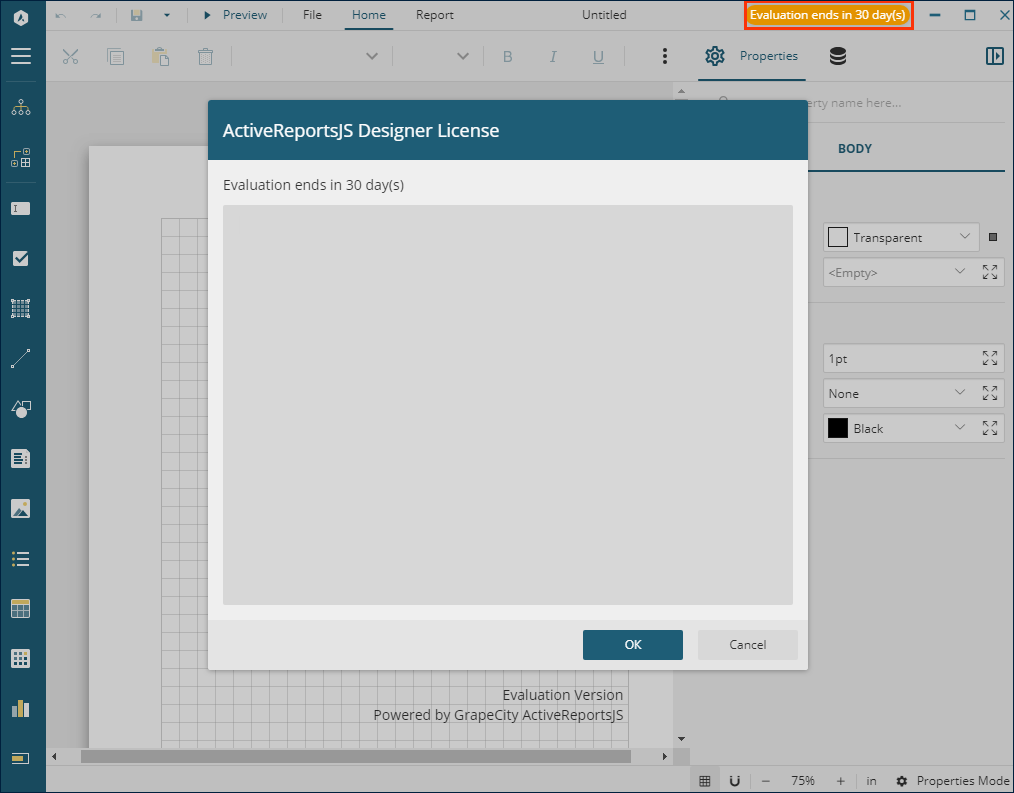
* Click the evaluation banner on the top right corner of the UI
* Paste the designer license key in the pop-up dialog
* Click OK
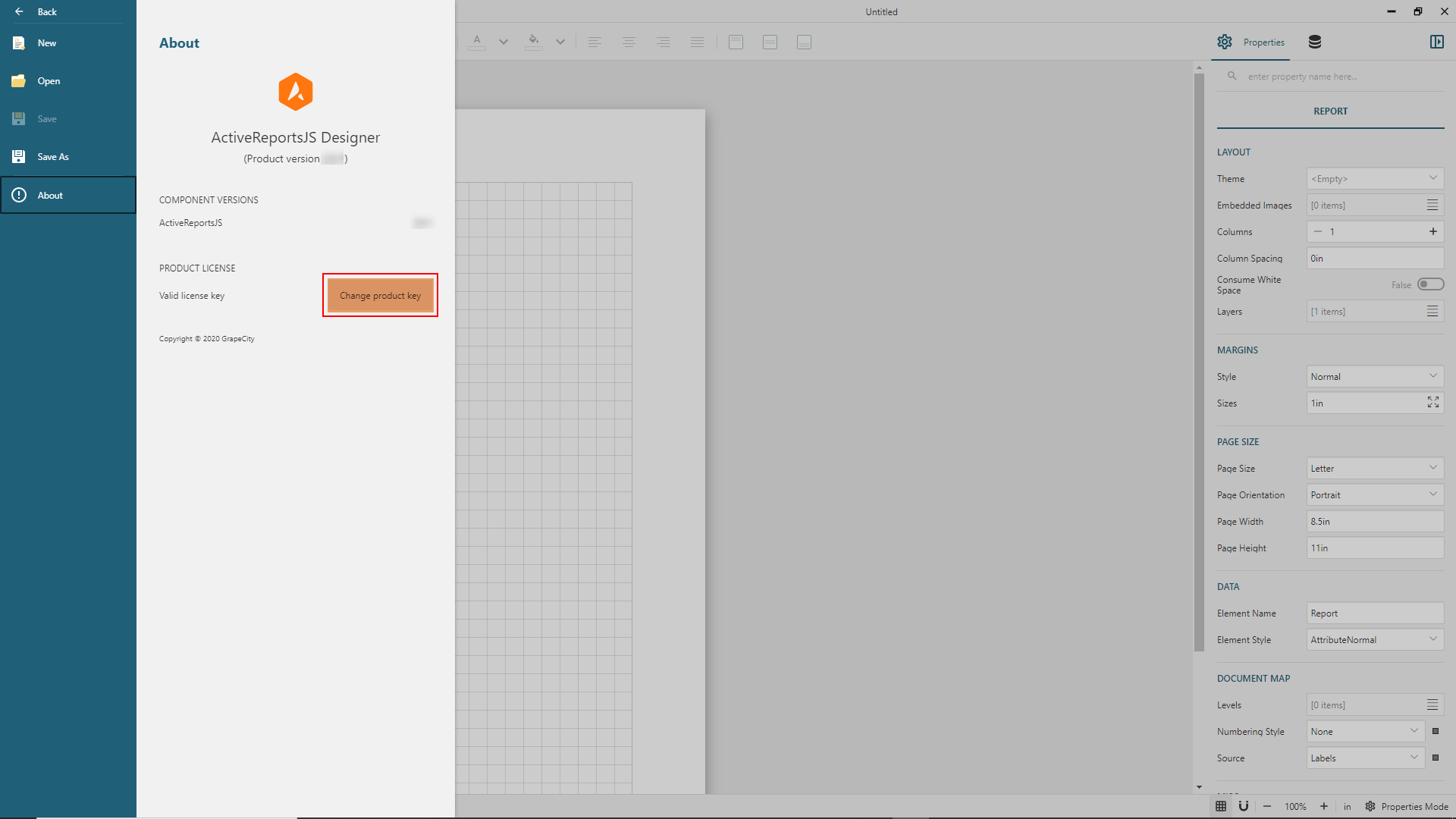
Alternatively, you can open the `File` menu, select the `About` item, click the `Change product key` button, paste the designer license key in the pop-up dialog and click the `OK` button.
### Generating distribution keys
If an application that uses ActiveReportsJS components runs on the localhost, as it usually happens during development, no additional licensing steps are required. All the ActiveReportJS functions are available without restrictions. However, rendered report pages will contain the evaluation banner displayed at the bottom.
When you deploy the application in the developing, staging, or production server, you must integrate the distribution key in the application's code. You can request the evaluation distribution key at [us.sales@mescius.com](mailto:us.sales@mescius.com).
For a paid license, you can manage distribution keys on your own. Let's say that you have a paid license that allows deployment to three hostnames, and you want to deploy the application to the following servers:
* https://arjs-develop.example.com/ - **develop** environment to share the everyday progress of the application development
* https://arjs-staging.example.com/ - **staging** environment to share the stable version of the application before you release it for public access
* https://arjs-prod.example.com/ - **production** environment
To generate the distribution key for these hostnames:
* [Login](https://developer.mescius.com/login) to your MESCIUS Account
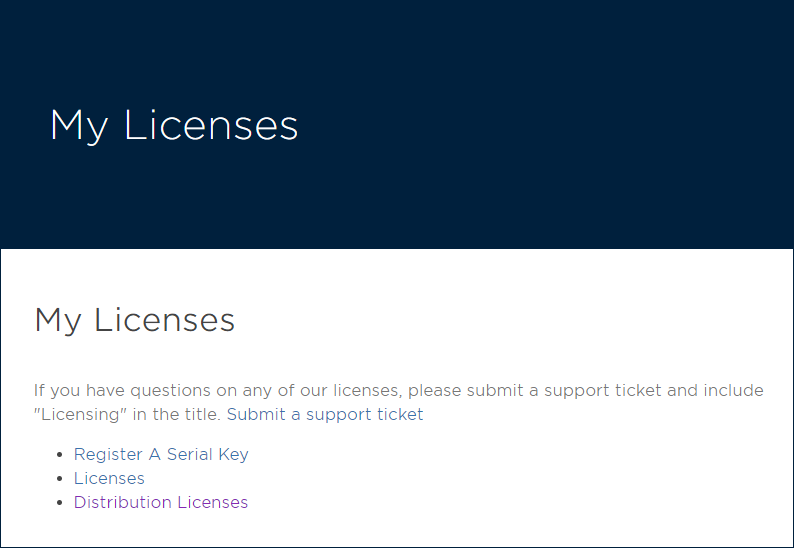
* Navigate to the "My Licenses" page and click the "Distribution Licenses" link
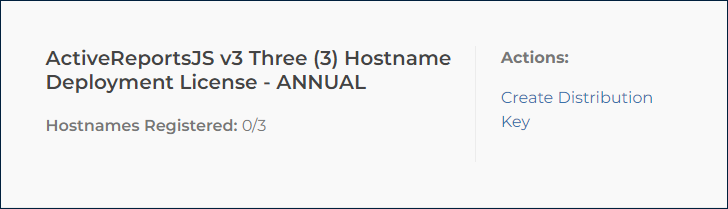
* Find ActiveReportsJS license item
* Click "Create Distribution Keys" under "Actions"
* Click the "Add a Hostname" button. The dialog will appear.
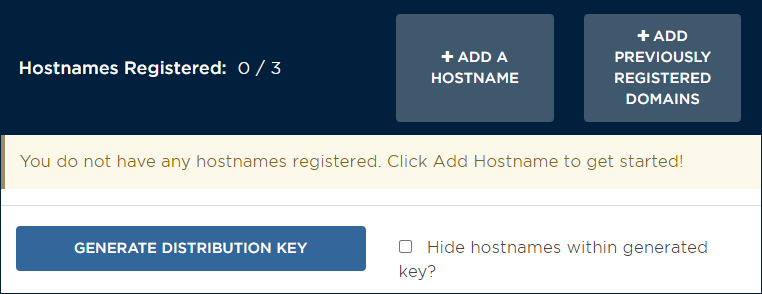
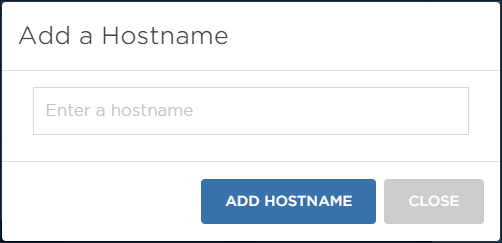
* Enter "arjs-develop.example.com" in the text input and click "add hostname."
* Enter "arjs-staging.example.com" in the text input and click "add hostname."
* Enter "arjs-prod.example.com" in the text input and click "add hostname."
* Click the "Generate Distribution Key" button
* The distribution key will appear at the bottom. Copy the key and save it somewhere for future reference
Now you should insert the generated key in the source code of your application. ActiveReportsJS runs on the client-side, so the code that injects the license should run on the client-side. Here are a few recipes for the most popular front-end frameworks:
### Reactjs, Angular, and Vue applications
Add the following code to the entry point of your application. By default, the entry point is:
* **src/index.jsx(tsx)** for a Reactjs application
* **src/main.ts** for an Angular application
* **src/main.js(ts)** for a Vue application
```javascript
import { Core } from "@mescius/activereportsjs";
Core.setLicenseKey("DISTRIBUTION KEY GOES HERE");
```
### Pure JavaScript application
Add the reference to the **ar-js-core.js** script to the html page:
```html
```
Add the following code so that it runs after the ar-js-core.js script is loaded
```javascript
MESCIUS.ActiveReportsJS.Core.setLicenseKey("DISTRIBUTION KEY GOES HERE");
```
### Transitioning License from earlier versions to Version 5
If you possess a valid annual license or perpetual license with an accompanying maintenance plan, you qualify for a free upgrade to ActiveReportsJS Version 5. Be advised that the designer license key and distribution keys from earlier versions are incompatible with Version 5. To carry out the upgrade, obtain a Version 5 designer license key and generate new distribution keys for Version 5 on the `My Licenses` page, as outlined above. Subsequently, input the designer license into the standalone Version 5 designer application, and update your applications with the newly created distribution keys.