# ActiveReportsJS: Fonts Configuration
Learn how to configure fonts to ensure consistent report output across the board
## Content
### Fonts 101
All the ActiveReportsJS components operate in a web-browser environment.
* The [standalone report designer application](/activereportsjs/docs/v6.1/ReportAuthorGuide/QuickStart/Get-Started-With-Designer-App) is built with [Electron](https://www.electronjs.org/) that uses Chromium to display the user interface.
* The [report designer](/activereportsjs/docs/v6.1/GettingStarted/QuickStart-ARJS-Designer-Component) and [report viewer](/activereportsjs/docs/v6.1/GettingStarted/QuickStart) components are parts of a web-application that runs in the browser on a user's machines.
* PDF and HTML [Export Filters](/activereportsjs/docs/v6.1/DeveloperGuide/ActiveReportsJSViewer/Export#export-reports) use a web-browser environment to measure report content.
Usually, a report consists of textual content that the browser renders by using shapes called glyphs. Font resources contain information that maps character codes to glyphs that represent these characters. Browser, therefore, needs to have access to font resources to display the text as expected.
All textual items in ActiveReportsJS have several font properties, including
* Font Family: the font ID, f.e. Arial, Calibri, or Times New Roman
* Font Style: normal or italic
* Font Weight: Thin, Extra Light, Light, Normal, Medium, SemiBold, Bold, Extra Bold, Heavy
A unique combination of these three properties called Font Face. A font family typically consists of several font faces, usually represented by separate files. For instance, here is the screenshot of `Calibry` font family folder in Windows:
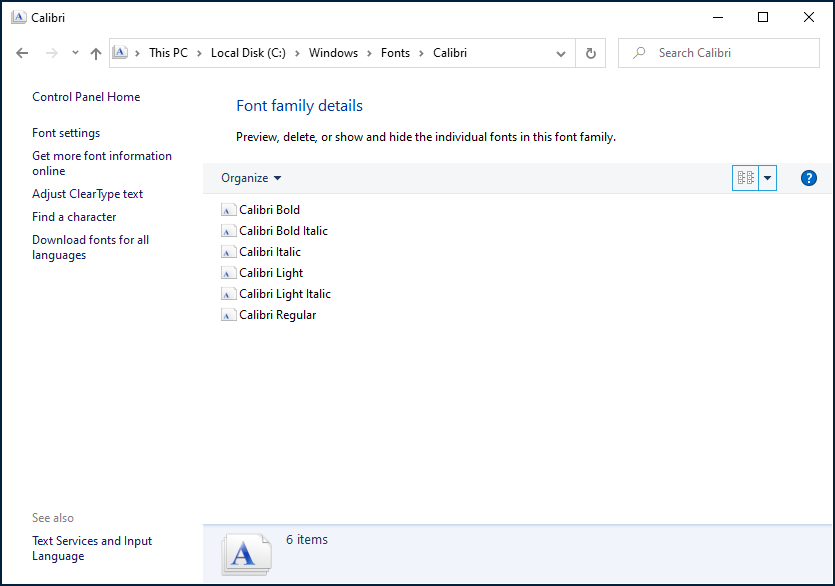
When ActiveReportsJS renders report, it translates these font properties to [font-family](https://www.w3.org/TR/css-fonts-3/#font-family-prop), [font-style](https://www.w3.org/TR/css-fonts-3/#font-style-prop), and [font-weight](https://www.w3.org/TR/css-fonts-3/#font-weight-prop) CSS style properties and relies on a browser to resolve associated font resources and extract required glyphs. The browser has two ways to access font resources - they may be installed locally on the system on which a browser is running or downloadable.
Using downloadable font resources is easy to maintain; all the modern browsers support it, and it guarantees the consistent output of textual content across all the environments. Besides, ActiveReportsJS PDF Export requires downloadable fonts because it embeds their subsets in a PDF document.
Therefore, the best way to ensure the consistent report output across all the environments is to configure ActiveReportsJS components to access downloadable font resources. This page offers a step-by-step guideline to achieve that.
First off, decide which font families you are going to use in reports. It could be standard fonts, such as Arial, Times New Roman, or Helvetica. It could be one or more web fonts. We use [Montserrat](https://fonts.google.com/specimen/Montserrat) font for the reports on the [demo-website](/activereportsjs/demos/). In any case, make sure that you have all the font face files for all the font families. ActiveReportsJS supports the following font formats:
| Font Format | File Extension | Notes |
| ----------- | -------------- | ----- |
| [WOFF 1.0 (Web Open Font Format)](https://www.w3.org/TR/WOFF/) | \*.woff | |
| [WOFF 2.0 (Web Open Font Format)](https://www.w3.org/TR/WOFF2/) | \*.woff2 | IE11 does not support it |
| [TrueType](https://docs.microsoft.com/en-us/typography/opentype/spec/) | \*.ttf | |
| [OpenType](https://docs.microsoft.com/en-us/typography/opentype/spec/) | \*.ttf, \*.otf | |
### Configure the standalone designer application
You can find the standalone report designer font configuration at the following locations.
* Windows : %AppData%\\ActiveReportsJS Designer\\fontsConfig.json
* MacOS: \~/Library/Application Support/ActiveReportsJS Designer/fontsConfig.json
* Linux: \~/.config/ActivereportsJS Designer/fontsConfig.json
Create a folder named `Fonts` and copy to it all the files for all the fonts faces that you will be using for reports
Then, open the `fontsConfig.json` file in your favorite JSON editor. This file contains descriptors for font faces that a report author will use for textual content. In the `path` property, specify the absolute path to the parent folder of the `Fonts` directory.
Replace the default items of the `descriptors` array with the descriptors of the desired font faces. Each descriptor includes the following properties:
| Property Name | Description | Notes |
| ------------- | ----------- | ----- |
| name | the font family name | For instance, "Arial" or "Times New Roman" |
| style | the font face style | "normal" or "italic" |
| weight | the font face weight | it is recommended to use numeric values from 100 to 900. Visit the [CSS specifiction](https://www.w3.org/TR/css-fonts-3/#font-weight-prop) for details. |
| source | the relative path to the font face file | For instance, "Fonts/Calibri/calibri.ttf" |
For example, to allow [Montserrat](https://fonts.google.com/specimen/Montserrat) font, you can add the following descriptors
DOC-DETAILS-TAG-OPEN
DOC-SUMMARY-TAG-OPEN
Example of the "descriptors" field value in fontsConfig.json
DOC-SUMMARY-TAG-CLOSE
```json
{
"name": "Montserrat",
"weight": "100",
"style": "normal",
"source": "Fonts/Montserrat/Montserrat-Thin.ttf"
},
{
"name": "Montserrat",
"weight": "100",
"style": "italic",
"source": "Fonts/Montserrat/Montserrat-ThinItalic.ttf"
},
{
"name": "Montserrat",
"weight": "200",
"style": "normal",
"source": "Fonts/Montserrat/Montserrat-ExtraLight.ttf"
},
{
"name": "Montserrat",
"weight": "200",
"style": "italic",
"source": "Fonts/Montserrat/Montserrat-ExtraLightItalic.ttf"
},
{
"name": "Montserrat",
"weight": "300",
"style": "normal",
"source": "Fonts/Montserrat/Montserrat-Light.ttf"
},
{
"name": "Montserrat",
"weight": "300",
"style": "italic",
"source": "Fonts/Montserrat/Montserrat-LightItalic.ttf"
},
{
"name": "Montserrat",
"weight": "400",
"style": "normal",
"source": "Fonts/Montserrat/Montserrat-Regular.ttf"
},
{
"name": "Montserrat",
"weight": "400",
"style": "italic",
"source": "Fonts/Montserrat/Montserrat-Italic.ttf"
},
{
"name": "Montserrat",
"weight": "500",
"source": "Fonts/Montserrat/Montserrat-Medium.ttf"
},
{
"name": "Montserrat",
"weight": "500",
"style": "italic",
"source": "Fonts/Montserrat/Montserrat-MediumItalic.ttf"
},
{
"name": "Montserrat",
"weight": "600",
"style": "normal",
"source": "Fonts/Montserrat/Montserrat-SemiBold.ttf"
},
{
"name": "Montserrat",
"weight": "600",
"style": "italic",
"source": "Fonts/Montserrat/Montserrat-SemiBoldItalic.ttf"
},
{
"name": "Montserrat",
"weight": "700",
"style": "normal",
"source": "Fonts/Montserrat/Montserrat-Bold.ttf"
},
{
"name": "Montserrat",
"weight": "700",
"style": "italic",
"source": "Fonts/Montserrat/Montserrat-BoldItalic.ttf"
},
{
"name": "Montserrat",
"weight": "800",
"style": "normal",
"source": "Fonts/Montserrat/Montserrat-ExtraBold.ttf"
},
{
"name": "Montserrat",
"weight": "800",
"style": "italic",
"source": "Fonts/Montserrat/Montserrat-ExtraBoldItalic.ttf"
},
{
"name": "Montserrat",
"weight": "900",
"style": "normal",
"source": "Fonts/Montserrat/Montserrat-Black.ttf"
},
{
"name": "Montserrat",
"weight": "900",
"style": "italic",
"source": "Fonts/Montserrat/Montserrat-BlackItalic.ttf"
}
```
DOC-DETAILS-TAG-CLOSE
Run the standalone designer application, add a TextBox in a report's body and make sure that you can set its Font Family property to one of the fonts you enumerated in the `fontsConfig.json` file and all the font faces are correctly displayed.
### Configure ActiveReportsJS-based application
An application that displays reports in the report viewer, exports reports to PDF, or hosts the report designer component should use the same configuration you created for the standalone designer application. The easiest way to achieve that is to copy those above `Fonts` folder and `fontsConfig.json` file to an application's static assets folder. This folder varies for different front-end frameworks. Here are some examples:
* [Using the Public Folder](https://create-react-app.dev/docs/using-the-public-folder/) for React applications created with [create-react-app](https://create-react-app.dev/)
* [Assets configuration](https://angular.io/guide/workspace-config#asset-config) for Angular applications. If the `Fonts` folder and the `fontsConfig.json` file are copied to the `assets` folder, then modify the `source` properties of font descriptors in the `fontsConfig.json` file so that they would start with `assets`, for example
```json
{
"name": "Montserrat",
"weight": "900",
"style": "italic",
"source": "assets/Fonts/Montserrat/Montserrat-BlackItalic.ttf"
}
```
* [Static Assets Handling](https://cli.vuejs.org/guide/html-and-static-assets.html#static-assets-handling) for Vue applications
Finally, the application should call the `registerFonts` method of the [FontStore](https://developer.mescius.com/activereportsjs/api/modules/Core#fontstore) object with the URL of the `fontsConfig` file.
This code should run before the application starts displaying or exporting reports. Note that the `registerFonts` method is asynchronous and returns the [Promise](https://developer.mozilla.org/en-US/docs/Web/JavaScript/Reference/Global_Objects/Promise) object. Optionally, the code that calls this method can wait until this returned Promise resolves before loading reports in the viewer component or exporting them.
Example for pure JavaScript applications:
```html
```
Example for Angular, React, and Vue applications:
```js
import { Core } from "@mescius/activereportsjs";
Core.FontStore.registerFonts("/assets/fontConfig.json") // replace the URL with the actual one
```
You could find examples of such a code in our [live demos](/activereportsjs/demos/features/viewer-integration/vue).
### Configure Report Designer Component
To ensure that the report designer component displays the registered fonts only, you can pass the [DesignerConfig](https://developer.mescius.com/activereportsjs/api/modules/ReportDesigner#designerconfig) object that has the `fontSet` property set to `registered`. You can check the [Customization page](/activereportsjs/docs/v6.1/DeveloperGuide/ActiveReportsJSDesignerComponent/customization) to learn more about the `DesignerConfig` usage.
### References
* [CSS Fonts Module Level 3](https://www.w3.org/TR/css-fonts-3/#font-synthesis-prop)
* [Google Fonts](https://fonts.google.com/)