# Customization
ActiveReportsJS, ActiveReportsJS Viewer, user interface, customization
## Content
## General
The ActiveReportsJS API allows you to fully customize the default user interface of the Report Viewer’s toolbar and sidebar. This page describes several approaches for tailoring these components to fit your specific application requirements.
## Customizing Toolbar
The ActiveReportsJS Report Viewer provides three built-in toolbar layouts, which automatically switch based on the Viewer state or device type:
| Layout | Description |
| ------ | ----------- |
| default | Default toolbar layout used in standard view |
| fullscreen | Displayed when the Report Viewer is in full-screen mode |
| mobile | Activated on narrow screens (for mobile devices) |
### Built-in Toolbar Items
The toolbar consists of primary items and groups. You can use the [getDefaultToolbarItems method](/activereportsjs/api/v6.1/interfaces/ReportViewer.Toolbar#getdefaulttoolbaritems) to retrieve the collection of items.
| Internal ID | Description |
| ----------- | ----------- |
| $navigation | **Group:** Navigation controls (first, previous, page number, next, last) |
| $history | **Group:** Navigation history (parent report, back, forward) |
| $zoom | **Group:** Zoom controls (zoom out, level, zoom in) |
| $split | Separator line |
| $refresh | Refresh report |
| $mousemode | Toggle between selection and panning modes |
| $fullscreen | Toggle full-screen mode |
| $print | Print report |
| $singlepagemode | Switch to single-page view |
| $continuousmode | Switch to continuous page view |
| $galleymode | Switch to galley (unpaginated) view |
| $theme | Theme selection drop-down |
### Granular Customization (Sub-items)
To provide more control, you can access and manipulate individual items within the `$navigation`, `$history`, and `$zoom` groups. These sub-items can be used in the [updateLayout](/activereportsjs/api/v6.1/interfaces/ReportViewer.Toolbar#updatelayout), [updateItem](/activereportsjs/api/v6.1/interfaces/ReportViewer.Toolbar#updateitem), and [removeItem](/activereportsjs/api/v6.1/interfaces/ReportViewer.Toolbar#removeItem) methods just like primary items. The [getDefaultToolbarItems method](/activereportsjs/api/v6.1/interfaces/ReportViewer.Toolbar#getdefaulttoolbaritems) returns the list of sub-items when a group name (e.g., `$navigation`) is passed as a parameter.
* **$navigation sub-items:** `$navigation-firstPage`, `$navigation-prevPage`, `$navigation-pageNumber`, `$navigation-nextPage`, `$navigation-lastPage`
* **$history sub-items:** `$history-backToParent`, `$history-goBack`, `$history-goForward`
* **$zoom sub-items:** `$zoom-zoomOut`, `$zoom-zoomLevel`, `$zoom-zoomIn`
You can use the [updateLayout method](/activereportsjs/api/v6.1/interfaces/ReportViewer.Toolbar#updatelayout) method to redefine which items are displayed in each layout mode. The following React sample demonstrates how to redefine the toolbar for all three layout modes, including the use of specific navigation sub-items to create a streamlined experience for mobile users:
```js
import { Viewer } from "@mescius/activereportsjs-react";
const ViewerApp: React.FC = () => {
const viewerRef = React.useRef < Viewer > null;
React.useEffect(() => {
const viewerInstance = viewerRef.current?.Viewer;
viewerInstance?.toolbar.updateLayout({
default: ["$zoom", "$split", "$fullscreen", "$split", "$print"],
fullscreen: ["$fullscreen", "$split", "$print"],
mobile: ["$navigation-prevPage", "$navigation-pageNumber", "$navigation-nextPage"],
});
}, []);
return (
);
};
```
You can explore complete examples for React, Angular, Vue, and pure JavaScript applications in [the online demo](https://developer.mescius.com/activereportsjs/demos/features/viewer-customization-toolbar)
### Adding, removing, and updating toolbar items
You can use [addItem method](/activereportsjs/api/v6.1/interfaces/ReportViewer.Toolbar#additem) to add new buttons or drop-downs to the toolbar items collection.
>type=info
>By default, new items are added to the end of the toolbar. You can invoke the `updateLayout` method to define the positions of the new elements.
You can remove items using the [removeItem](/activereportsjs/api/v6.1/interfaces/ReportViewer.Toolbar#removeitem) method. This method accepts any internal ID, including sub-items (e.g., `$navigation-lastPage`) and standard items like `$refresh` or `$mousemode`.
To modify the behavior or appearance of an existing item, use [updateItem](/activereportsjs/api/v6.1/interfaces/ReportViewer.Toolbar#updateitem). This works for custom items and all built-in items/sub-items.
>type=info
> If an item within a group is updated, the group will preserve those changes when used as a whole. For example, updating `$navigation-firstPage` will reflect that change even if you only add `$navigation` to your layout.
The example below updates the tooltip for a specific navigation button and the behavior of the `Print` button:
```js
import { Viewer } from "@mescius/activereportsjs-react";
const ViewerApp: React.FC = () => {
const viewerRef = React.useRef < Viewer > null;
React.useEffect(() => {
const viewerInstance = viewerRef.current?.Viewer;
viewerInstance?.toolbar.updateItem("$navigation-firstPage", {
title: "Open Page 1️⃣"
});
viewerInstance?.toolbar.updateItem("$print", {
action: function () {
ga("send", {
hitType: "event",
eventCategory: "action",
eventAction: "print",
eventLabel: "report",
});
viewerInstance.print();
},
});
}, []);
return (
);
};
```
## Configuring the Panels Layout
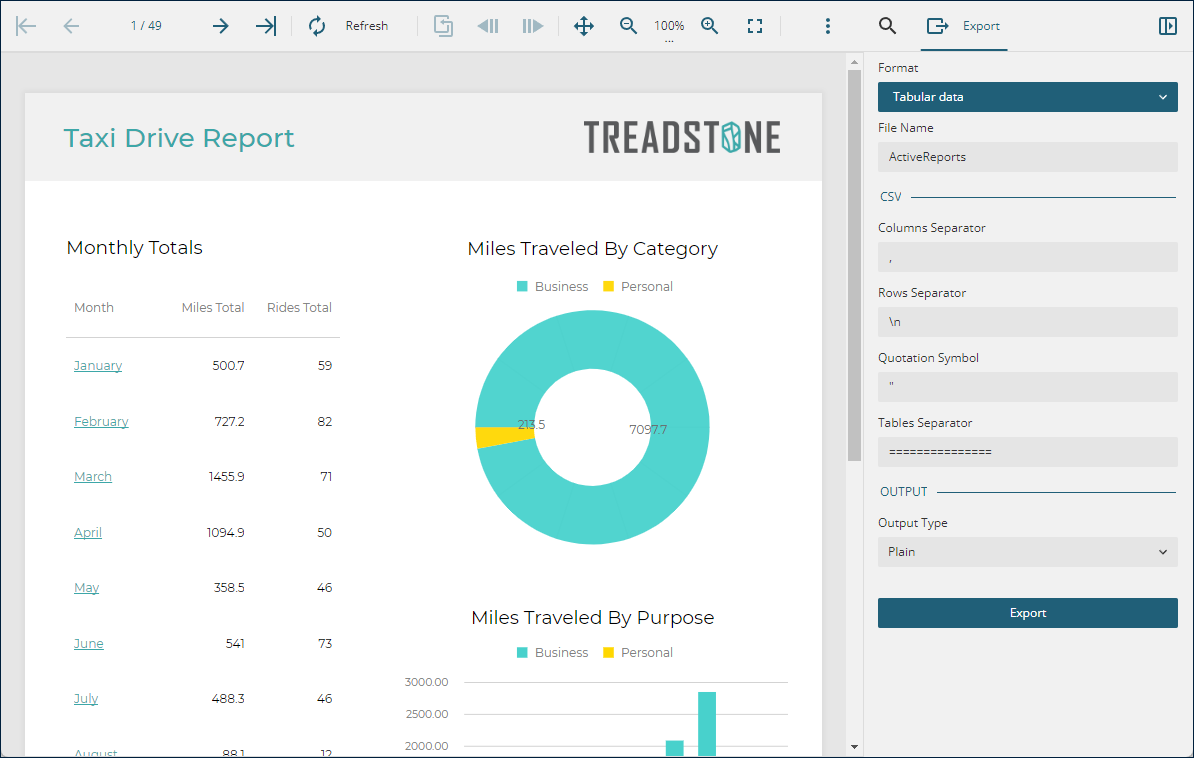
The **`PanelsLayout`** property — available in the [React](/activereportsjs/docs/v6.1/DeveloperGuide/ActiveReportsJSViewer/Integration/React-Component), [Angular](/activereportsjs/docs/v6.1/DeveloperGuide/ActiveReportsJSViewer/Integration/Angular-Component), and [Vue](/activereportsjs/docs/v6.1/DeveloperGuide/ActiveReportsJSViewer/Integration/Vue-Component) wrappers, as well as in the `options` object passed to the [Report Viewer constructor](/activereportsjs/api/v6.1/classes/ReportViewer.Viewer#constructor), controls the position of the **Search**, **Export**, **Document Map**, and **Parameters** panels.
By default, these panels and their corresponding toolbar buttons appear on the **left** side of the Viewer interface.To move them to the **right** side, set the `PanelsLayout` property to `"sidebar"`.This configuration moves both the panels and their open buttons to the right:
### Configuring the Parameters Panel Location
You can control the position of the **Parameters Panel** using the `ParameterPanelLocation` property.This property is available in the [React](/activereportsjs/docs/v6.1/DeveloperGuide/ActiveReportsJSViewer/Integration/React-Component), [Angular](/activereportsjs/docs/v6.1/DeveloperGuide/ActiveReportsJSViewer/Integration/Angular-Component), and [Vue](/activereportsjs/docs/v6.1/DeveloperGuide/ActiveReportsJSViewer/Integration/Vue-Component) wrappers.In a pure JavaScript application, you can set it via the `options` object passed to the [Viewer constructor](/activereportsjs/api/v6.1/classes/ReportViewer.Viewer#constructor).
The `ParameterPanelLocation` property accepts the following values:
* **`auto`** – If the report uses a [Custom Parameters View](/activereportsjs/docs/v6.1/ReportAuthorGuide/Report-Parameters/parameters-view), the Parameters Panel appears at the **top** of the Viewer. Otherwise, it appears on the **left** side.
* **`default`** – The Parameters Panel is displayed on either the **left** or **right** side of the Viewer, depending on the `PanelsLayout` setting described above.
* **`top`** – The Parameters Panel is fixed at the **top** of the Viewer.
* **`bottom`** – The Parameters Panel is fixed at the **bottom** of the Viewer.
## Replacing the Toolbar and Sidebar
You can use the `toolbarVisible` and `sidebarVisible` properties of the **Viewer** component to hide the default toolbar and sidebar.These properties are available in the [React](/activereportsjs/docs/v6.1/DeveloperGuide/ActiveReportsJSViewer/Integration/React-Component), [Angular](/activereportsjs/docs/v6.1/DeveloperGuide/ActiveReportsJSViewer/Integration/Angular-Component), and [Vue](/activereportsjs/docs/v6.1/DeveloperGuide/ActiveReportsJSViewer/Integration/Vue-Component) wrappers.
This approach is useful when you want to replace the built-in Viewer interface with a **custom UI** that calls Viewer functions through its [public API](/activereportsjs/api/v6.1/classes/ReportViewer.Viewer).
## Related topics
* [Live demo](https://developer.mescius.com/activereportsjs/demos/features/viewer-customization-toolbar)
* [User interface](/activereportsjs/docs/v6.1/DeveloperGuide/ActiveReportsJSViewer/Interface-Elements)
* [Angular component](/activereportsjs/docs/v6.1/DeveloperGuide/ActiveReportsJSViewer/Integration/Angular-Component)
* [React component](/activereportsjs/docs/v6.1/DeveloperGuide/ActiveReportsJSViewer/Integration/React-Component)
* [Vue component](/activereportsjs/docs/v6.1/DeveloperGuide/ActiveReportsJSViewer/Integration/Vue-Component)
* [Pure JavaScript integration](/activereportsjs/docs/v6.1/DeveloperGuide/ActiveReportsJSViewer/Integration/VanillaJS)